Sorry, but there's really nothing to see here right now. Our server is in maintenance mode – and our
little bot is trying to sort the error messages with its last bit of energy.
Whether it was a data leak, a power outage in the cluster, or just a grumpy bit – we don't know yet.
But what we do know is:
The data drama escalated into a server meltdown. But don't worry: We're on it.
What now?
Everything is surely running smoothly over at our colleagues from inside
digital – why not stop by!
Or you could pass the time by visiting our social media channels – for example Instagram, YouTube or TikTok. At least there are no
server problems there – promised.
Thanks for your patience. Our bot is already rebooting at full speed. 🔧
How-tosTabletHow to fix the Speech Services Waiting for network connection notification
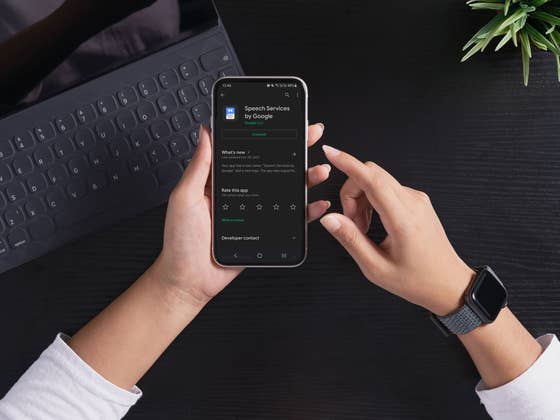
Is your phone showing a notification that cannot be closed about “Downloading English (US)” (or another language) update for Speech Services by Google, which is “Waiting for network connection” even though your phone is connected to either Wi-Fi or mobile data? Learn how to fix this stuck update and remove the notification from your Android phone.
Related: Google Play Store not working? Fixes and solutions
“Waiting for network connection” even when connected
The notification is related to the Speech Services by Google (Play Store) which is used for text-to-speech features on the mobile OS in apps like Google Maps, voice calls, accessibility features, and other apps.
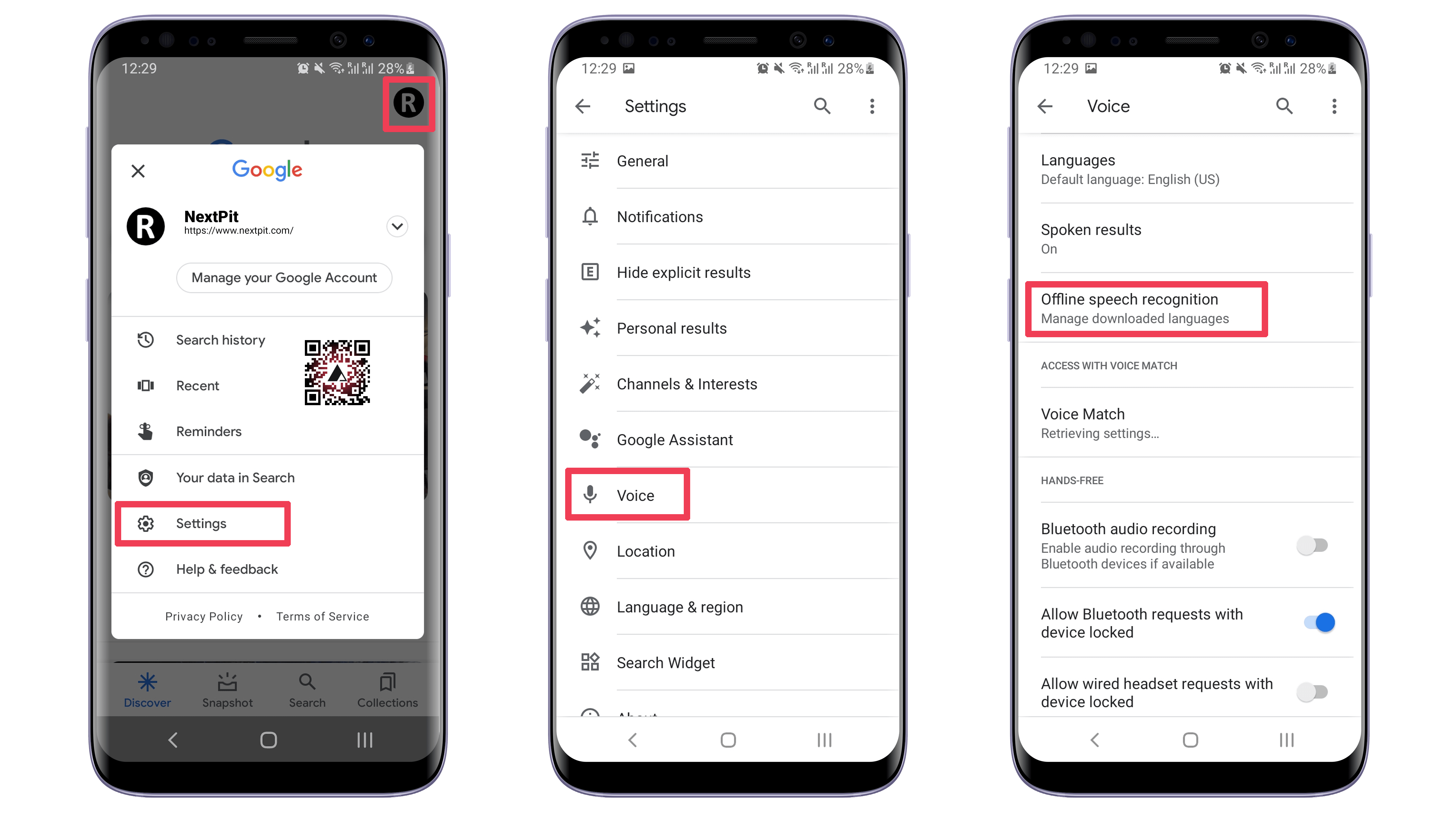
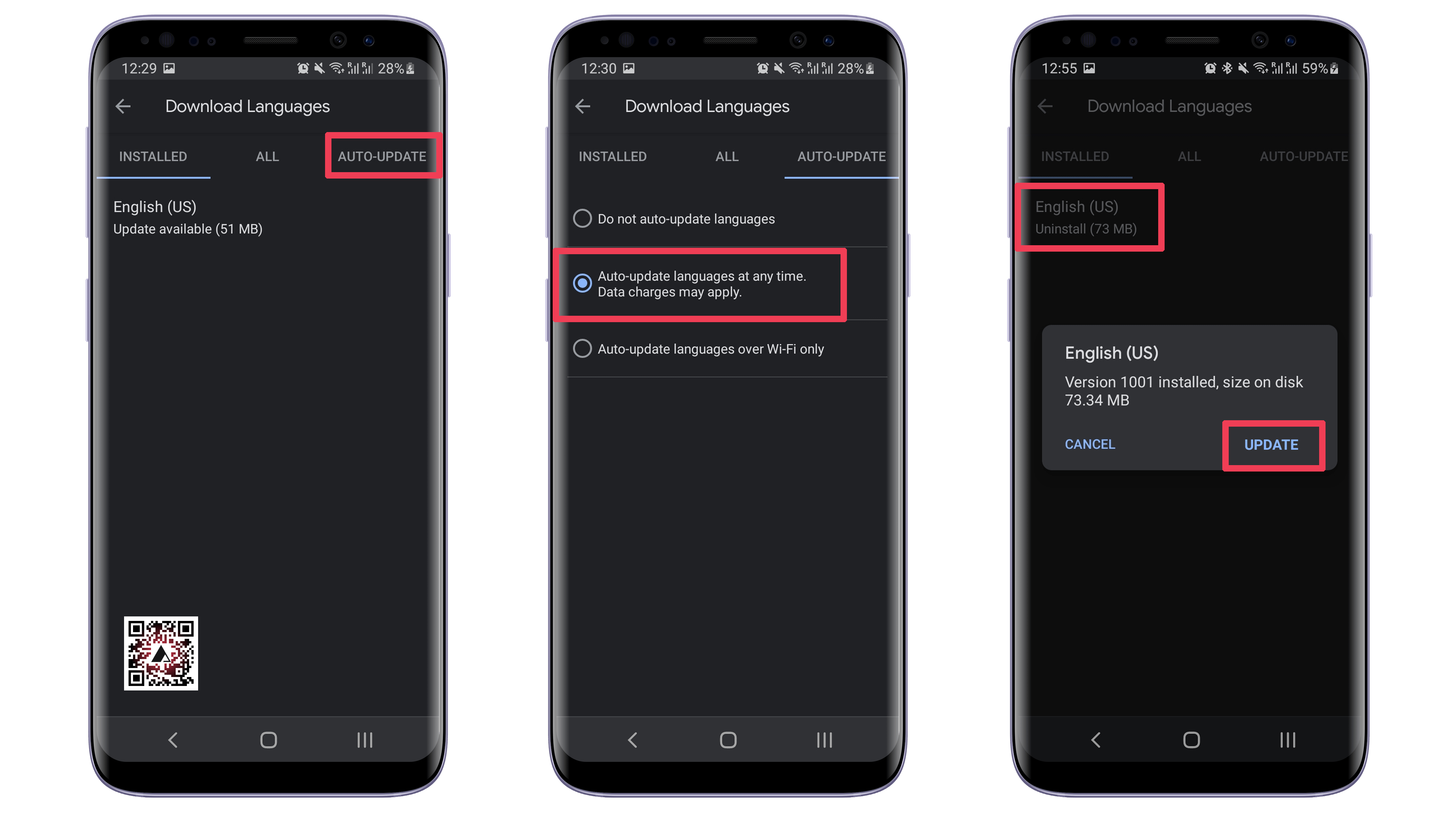
To fix the problem, you need to go through a few steps in Google’s app:
Restart your phone, and the notification should not come back. Important: remember to repeat the steps to select the Auto-update languages over Wi-Fi only option to avoid surprises with data charges on your phone’s bill.
Depending on your phone’s settings and system version, the same procedure can be done following one of these paths:
Settings > Google > Settings for Google Apps > Search, Assistant & Voice > Voice > Offline Speech Recognition
Another option is to simply uninstall and reinstall the Speech Services by Google app from the Play Store. Remember that any settings related to text-to-speech services may be reset in the process.
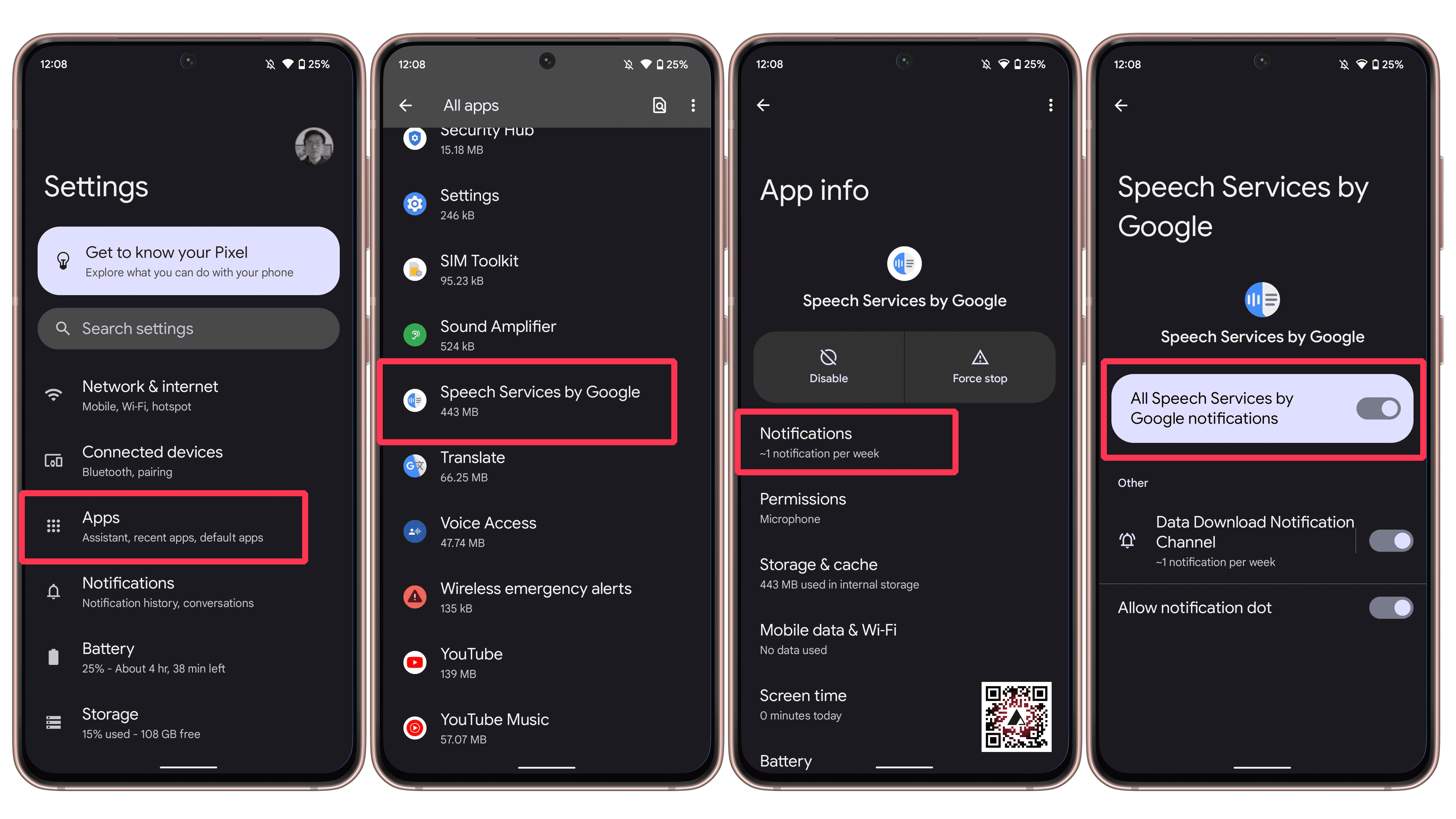
One solution suggested in the comments is to simply disable the app’s notifications:
Open the Settings app.
Go to the Apps & notifications (or simply Apps) option.
Lastly, you can also disable or force stop the app from running. But that drastic measure also disables text-to-speech features in many popular apps, such as navigation, accessibility, and more.
What are the Speech Services by Google?
The Services triggering the notification are responsible for text-to-speech (TTS) and speech-to-text (STT) features on Android phones. They are used by many different apps for voice recognition to screen reading features, such as:
Voice searches on navigation apps, like Google Maps.
Phone call transcriptions.
Accessibility features for controlling the phone using voice commands.
Dictation apps.
Live translations.
To activate the features, you can go to Settings > System > Languages & input > Text-to-speech output.
Did you experience this strange notification on your phone? Which solution worked for you? Share your tips and experiences in the comments below!
Updated on March 7th: Added step-by-step instructions on how to brute-force disable notifications for the Speech Services by Google app.
We mark partner links with this symbol. If you click on one of these links or buttons–or make a purchase through them–we may receive a small commission from the retailer. This doesn’t affect the price you pay, but it helps us keep nextpit free for everyone. Thanks for your support!
Seit 2008 schreibe ich für verschiedene Websites in Brasilien, Spanien, Dänemark und Deutschland über Technologie und habe mich auf mobile Ökosysteme spezialisiert. Dabei dreht sich bei mir alles um die interessantesten Modelle, ihre Komponenten und natürlich die ganze Welt der Apps. Dabei lege ich nicht nur Wert auf Leistung und Spezifikationen, sondern auch auf Aspekte wie Reparaturfähigkeit, Haltbarkeit und Herstellersupport.
didn’t work for me, I’ve now switched off auto update for now
Log in to Reply
Yeah.. didn’t work. It came back
Log in to Reply
I’ve done everything and then some, it’s happening on both of my phones, Android 10 and Android 11, luckily, I can open settings,start typing"speech services by Google"and the app shows up,tap on it,tap notifications,tap notification download channel and turn off, or tap "all notifications"off,that will do it for sure
Log in to Reply
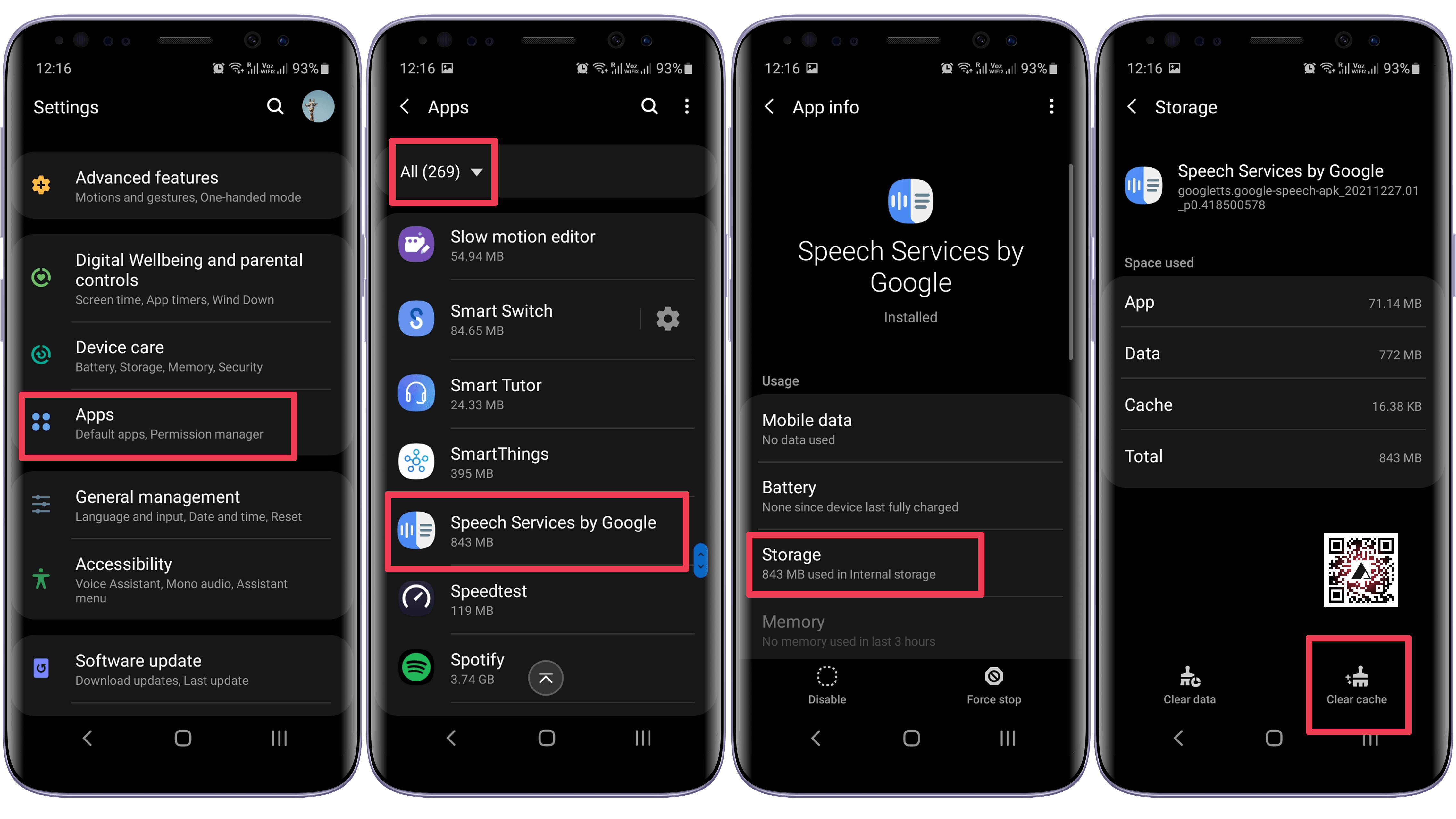
Settings>apps>speech services by Google>cache>clear cache it works for me.
Log in to Reply
Thanks!
Log in to Reply
Uninstall then reinstall worked for me ? update, it’s started again ?
Log in to Reply
Thank GOD for this article!! My previously fabulous Android started doing this today and I tried everything but couldn’t find any way to stop it. Following all these steps and clearing the cache, did the trick! THANK YOU!!
Log in to Reply
Have you tried **clearing the cache** for the "Speech Services by Google" app?
Log in to Reply
We have added instructions for clearing the app cache, which seemed to work with other readers.
Settings > Apps & notifications > See all apps > Speech Services by Google > Storage & cache > Clear Cache.
Log in to Reply
Im in the UK and this worked for me, go to Google in settings, select speech sevices, select Auto Update, there was English UK, which only gave the option to uninstall or English US, which showed update available, so I selected that and confirmed the update and then I selected Cancel. Its gone and I hope it does not come back. Hope this might help someone else sho had this annoying message.
Log in to Reply
Thanks for your help!
Log in to Reply
Just charge the phone while connected to a wifi network for 10 minutes.
Log in to Reply
Thank you! I cleared the cache, and then went into the Speech app (prepared to uninstall/reinstall) but there was a "force stop" option that worked at that point.
Log in to Reply
I uninstalled and reinstalled yesterday. Worked immediately. But it’s back today, I turned off the notification. I don’t know if this malfunction is eventually going to make things stop working properly. I’m hoping it’ll be fixed in an Android update or something. I tried doing the first fix here. Where you’re showing it saying "update" mine says "uninstall". Pretty sure uninstalling my language will cause problems LOL Tried clearing the cache. But my "clear cache" option is grayed out. Only "clear data" is available, again, likely to cause problems. So none of the solutions really worked for me, except hiding the notification. Which really isn’t a fix at all ?
Log in to Reply
Success! ? I had to delete English (UK), and delete English (US). Reinstall English (US) and reinstall English (UK) whilst charger was attached and "Auto-Update languages over Wi-Fi only" was selected from the AUTO-UPDATE setting. I tried this as last resort on Android 8.1.0 (I tried a couple of other ways but the download got stuck on maybe 15/20 occasions). I think its important your charge should be at 99% and connected to the power lead Your mileage may differ on different versions.
Log in to Reply
THANK YOU! I just "retired" my Samsung A71 and that one drove me nuts, so I’ve made the settings change on the new pixel 6 pro. 🙂
Log in to Reply
I went to play store, found google speech services, uninstalled. As soon as that was done, update option popped up. Hit that, a couple seconds later, it was done. Haven’t had a problem since then.
Log in to Reply
IF you can uninstall original "Speech Services by Google" (rooted devices rather) then there is a real solution. Install GoogleTTS.apk extracted from MindTheGapps. Works as expected, you can download whichever voices you need for offline use. Remember to install GoogleTTS.apk suitable for your Android version (choose the right MindTheGapps zip).
Log in to Reply
I went through the first steps 1-8 but the Update option was not available. Only Uninstall and Cancel showed. I cancelled out and then I cleared cache steps 1-6 and restarted. Nothing happened. Then I went back to steps 1-8, and this time I hit Uninstall. The existing version quickly uninstalled. Then the button changed immediately to Install. Hit that, and it installed. I don’t know if this fixed the problem for the next update, but at least the stuck message is gone for now.
Log in to Reply
So I’m getting a update that is pending from the app and every time I try and cancel it the app store crashes and the only way to make it work again is to close the app and open it again but the download is still pending, because of this I can’t update or install any other important apps, I don’t even use the app or it’s feature on my phone.






didn’t work for me, I’ve now switched off auto update for now
Yeah.. didn’t work. It came back
I’ve done everything and then some, it’s happening on both of my phones, Android 10 and Android 11, luckily, I can open settings,start typing"speech services by Google"and the app shows up,tap on it,tap notifications,tap notification download channel and turn off, or tap "all notifications"off,that will do it for sure
Settings>apps>speech services by Google>cache>clear cache it works for me.
Thanks!
Uninstall then reinstall worked for me ? update, it’s started again ?
Thank GOD for this article!! My previously fabulous Android started doing this today and I tried everything but couldn’t find any way to stop it. Following all these steps and clearing the cache, did the trick! THANK YOU!!
Have you tried **clearing the cache** for the "Speech Services by Google" app?
We have added instructions for clearing the app cache, which seemed to work with other readers.
Settings > Apps & notifications > See all apps > Speech Services by Google > Storage & cache > Clear Cache.
Im in the UK and this worked for me, go to Google in settings, select speech sevices, select Auto Update, there was English UK, which only gave the option to uninstall or English US, which showed update available, so I selected that and confirmed the update and then I selected Cancel. Its gone and I hope it does not come back. Hope this might help someone else sho had this annoying message.
Thanks for your help!
Just charge the phone while connected to a wifi network for 10 minutes.
Thank you! I cleared the cache, and then went into the Speech app (prepared to uninstall/reinstall) but there was a "force stop" option that worked at that point.
I uninstalled and reinstalled yesterday. Worked immediately. But it’s back today, I turned off the notification. I don’t know if this malfunction is eventually going to make things stop working properly. I’m hoping it’ll be fixed in an Android update or something. I tried doing the first fix here. Where you’re showing it saying "update" mine says "uninstall". Pretty sure uninstalling my language will cause problems LOL Tried clearing the cache. But my "clear cache" option is grayed out. Only "clear data" is available, again, likely to cause problems. So none of the solutions really worked for me, except hiding the notification. Which really isn’t a fix at all ?
Success! ? I had to delete English (UK), and delete English (US). Reinstall English (US) and reinstall English (UK) whilst charger was attached and "Auto-Update languages over Wi-Fi only" was selected from the AUTO-UPDATE setting. I tried this as last resort on Android 8.1.0 (I tried a couple of other ways but the download got stuck on maybe 15/20 occasions). I think its important your charge should be at 99% and connected to the power lead
Your mileage may differ on different versions.
THANK YOU! I just "retired" my Samsung A71 and that one drove me nuts, so I’ve made the settings change on the new pixel 6 pro. 🙂
I went to play store, found google speech services, uninstalled. As soon as that was done, update option popped up. Hit that, a couple seconds later, it was done. Haven’t had a problem since then.
IF you can uninstall original "Speech Services by Google" (rooted devices rather) then there is a real solution. Install GoogleTTS.apk extracted from MindTheGapps. Works as expected, you can download whichever voices you need for offline use. Remember to install GoogleTTS.apk suitable for your Android version (choose the right MindTheGapps zip).
I went through the first steps 1-8 but the Update option was not available. Only Uninstall and Cancel showed. I cancelled out and then I cleared cache steps 1-6 and restarted. Nothing happened. Then I went back to steps 1-8, and this time I hit Uninstall. The existing version quickly uninstalled. Then the button changed immediately to Install. Hit that, and it installed. I don’t know if this fixed the problem for the next update, but at least the stuck message is gone for now.
So I’m getting a update that is pending from the app and every time I try and cancel it the app store crashes and the only way to make it work again is to close the app and open it again but the download is still pending, because of this I can’t update or install any other important apps, I don’t even use the app or it’s feature on my phone.