Sorry, but there's really nothing to see here right now. Our server is in maintenance mode – and our
little bot is trying to sort the error messages with its last bit of energy.
Whether it was a data leak, a power outage in the cluster, or just a grumpy bit – we don't know yet.
But what we do know is:
The data drama escalated into a server meltdown. But don't worry: We're on it.
What now?
Everything is surely running smoothly over at our colleagues from inside
digital – why not stop by!
Or you could pass the time by visiting our social media channels – for example Instagram, YouTube or TikTok. At least there are no
server problems there – promised.
Thanks for your patience. Our bot is already rebooting at full speed. 🔧
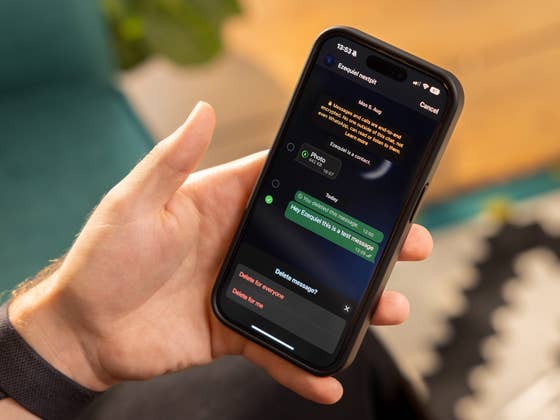
There are two ways to delete messages in WhatsApp. You can delete photos, videos, voice messages, and text from your smartphone or the other person’s handset. In this guide, nextpit shows you where you can locate the function and how to delete messages in WhatsApp for yourself or for everyone.
If you accidentally sent a message or shared an embarrassing picture via WhatsApp, don’t panic! There are ways to delete the message/photo in just a few steps.
Deleting WhatsApp messages on your smartphone
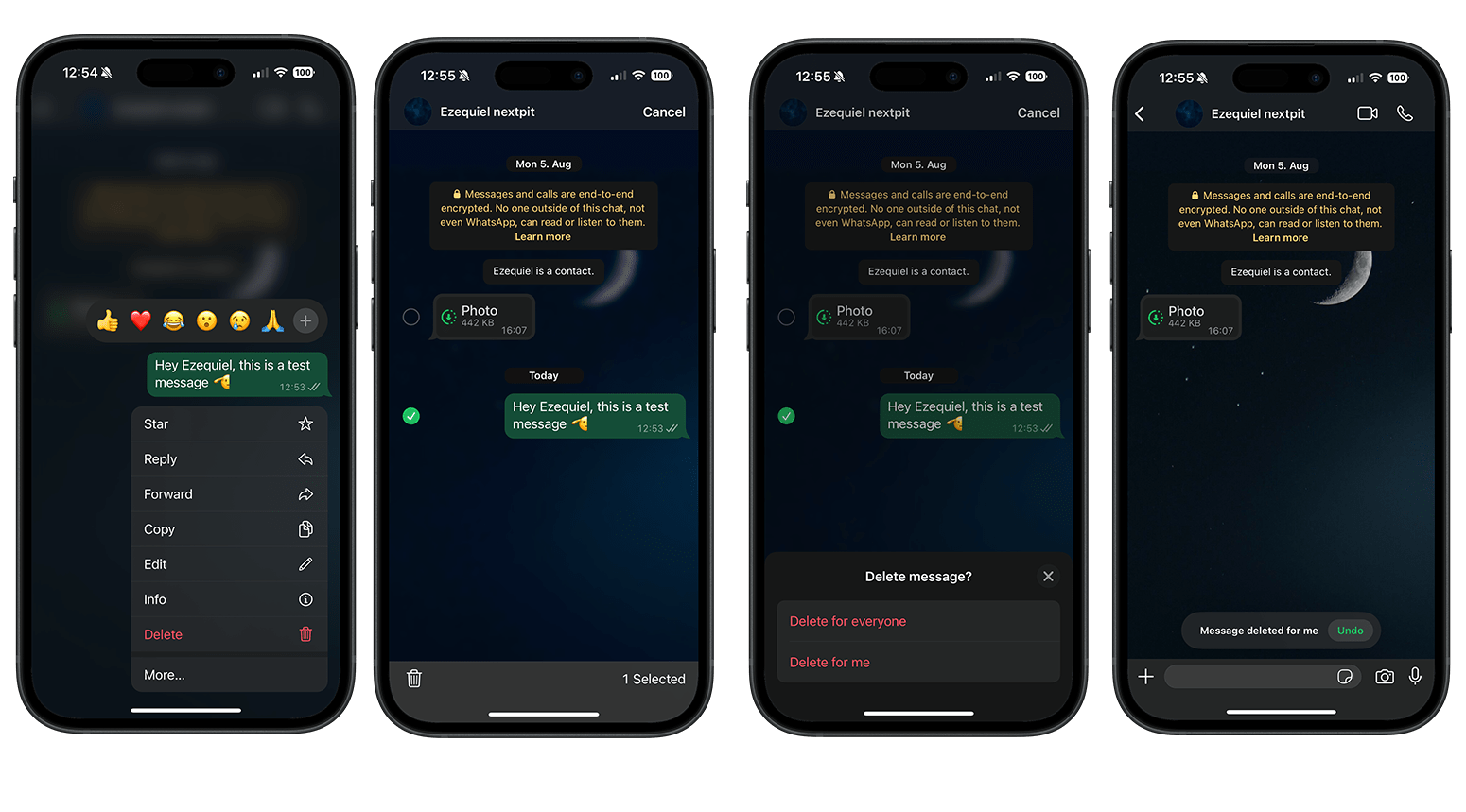
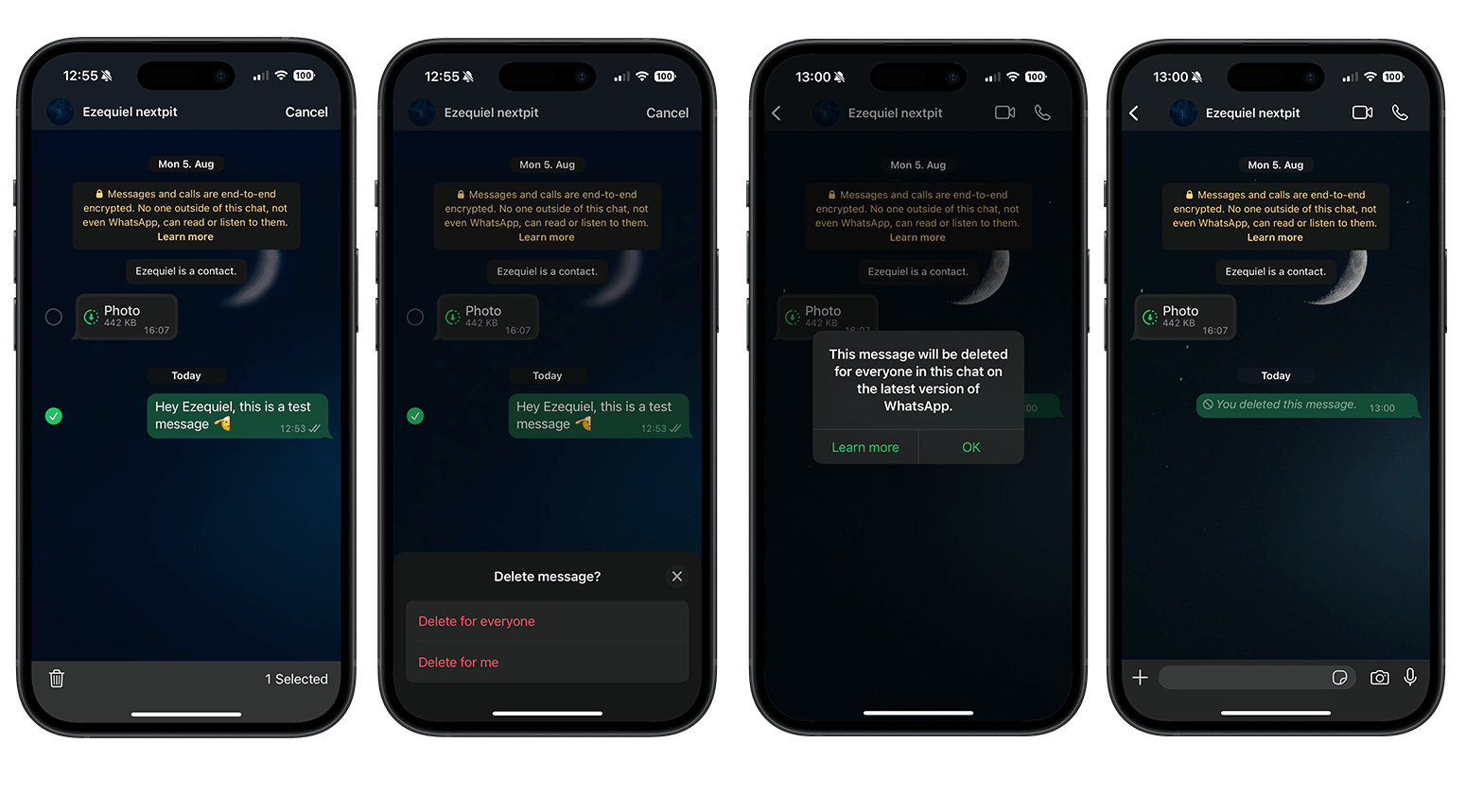
The first way to remove a WhatsApp message sent by accident is to delete the message in the chat thread. This is how you do so:
Long press the message you want to delete. It will be highlighted.
You and everyone else in the chat will be informed that the message has been deleted as long as they have the latest WhatsApp version. You will then see the note “This message has been deleted” in the chat. However, bear in mind that WhatsApp will inform the other person that the message has been deleted. Alternatively, we recommend you enable self-deleting or one-time view messages in WhatsApp to be on the safe side.
Did these tips help you? Please let us know in the comments.
We mark partner links with this symbol. If you click on one of these links or buttons–or make a purchase through them–we may receive a small commission from the retailer. This doesn’t affect the price you pay, but it helps us keep nextpit free for everyone. Thanks for your support!




Great!! Very helpful. Thanks !!