Sorry, but there's really nothing to see here right now. Our server is in maintenance mode – and our
little bot is trying to sort the error messages with its last bit of energy.
Whether it was a data leak, a power outage in the cluster, or just a grumpy bit – we don't know yet.
But what we do know is:
The data drama escalated into a server meltdown. But don't worry: We're on it.
What now?
Everything is surely running smoothly over at our colleagues from inside
digital – why not stop by!
Or you could pass the time by visiting our social media channels – for example Instagram, YouTube or TikTok. At least there are no
server problems there – promised.
Thanks for your patience. Our bot is already rebooting at full speed. 🔧
How-tosTabletHow to add a notification LED to any OLED Android smartphone
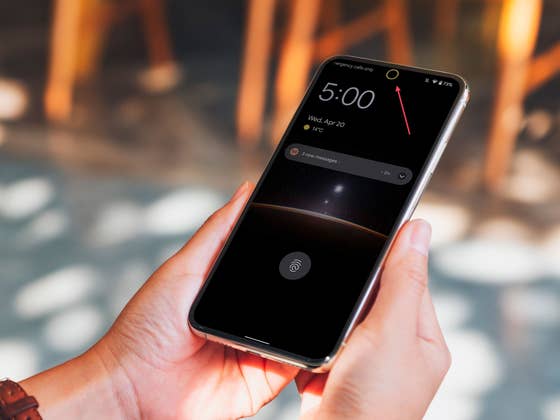
Notification LEDs are a silent casualty in the quest for borderless phones, with fewer and fewer phones each year packing the feature. An app developer created a creative way to restore the functionality, using the low-power features of OLED displays, learn how to bring back the notification LED to almost any Android phone.
We already wrote on NextPit about the Holey Light app, which was designed for the Galaxy S10 generation and hasn’t received updates in more than a year. Enter developer Jawomo and their Notification Light app.
Functionality-wise, the Notification Light app (or aodNotify) is very similar to Holey Light, but it offers more customization options, and presets for many Samsung, OnePlus, and Google Pixel phones, but other models can be adapted by adjusting the size and position of the notification are in relation to the selfie camera – even with the dual cameras used by the Moto G100.
How to add a notification light to your phone
First of all, install the app version appropriate to your phone:
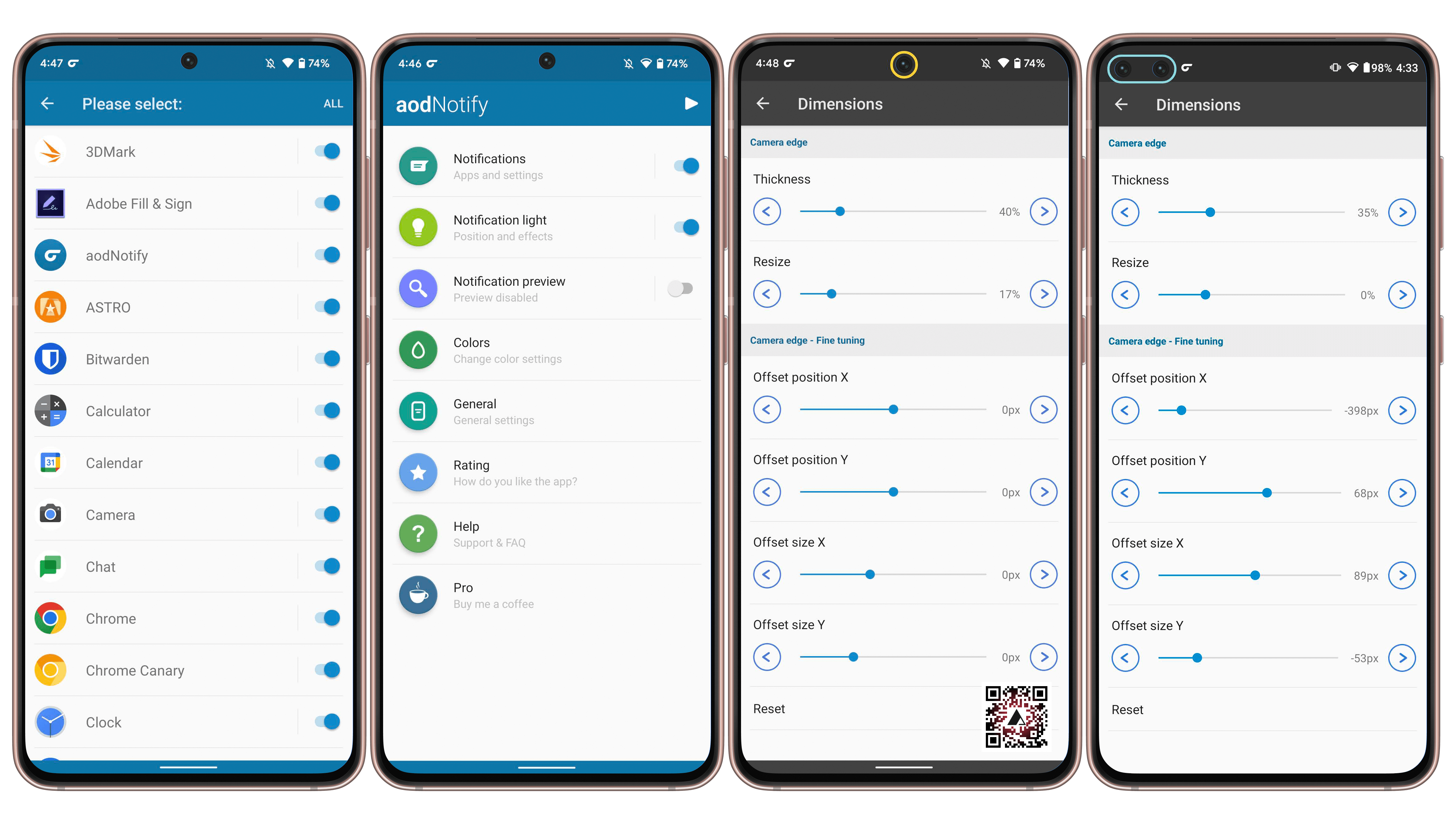
When first running the app, you will be asked to set a lot of permissions, which are required for reading notifications, keeping the screen active, and more. The app will also ask you which applications or games can activate the AOD light.
If the default position does not match your phone’s selfie camera, you can customize the size and placement of the notification ring by going to Notification light > Dimensions, in the same menu you can make the ring more visible by making it thicker.
According to the developer, the feature can consume up to 3% of the battery per hour, so we recommend setting the light to only be active for a limited time (under the Notification Light settings).
Other customization options, unfortunately, require an in-app purchase, including settings for the interval mode (which can also reduce battery consumption), display effects, and the useful color customization for different apps.
It is important to note that although we tested the app on a non-OLED-equipped phone — the Moto G100 in the screenshot above — it is not advisable to use the app on LCD/LED phones, since it will keep the whole screen semi-permanently active, leading to very short battery life.
Do you miss the notification LED feature on an older phone? Does your current smartphone still offer the feature? Are you still using the Holey Light suggested years ago? Let us know in the comments below!
We mark partner links with this symbol. If you click on one of these links or buttons–or make a purchase through them–we may receive a small commission from the retailer. This doesn’t affect the price you pay, but it helps us keep nextpit free for everyone. Thanks for your support!
Seit 2008 schreibe ich für verschiedene Websites in Brasilien, Spanien, Dänemark und Deutschland über Technologie und habe mich auf mobile Ökosysteme spezialisiert. Dabei dreht sich bei mir alles um die interessantesten Modelle, ihre Komponenten und natürlich die ganze Welt der Apps. Dabei lege ich nicht nur Wert auf Leistung und Spezifikationen, sondern auch auf Aspekte wie Reparaturfähigkeit, Haltbarkeit und Herstellersupport.






0 comments