Sorry, but there's really nothing to see here right now. Our server is in maintenance mode – and our
little bot is trying to sort the error messages with its last bit of energy.
Whether it was a data leak, a power outage in the cluster, or just a grumpy bit – we don't know yet.
But what we do know is:
The data drama escalated into a server meltdown. But don't worry: We're on it.
What now?
Everything is surely running smoothly over at our colleagues from inside
digital – why not stop by!
Or you could pass the time by visiting our social media channels – for example Instagram, YouTube or TikTok. At least there are no
server problems there – promised.
Thanks for your patience. Our bot is already rebooting at full speed. 🔧
How-tosTabletLet it buzz! How to create custom vibrations for your iPhone
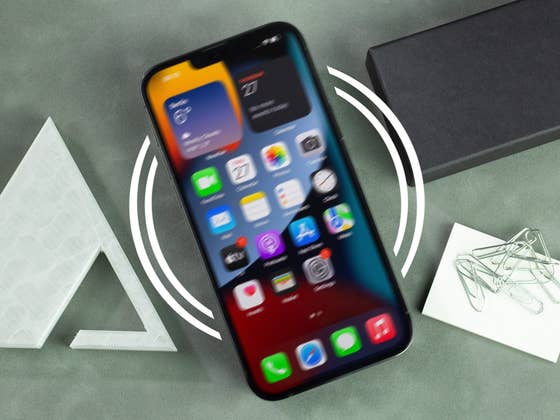
With your own vibration patterns, you can instantly recognize callers and certain incoming notifications on your iPhone. To do this, tap the screen of the smartphone like a musical instrument and lose yourself in funky rhythms. In today’s coffee break, I’ll briefly show you how it’s done!
Apple’s operating systems, iOS and iPadOS, offer many possibilities to recognize callers and certain notifications. Of course, having each contact assigned to its own ringtone and personalized caller pictures is not new anymore. If you’re like me and haven’t even flipped the mute switch on your iPhone after unboxing it, here’s another trick that might pique your interest.
You can also select different vibration patterns in the iPhone settings. There is already a pre-selection of seven patterns and synchronization with your ringtone. With the following steps, you can create your own vibration patterns.
Create your own vibration patterns on the iPhone – this is how it works!
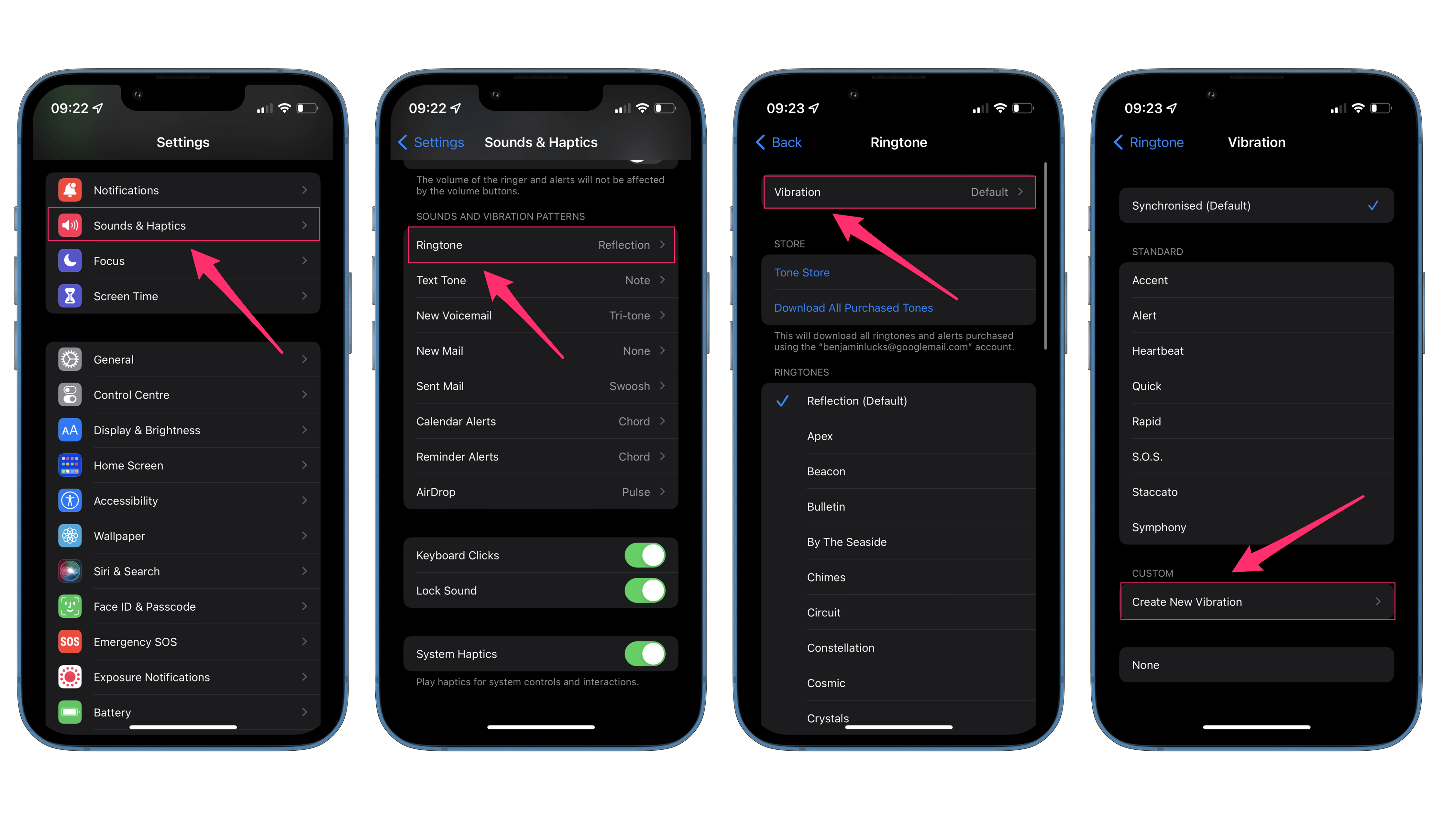
First go to settings and select “Sounds and Haptics”. There, you can select which ringtone you want to edit. At the top there is the option for “Vibration”, which you have to select. Further down, you will now see “Create New Vibration” from where you type in the new vibration name.
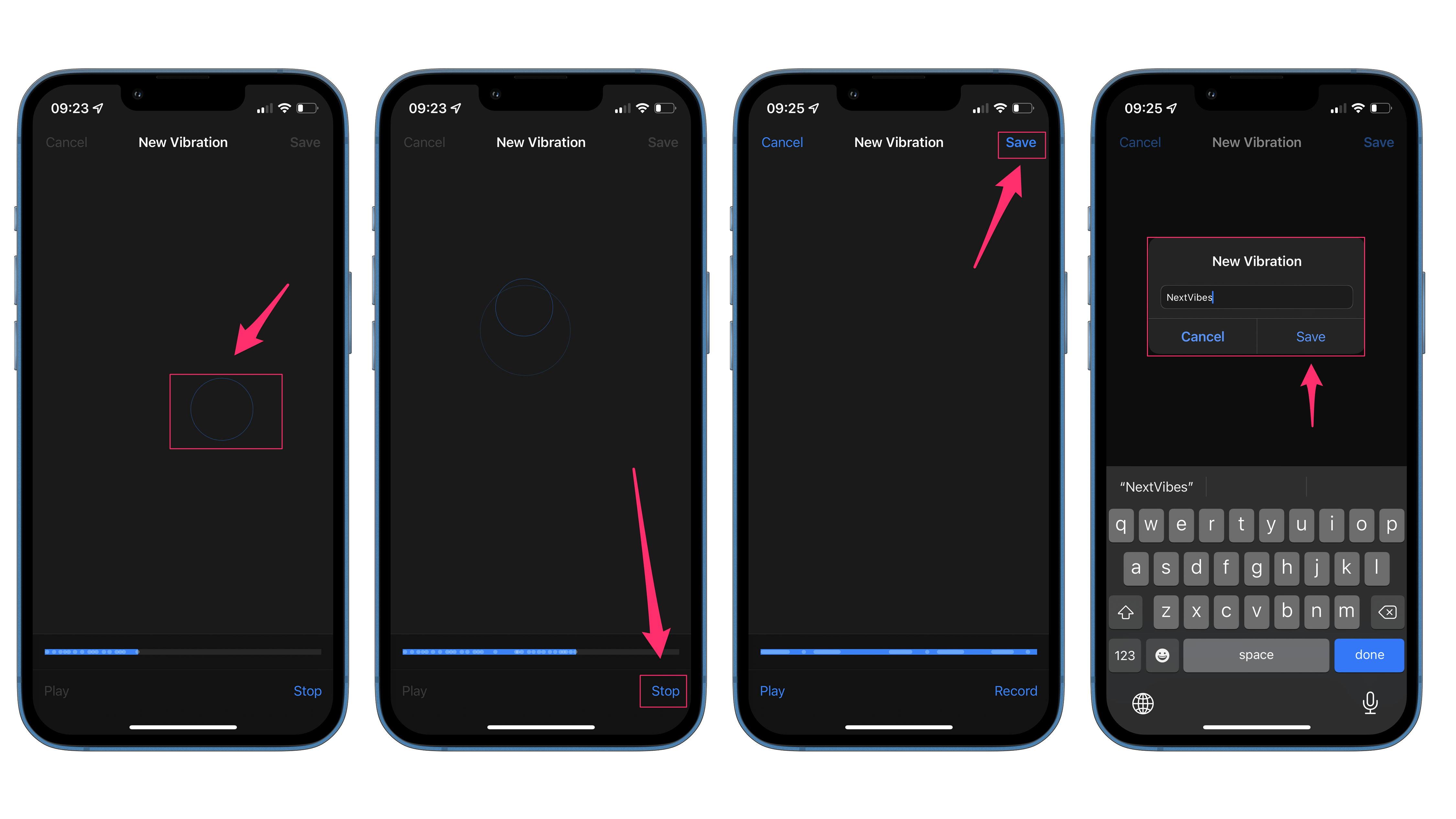
The principle: Whenever you tap on the screen, your phone will vibrate. The vibrations are stored for eight seconds and then looped at the selected ringtone. With a little bit of practice, you’ll quickly find the right pattern.
Go to Settings.
Selects Sound and Haptics.
Select the ringtone or notification you want to use.
Create a new vibration with the editor – Note: you can overwrite failed attempts with Record again.
Now you have created your own vibration pattern! An additional tip: In your contact list, you can select callers and set personalized ringtones via “Edit”. This will take you to the same menu you see above, so you can create an individual vibration pattern for each contact in your iPhone.
This trick even lets you know who is calling you even when your phone is vibrating in your pocket at the museum. So who needs an Apple Watch?
How do you rate this tutorial? Did you already know of this option?
We mark partner links with this symbol. If you click on one of these links or buttons–or make a purchase through them–we may receive a small commission from the retailer. This doesn’t affect the price you pay, but it helps us keep nextpit free for everyone. Thanks for your support!