
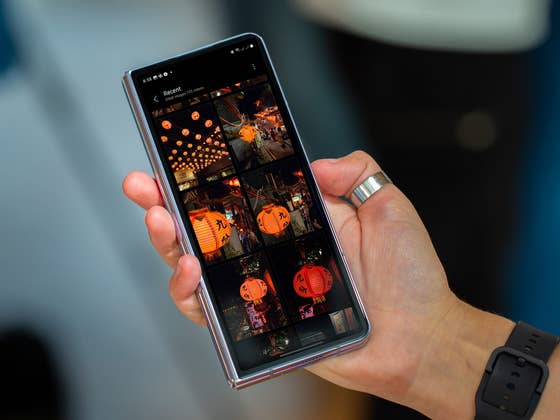
What is HEIC, and Which Devices Are Compatible with It?
HEIC stands for High-Efficiency Image Coding, based on the High-Efficiency Image Format (HEIF) standard. Although Apple didn’t develop HEIC, the company popularized it by making it the default image format on iPhones.
HEIC offers several advantages over JPG, including:
- Better storage efficiency: HEIC files take up less space while maintaining the same image quality.
- Higher image quality: Compared to JPG, HEIC provides superior quality for images of the same file size.
- Advanced features: HEIC supports depth maps, transparency, and the ability to store multiple images in one file.
However, compatibility can be a significant drawback. While newer Android devices running recent versions of the Android OS, such as Samsung Galaxy and Google Pixel models, support HEIC, older devices may not. This limitation can render HEIC images unviewable, posing a common challenge for some members of the nextpit community.
If your Android device doesn’t support HEIC, you can convert these files to JPG using third-party apps, online tools, or a PC. Here’s a brief step-by-step guide.
How to Convert HEIC to JPG on Android Using Third-Party Apps
Several apps can convert HEIC images to JPG. One popular option is HEIC Converter, a free app available on the Play Store. Follow these steps to convert your HEIC images:
- Download HEIC Converter from the Play Store.
- Launch the app.
- Tap Open File.
- Browse and select the HEIC images you want to convert.
- Set the target format (JPG).
- Optionally, adjust the resolution or size and remove EXIF data.
- Tap Convert.
- Once done, tap Save to store the image on your device.
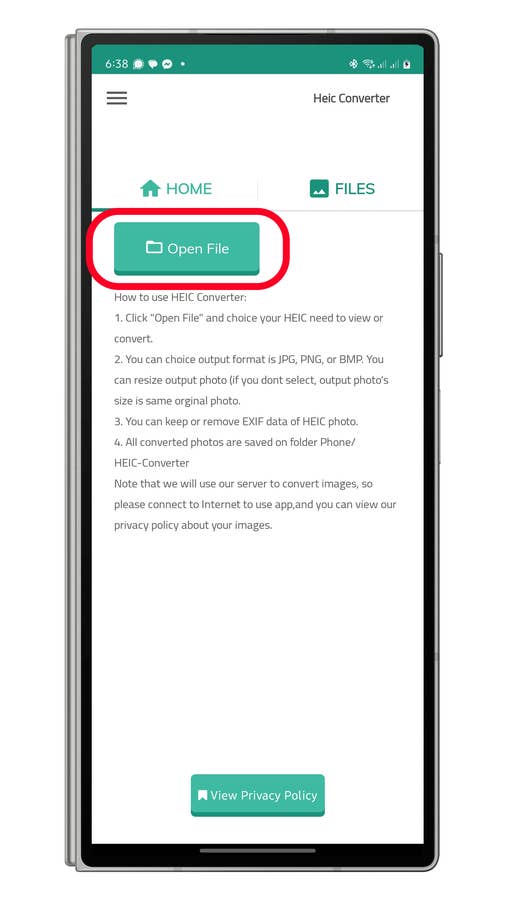
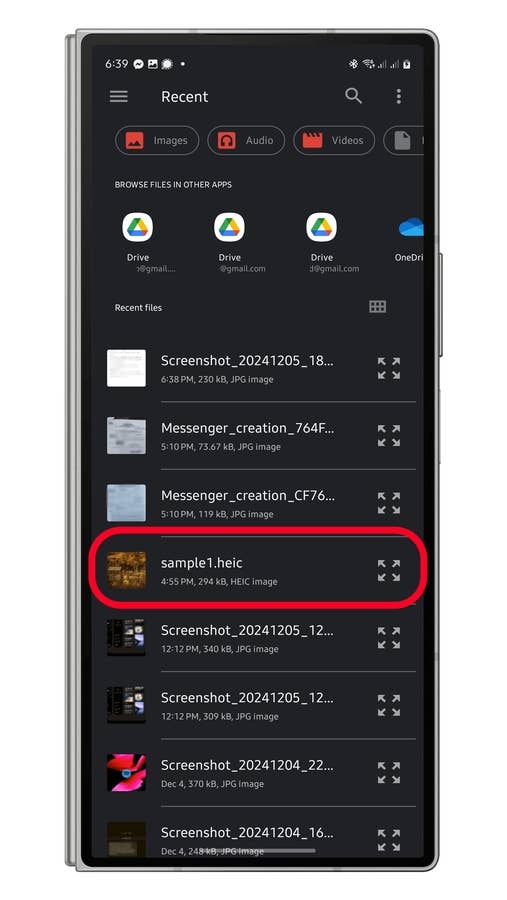
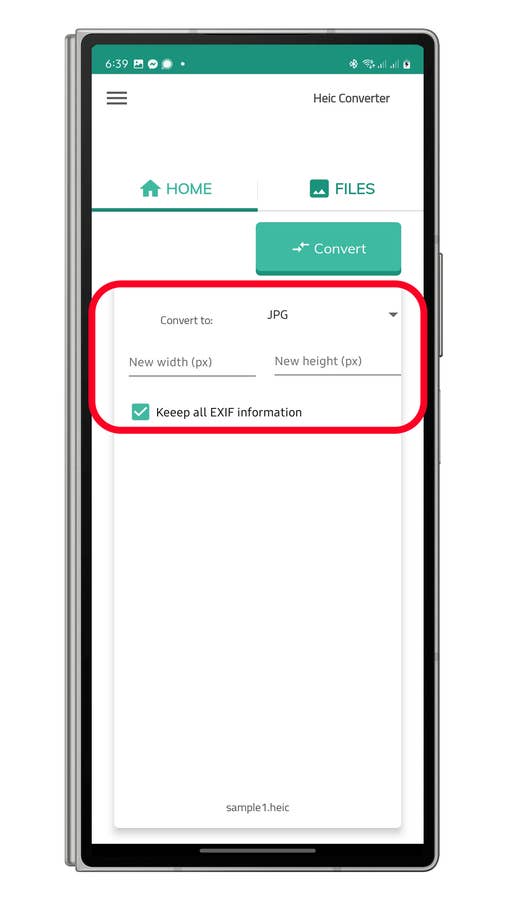
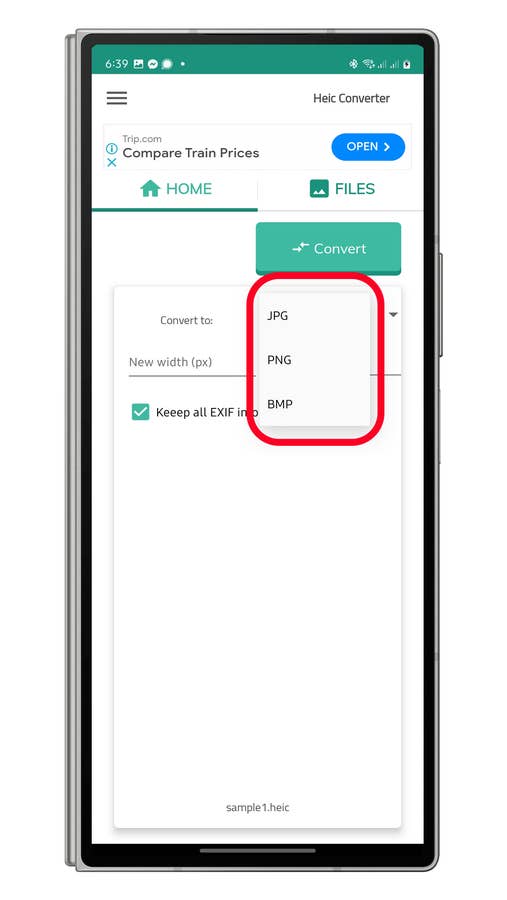
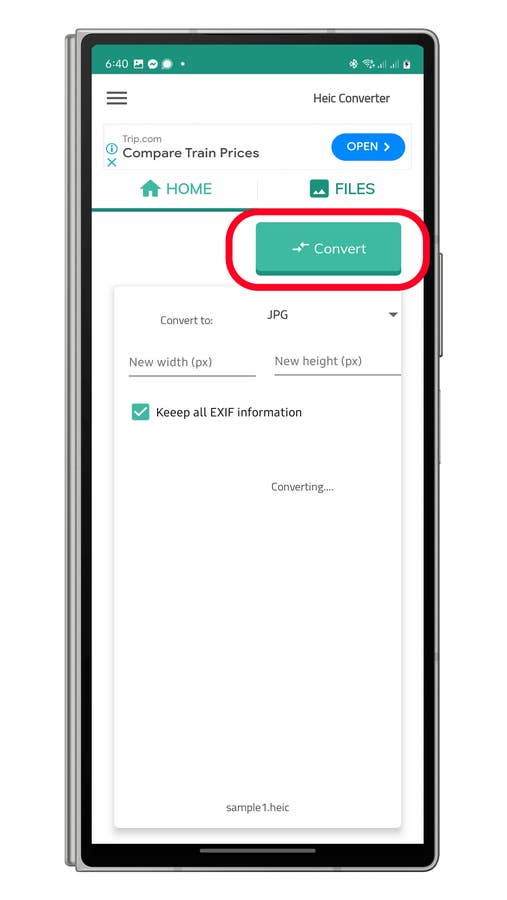
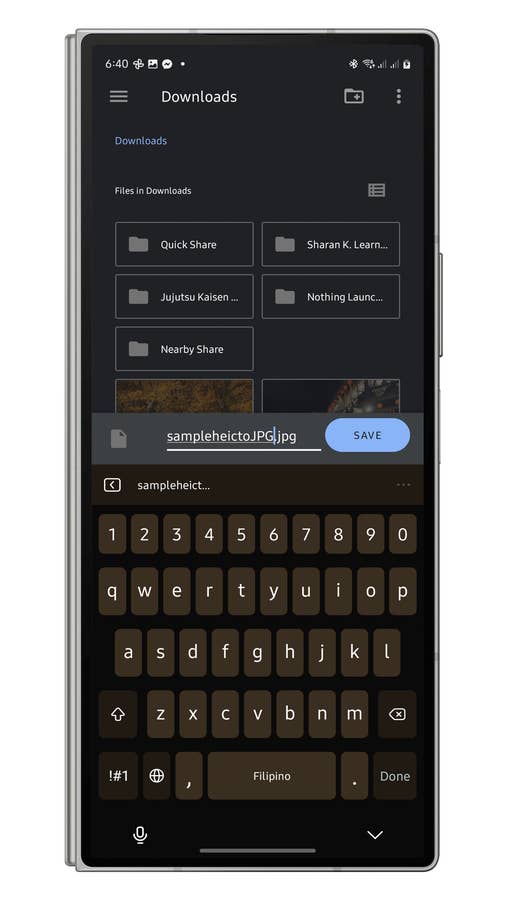
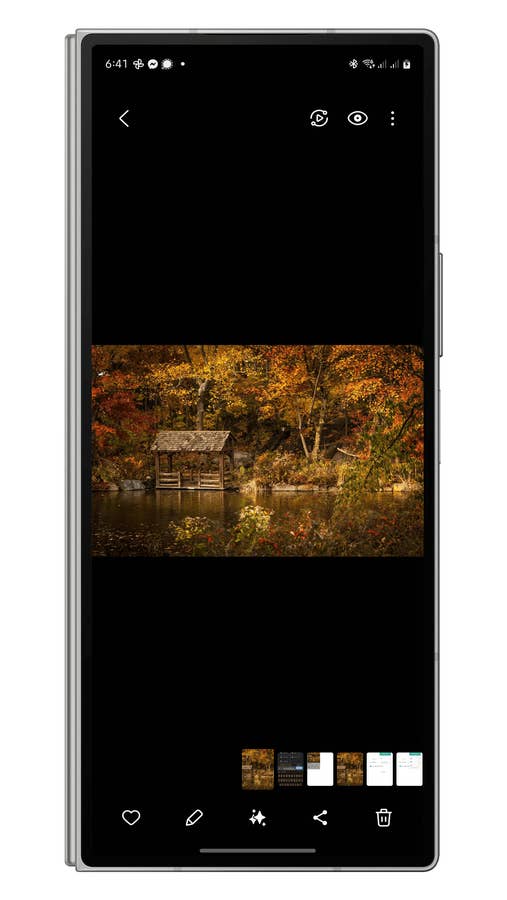
Other alternatives include apps like Luma and Total Media Converter, which offer similar functions for converting HEIC images and are also free, though they also display ads in exchange for the service. Of course, you should apply caution when downloading apps, especially if they don’t come from the Play Store.
How to Convert HEIC to JPG on the Web or PC
You can also convert HEIC images using online tools or desktop applications. A popular online option is HeicToJpg.com, a free service accessible via PC or mobile browsers. Here’s how to use it:
- Navigate to heictojpg.com.
- Tap the + icon to upload your HEIC images.
- Select the images to convert.
- Wait for the upload and conversion process to complete.
- Tap Download to save the JPG images.
Once converted, you can easily manage and share these images on your device. Alternatively, desktop users can install dedicated PC or Mac converters for offline use.
Do you know other ways to convert HEIC images to other formats or file types? We’d like to hear your suggestions and tips. Share your knowledge in the comments below!

0 comments