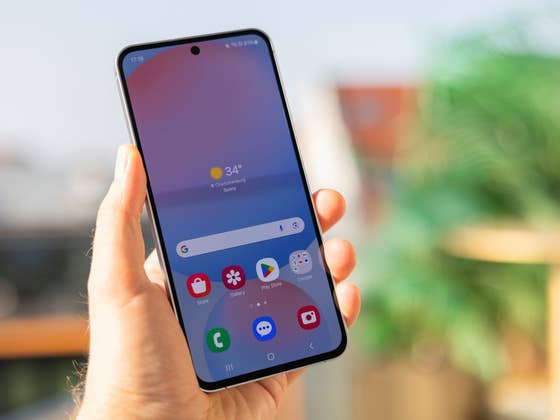
Owning a Samsung Galaxy phone or tablet isn’t enough to unlock its full potential—you’ll also need to master its hidden gestures. Here, we cover the best secret gestures in Samsung’s One UI and how to activate them.
Golden tip: Samsung Galaxy phones have supported a wide range of gestures for several years. However, many are turned off by default, requiring activation through your device’s settings. Note that the availability of gestures depends on your software version—most should be present if you’re running One UI 5 or One UI 6.
1. Enable Swipe Navigational Gestures
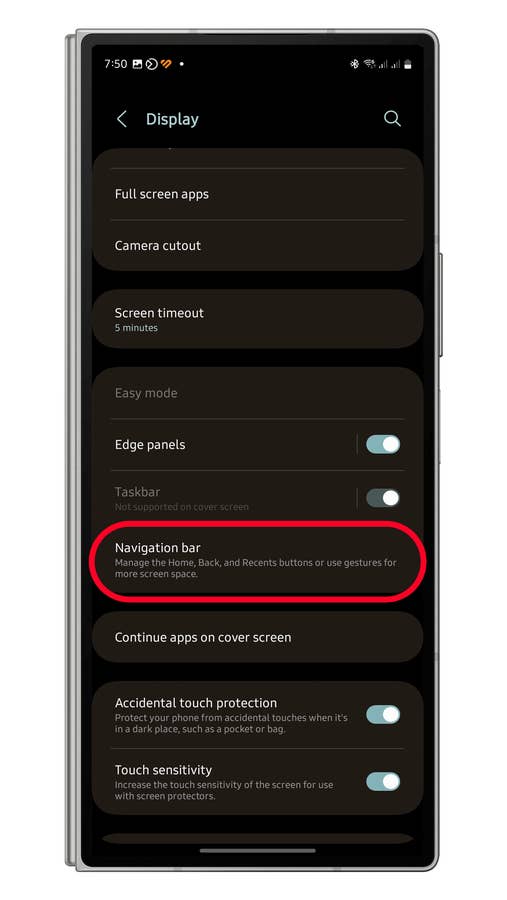
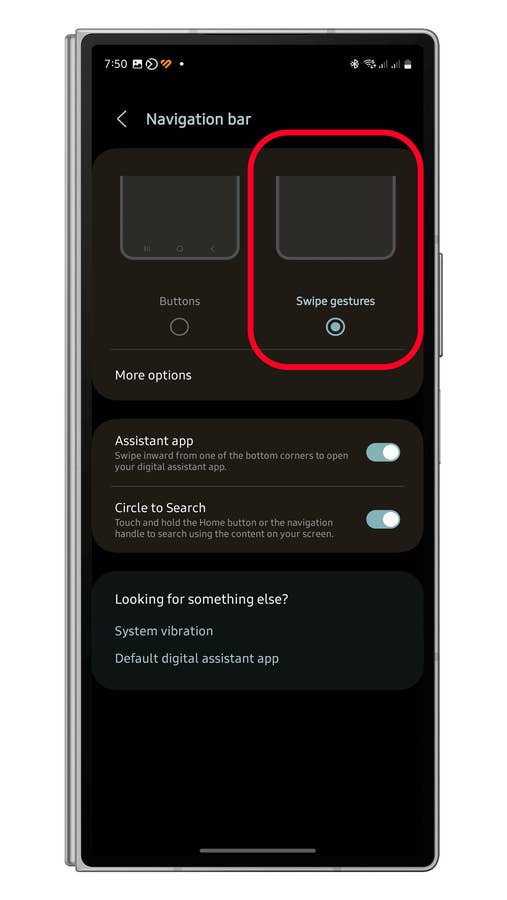
Samsung Galaxy devices use three default navigation buttons for back, app switch, and home actions. If you want to maximize screen space, you can replace these with swipe gestures. Here’s how:
- Open Settings > Display.
- Scroll down to find Navigation bar.
- Select Swipe gestures.
- Press the back button to save changes.
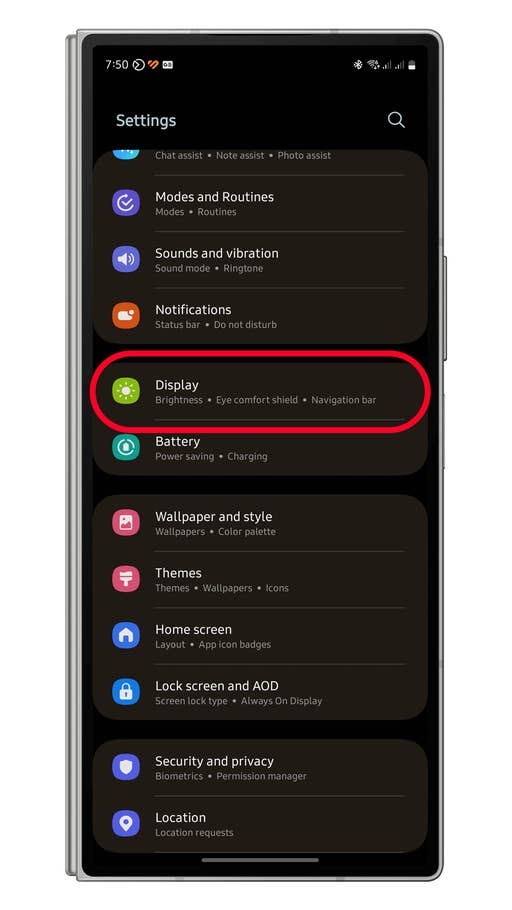
Go Settings and then tap Display.
Quelle: nextpit
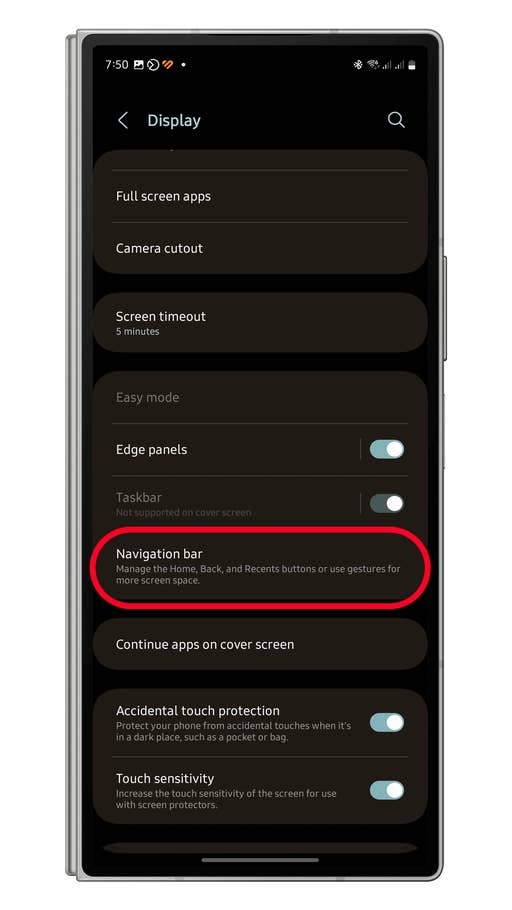
Select Motion gestures.
Quelle: nextpit
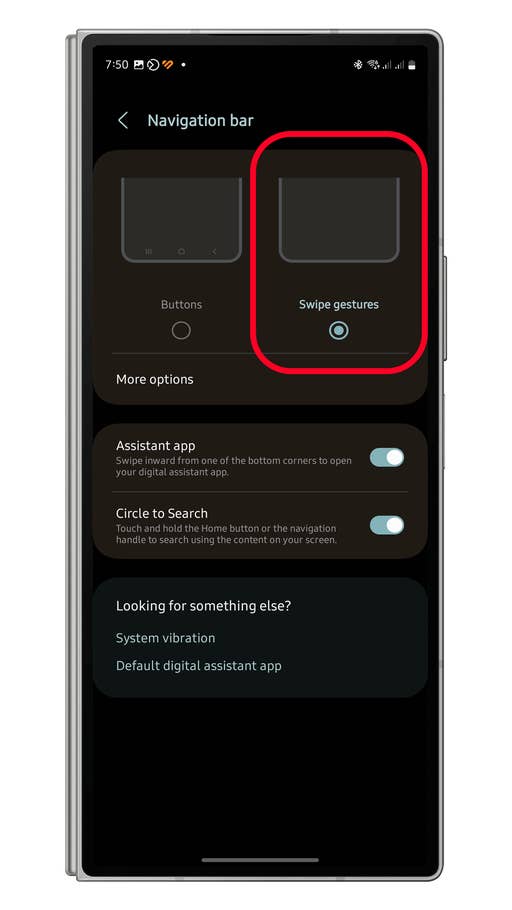
Select Swipe gestures
Quelle: nextpit
2. Lift to Wake
Lift to wake is a gesture that wakes your locked screen when you grab your phone from a table or platform. It can be useful as you’ll save time on waking your device’s screen manually when checking for time or notifications. Follow the instructions below on how to activate it:
- Open Settings.
- Scroll down and tap Advanced features.
- Select the Motion gestures card.
- Toggle on the Lift to wake.
- Exit to save changes.
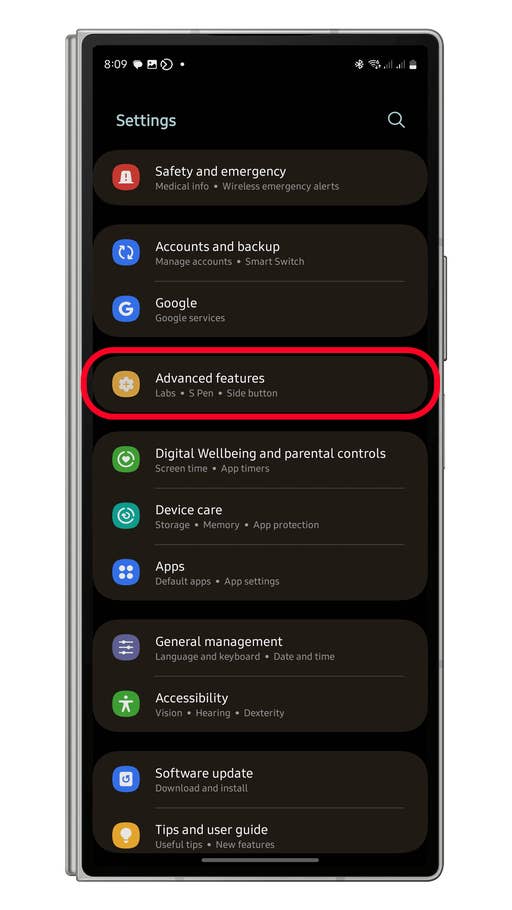
Open Advanced Gestures from the settings
Quelle: nextpit
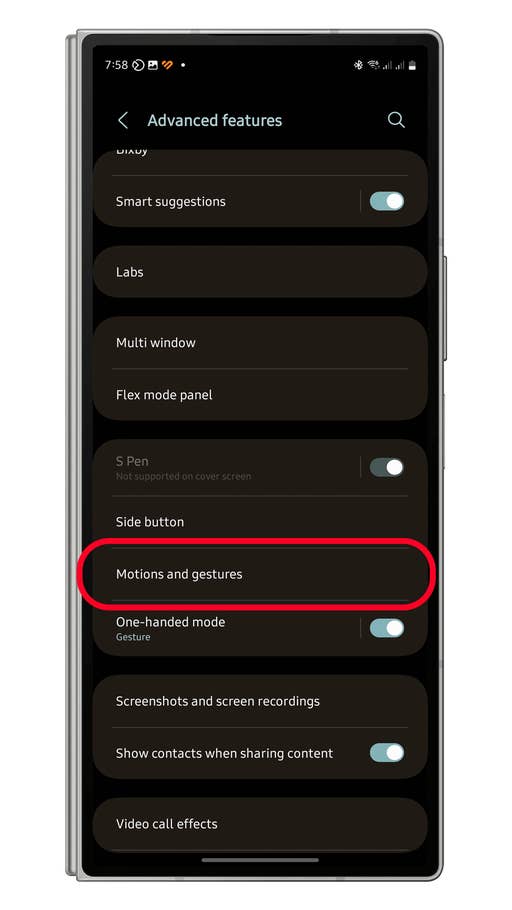
Select Motion and gestures.
Quelle: nextpit
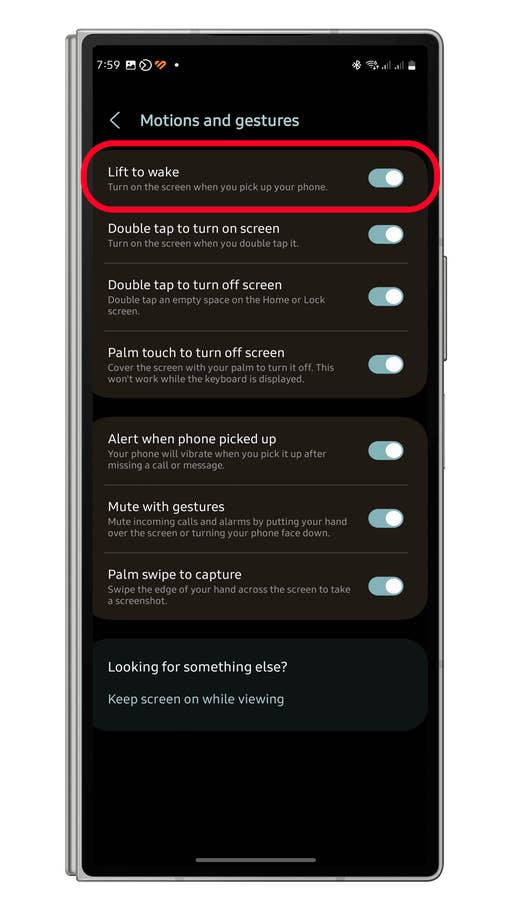
Toggle Lift to gesture
Quelle: nextpit
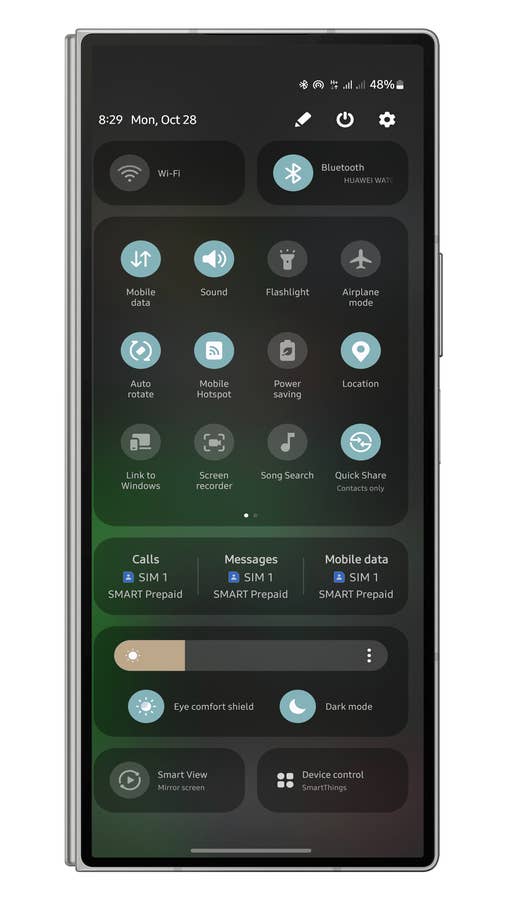
3. Swipe Down with Two Fingers to Open Quick Panel
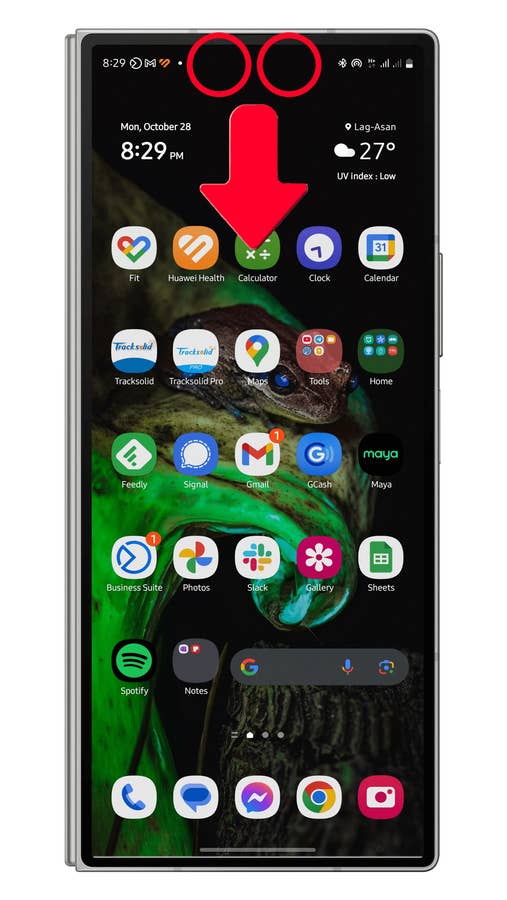
In the unlocked state, accessing the quick panel requires you an initial swipe from the top of the screen and then another swipe from the mid-section. This is quite cumbersome if you want to quickly access shortcuts and controls.
Well, there’s been a popular gesture to jump to the quick panel right away, which not all users are aware of, and that is by swiping from the screen using two fingers.
- Unlocked your device.
- Swipe down from the top using two fingers.
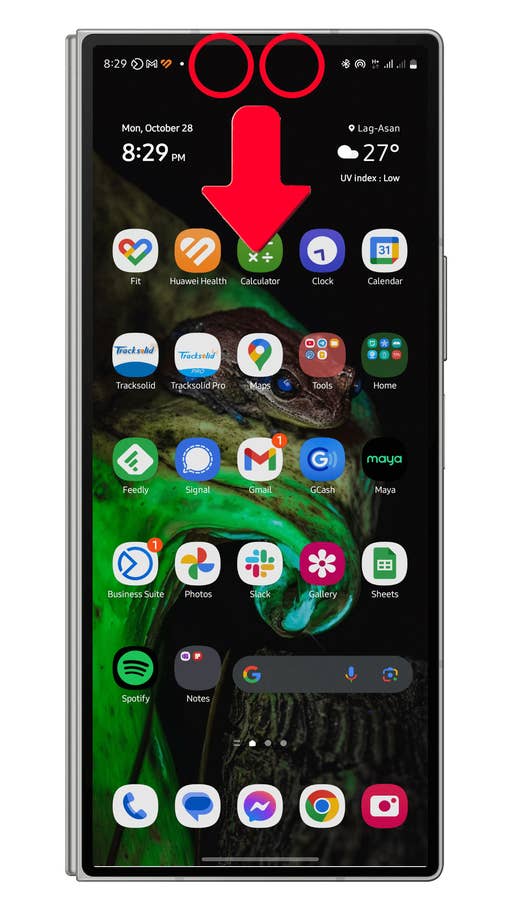
Swipe down from the top of the screen.
Quelle: nextpit
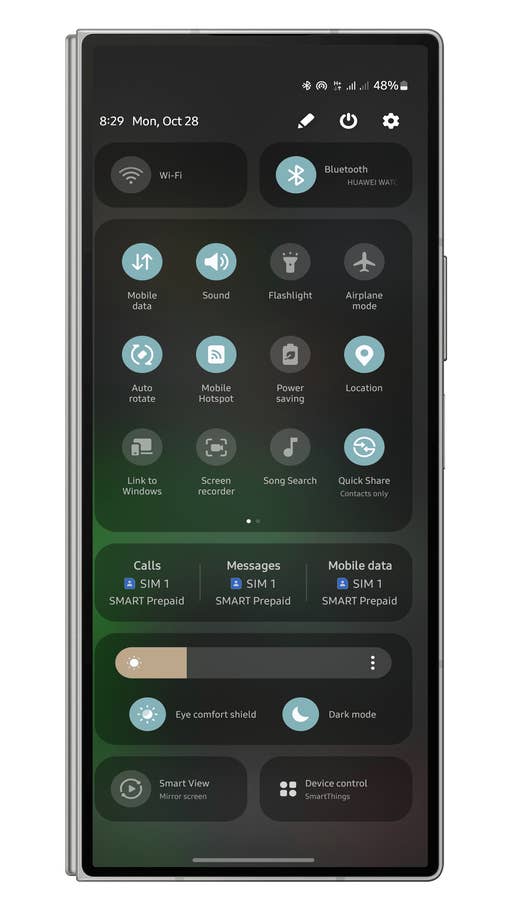
Open quick panel straightaway using the two-finger swipe gesture.
Quelle: nextpit
4. Swipe the Screen to Take a Screenshot
Another handy trick is using a swipe gesture to take a screenshot—perfect if your other hand is occupied. Here’s how:
- Unlocked your device.
- Go to an app or screen you want to take a screenshot of.
- Swipe your screen from edge to edge using the side of your palm.
- An animation and sound should appear once a screenshot is taken.
Be sure to have the feature enabled Palm swipe to capture from the Settings > Advanced features > Motion gestures.
5. Double Tap to Turn On/Off-Screen
While many users know that you can double tap gesture to wake a locked screen, many are not aware that it’s also possible to use the double tap feature to lock the screen. Here’s how you can test the action:
- On a locked screen, double tap on it to wake your device.
- Now, double tap again to lock the screen.
6. Launch Circle to Search
With Circle to Search becoming a well-known feature, it’s pretty useful if you know how to launch it instantly. Depending on the navigation bar you’ve chosen, the operation of activating it is straightforward on any of your screens with the device unlocked. Find out how:
- On navigation buttons: Long press the home button.
- On navigation gestures: Long press on the nav bar.
If it isn’t working in your case, be sure that the toggle is turned on from the Settings > Display > Navigation bar.

Long press on the nav bar.
Quelle: nextpit
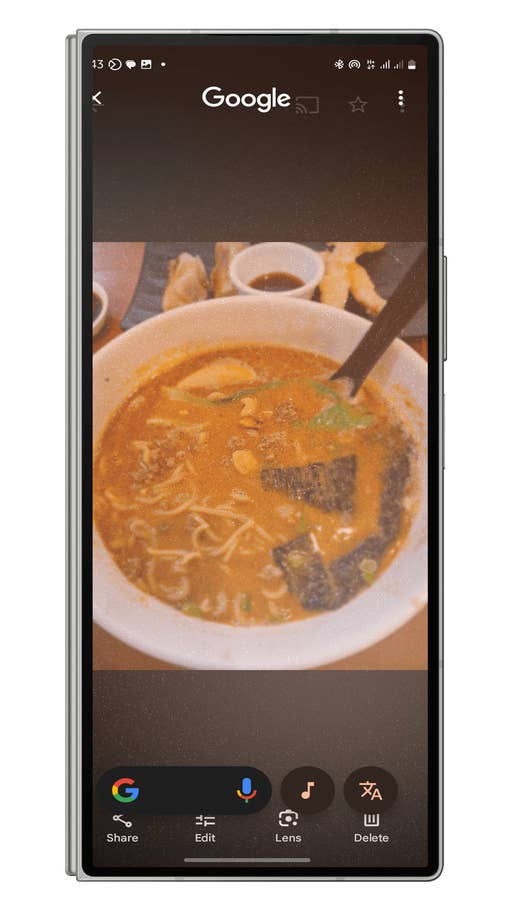
You can circle the screen to start searching.
Quelle: nextpit
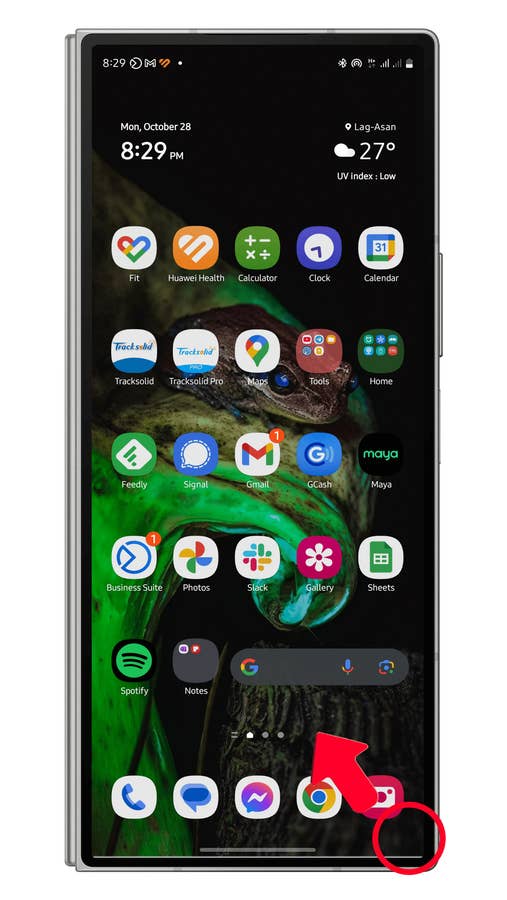
7. Launch Assistant or Gemini
If you’re a frequent user or relying on Google Assistant or Gemini, there’s a better way to launch the AI assistant on your Galaxy phone or tablet. This is how to launch Assistant or Gemini on your Galaxy device:
- Unlock your device.
- Swipe from the bottom corner (left or right) to the center.
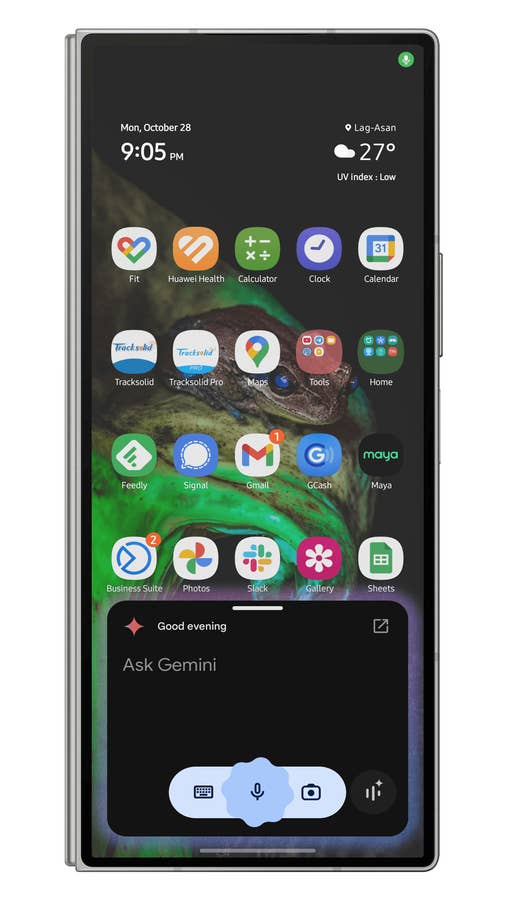
- Assistant or Gemini pop-up box should appear.
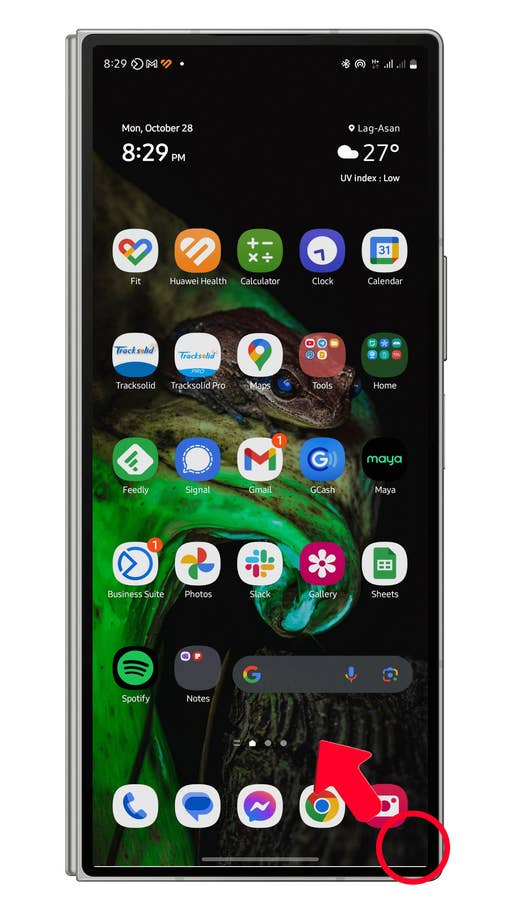
Launch Gemini by swiping from the corner to the center of your screen.
Quelle: nextpit
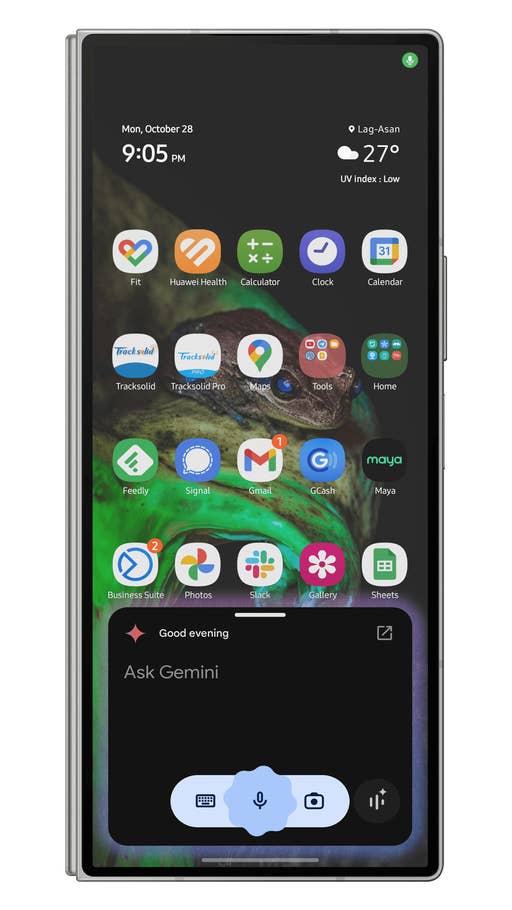
Once Gemini is opened, you can start your prompt.
Quelle: nextpit
8. Double-Press the Side Button to Launch an App
The physical side button on your Galaxy device doesn’t only serve a purpose to lock or unlock your handset. But it can also be customized to open or launch an app or shortcut, saving you time. Read the steps on how to change or customize it:
- Open Settings then scroll down and open Advanced features.
- Tap on Side button.
- Enable double press.
- Select Open app and tap on the gear icon to assign an app.
- Tap the back button or exit to save changes.
9. One-Handed Mode
Another vital trick that is proven to be valuable if one of your hands is busy or just that you’re comfortable using one-handed operation on your handset is the one-handed mode. This is enabled by default from the Advanced features in the settings, though you can still check it first. Here’s how to use it:
- Unlock your device.
- Go to the main screen.
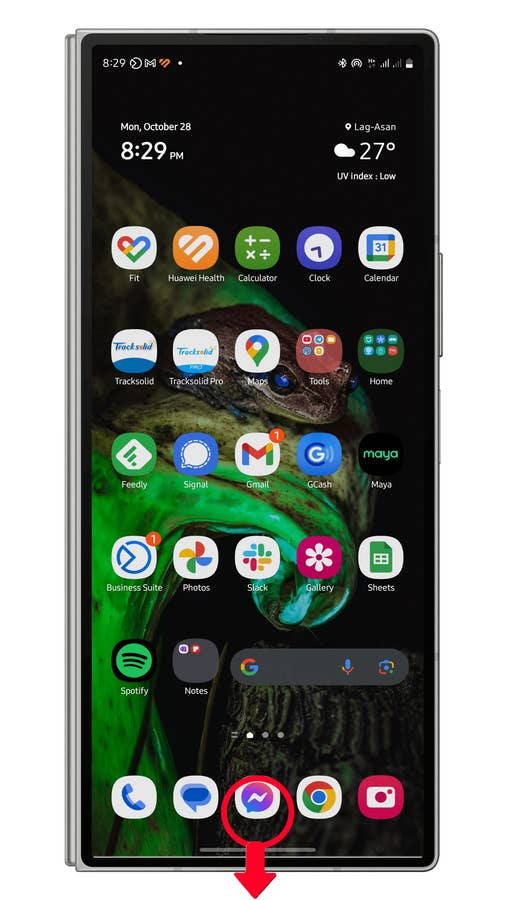
- Swipe down from the home button or the bottom center of your screen to enable one-handed mode.
- Swipe down from the home button or bottom center to deactivate it.
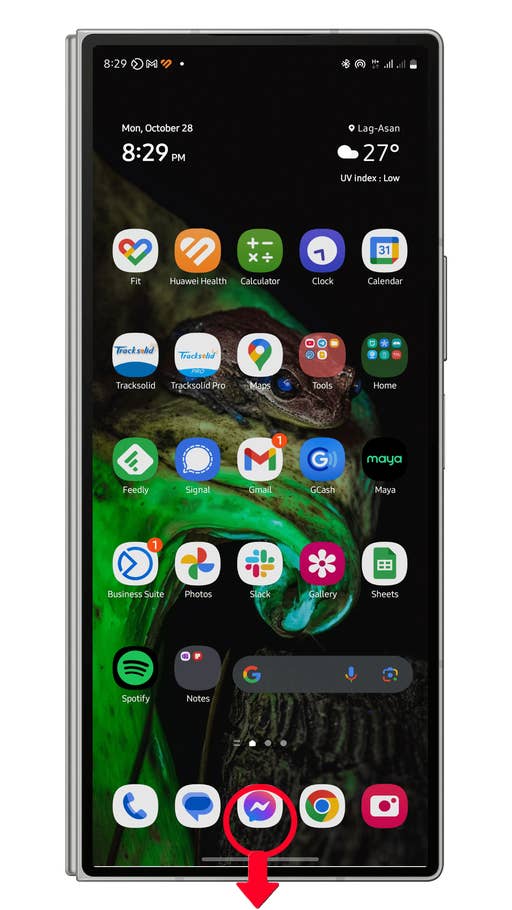
Swipe down from the home button or the center bottom of the screen to activate one-handed mode.
Quelle: nextpit
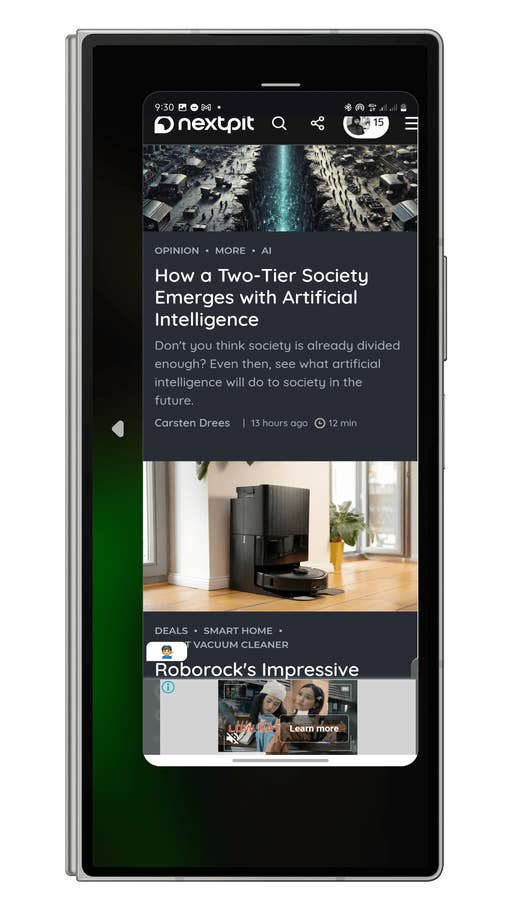
To return to normal mode, just go to home screen then swipe down again from the bottom center of your screen.
Quelle: nextpit
10. Swipe for Split Screen
One great feature in One UI is the support for split screen under multi-window to run two apps side-by-side, improving productivity. The feature is disabled by default, but turning and using it is very simple. We’ll show how below:
- Go to Settings > Advanced features > Multi window.
- Toggle on Swipe for split screen.
Using it depends on the type of Galaxy device you have. On slab devices like the Galaxy S24 Ultra and Galaxy A55, initiating the split screen requires swiping up using two fingers from the bottom of the screen. For foldable phones, this works on the main folding screen by swiping two fingers from the left side.
- Slab Galaxy devices: Swipe from the bottom of the screen using two fingers.
- Foldable Galaxy devices: Swipe from the left side of the main screen using two fingers.
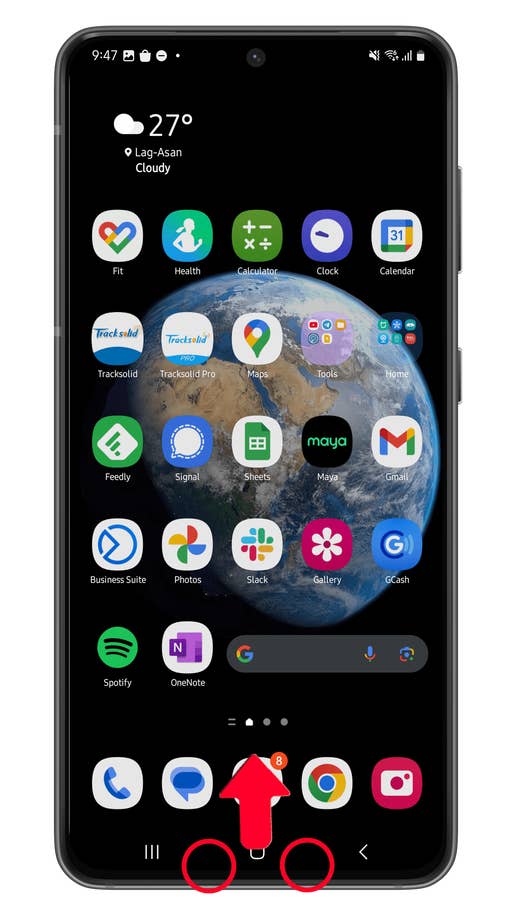
Use to fingers to swipe up from the bottom center of your screen.
Quelle: nextpit

You can close the split screen by going back to the home screen.
Quelle: nextpit
11. Swipe for Pop-up View
Under the same settings is gesture for swipe for pop-up view or where you put an app into a window view that you can reposition and resize. Most models support up to four apps floating in windows. This is how to use swipe for pop-up view:
- First, enable it from Settings > Advanced features > Multi window.
- Toggle on Swipe for pop-up view.
Once enabled, you can launch an app and then swipe from the right corner to the center of your screen. You can then resize the window or reposition it on your screen.
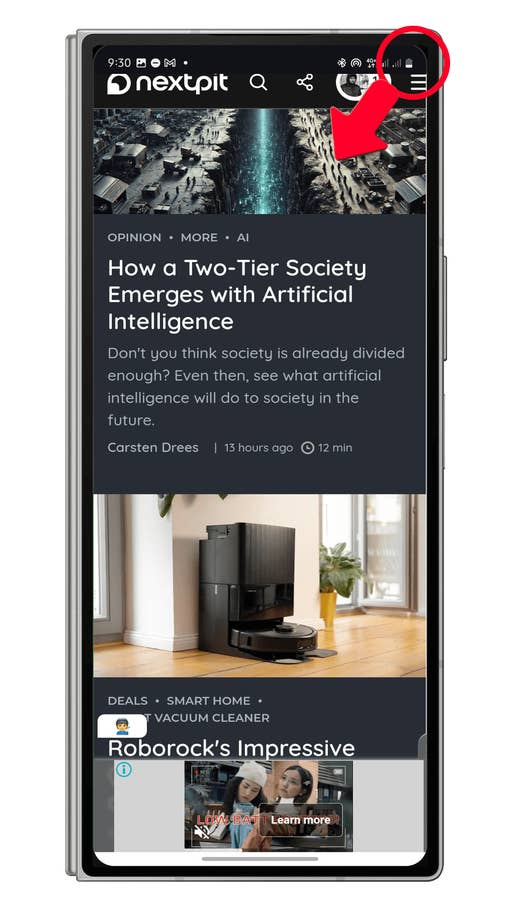
Swipe from the corner of the screen going to the center to put an app into a window mode.
Quelle: nextpit
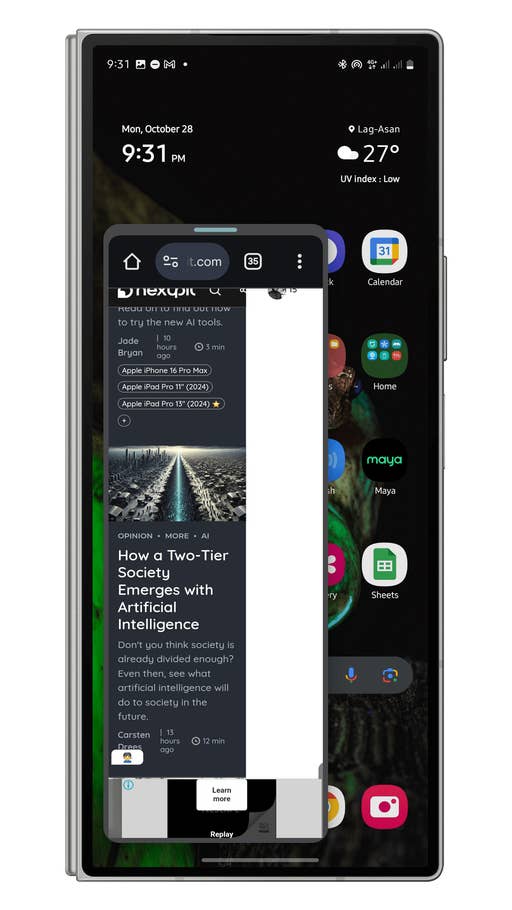
You can resize or reposition the window.
Quelle: nextpit
Which are your favorite gestures? Have we missed any One UI gestures? Share with us in the comments below!