
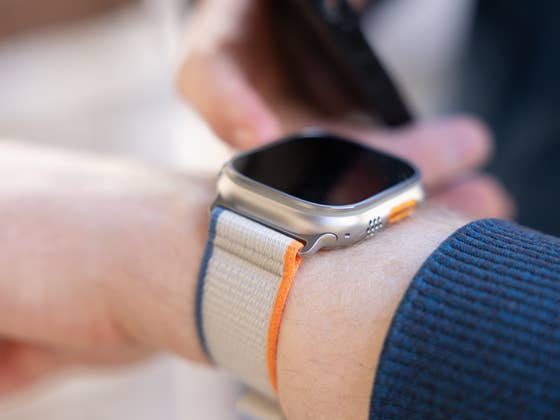
The action button was first introduced with the original Apple Watch Ultra (review) and carried over to the Apple Watch Ultra 2 (review) and has become a notable feature, especially for users who prefer more physical controls.
Available Apps and Shortcuts for the Action Button
The action button is customizable and allows users to launch apps, shortcuts, or access the emergency menu by holding the button. You can also combine the action button with the side key to quickly start a specific exercise. Some available functions include:
- Workout
- Stopwatch
- Waypoint
- Backtrack
- Dive
- Flashlight
- Shortcut
- Voice Memo
- Translate
- Accessibility
- Recognize Music
While customization options were previously limited, watchOS 11 introduces new possibilities.
New Action Button Functions in watchOS 11
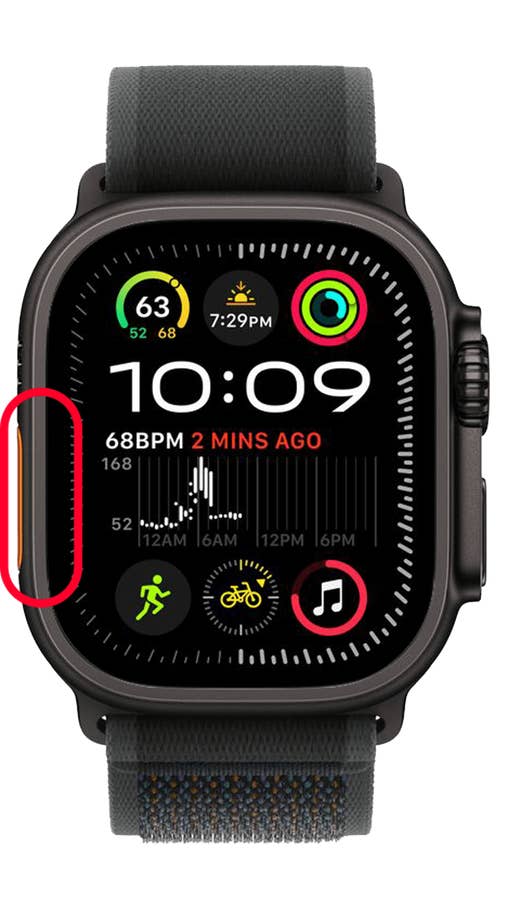
In watchOS 11, Apple has added a new trigger gesture for the action button. When you press and hold the button, it no longer opens the emergency SOS menu. Instead, it now displays a list of available actions. The action button now has three main functions:
- Single press – Launch an action or start a workout.
- Press and hold – Open the list of actions.
- Press the action button and side button together – Pause a workout (this may vary depending on the selected shortcut).
How to Use the Action Button to Open the Actions List
The new press-and-hold gesture makes the action button more versatile. Follow these steps to use it:
- Press and hold the action button.
- Use the Digital Crown or touchscreen to scroll through and highlight an action.
- Press the side button to select the action.
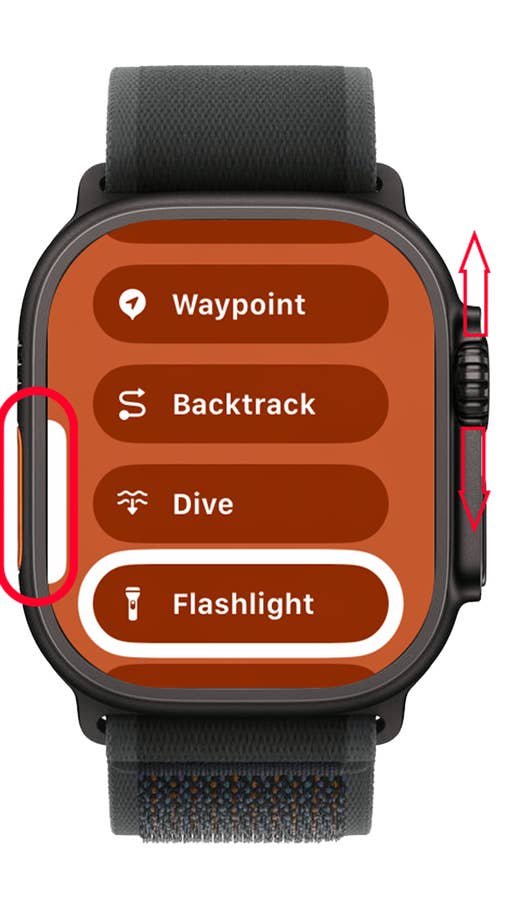
You can repeat this gesture to launch another action, even one set with a single press.
How to Customize the Action Button for Single Press
Currently, the single-press gesture is the only one you can fully customize. Here’s how to do it:
On Your Apple Watch
- Unlock your Apple Watch.
- Go to the menu and open Settings.
- Tap Action Button from the menu.
- Choose the action you want to launch.
- Tap the back arrow to save your changes.
On Your iPhone
- Open the Watch app on your iPhone.
- Go to Settings and select Action Button.
- Tap which gesture you want to customize.
- Choose the desired action from the menu.
- Press the back arrow to save your changes.
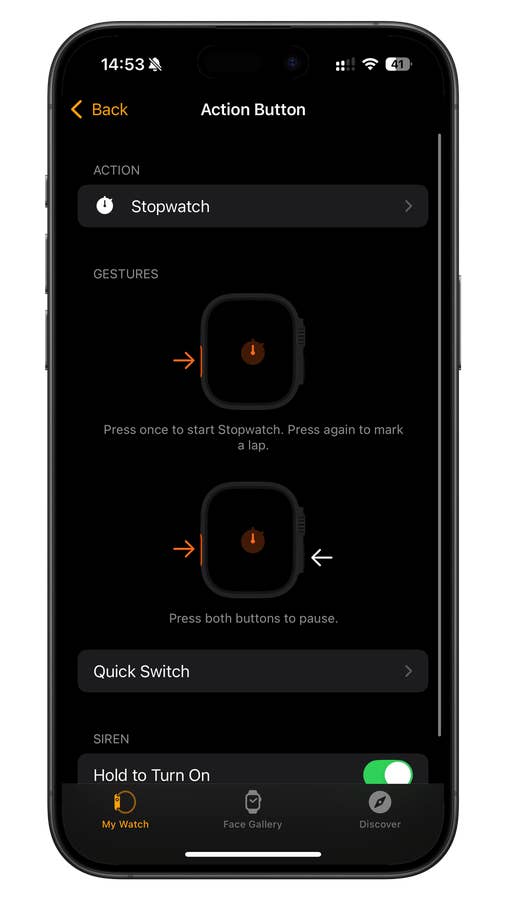
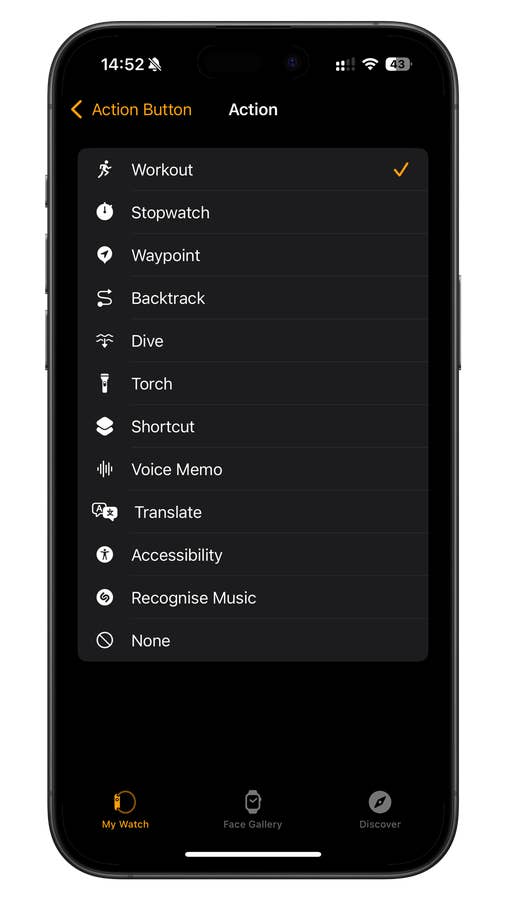
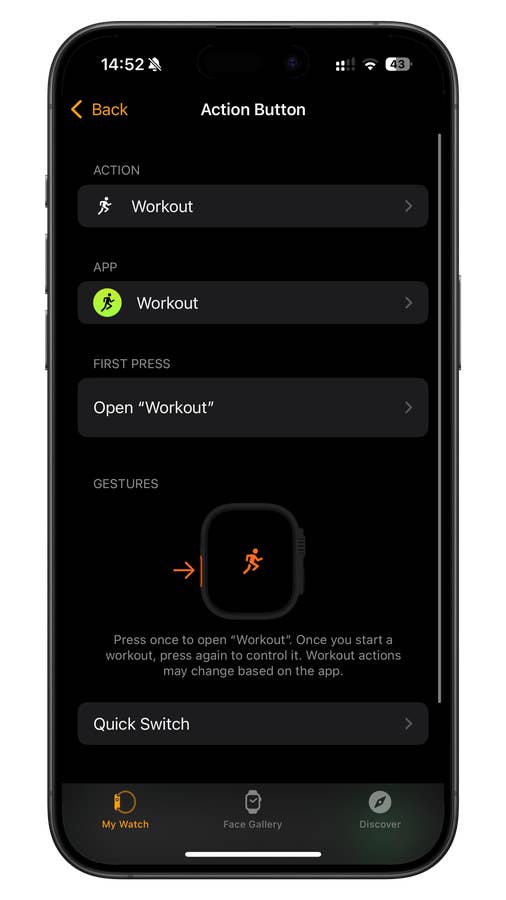
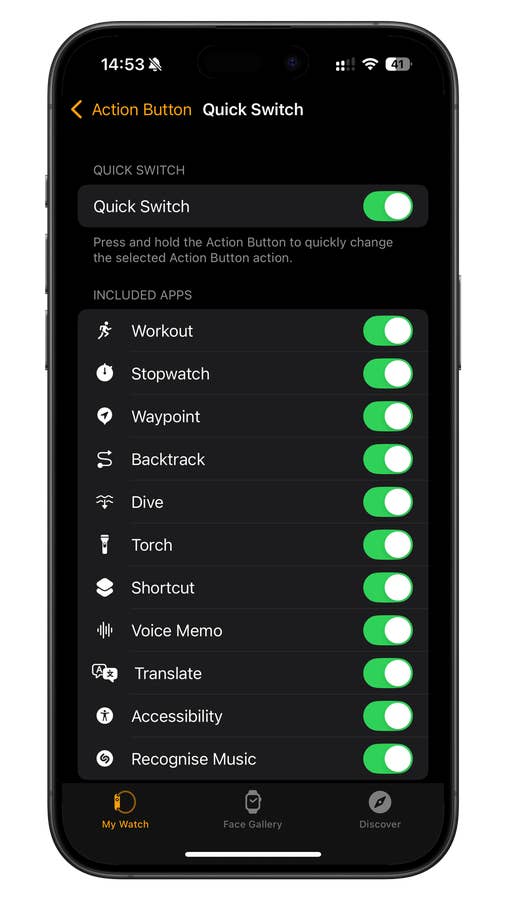
Note: Some shortcuts and apps may support additional actions. For example, setting workouts will add pause/resume gestures using the Action button and side button.
Have you been using the Action Button on your Watch Ultra? What function have you assigned? Share with us your smartwatch tips below.


0 comments