Sorry, but there's really nothing to see here right now. Our server is in maintenance mode – and our
little bot is trying to sort the error messages with its last bit of energy.
Whether it was a data leak, a power outage in the cluster, or just a grumpy bit – we don't know yet.
But what we do know is:
The data drama escalated into a server meltdown. But don't worry: We're on it.
What now?
Everything is surely running smoothly over at our colleagues from inside
digital – why not stop by!
Or you could pass the time by visiting our social media channels – for example Instagram, YouTube or TikTok. At least there are no
server problems there – promised.
Thanks for your patience. Our bot is already rebooting at full speed. 🔧
How-tosVR & ARActivity Rings: How to Take a Break with Apple Watch
Apple Watch’s activity rings for moving, exercising, and standing encourages you to stay active daily. However, continuous streaks can sometimes become overwhelming. With watchOS 11 and iOS 18, you can now pause your activity rings without losing your streak, giving your body a much-needed break.
As a person struggling with a knee injury for some weeks, I can relate to the need for the option to pause activity rings in the Apple Watch‘s Activity app. Moreover, this feature is also relevant for those who use the Fitness app daily, as it runs independently on the iPhone, without requiring the wearable.
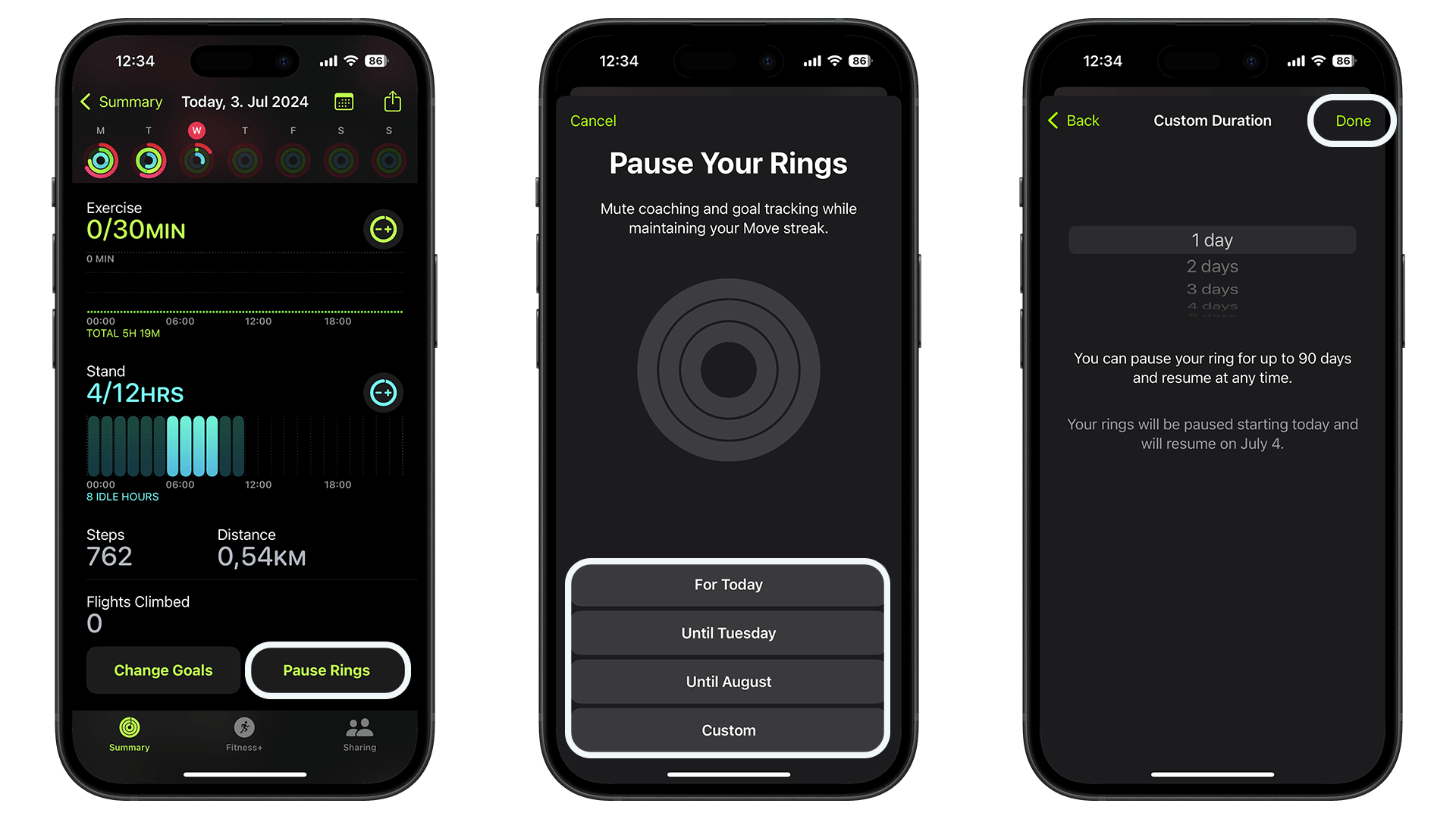
Here is a quick step-by-step guide on how to pause Activity Rings using your Apple Watch running watchOS 11 or your iPhone running iOS 18.
Step-by-Step Guide to Pausing Activity Rings
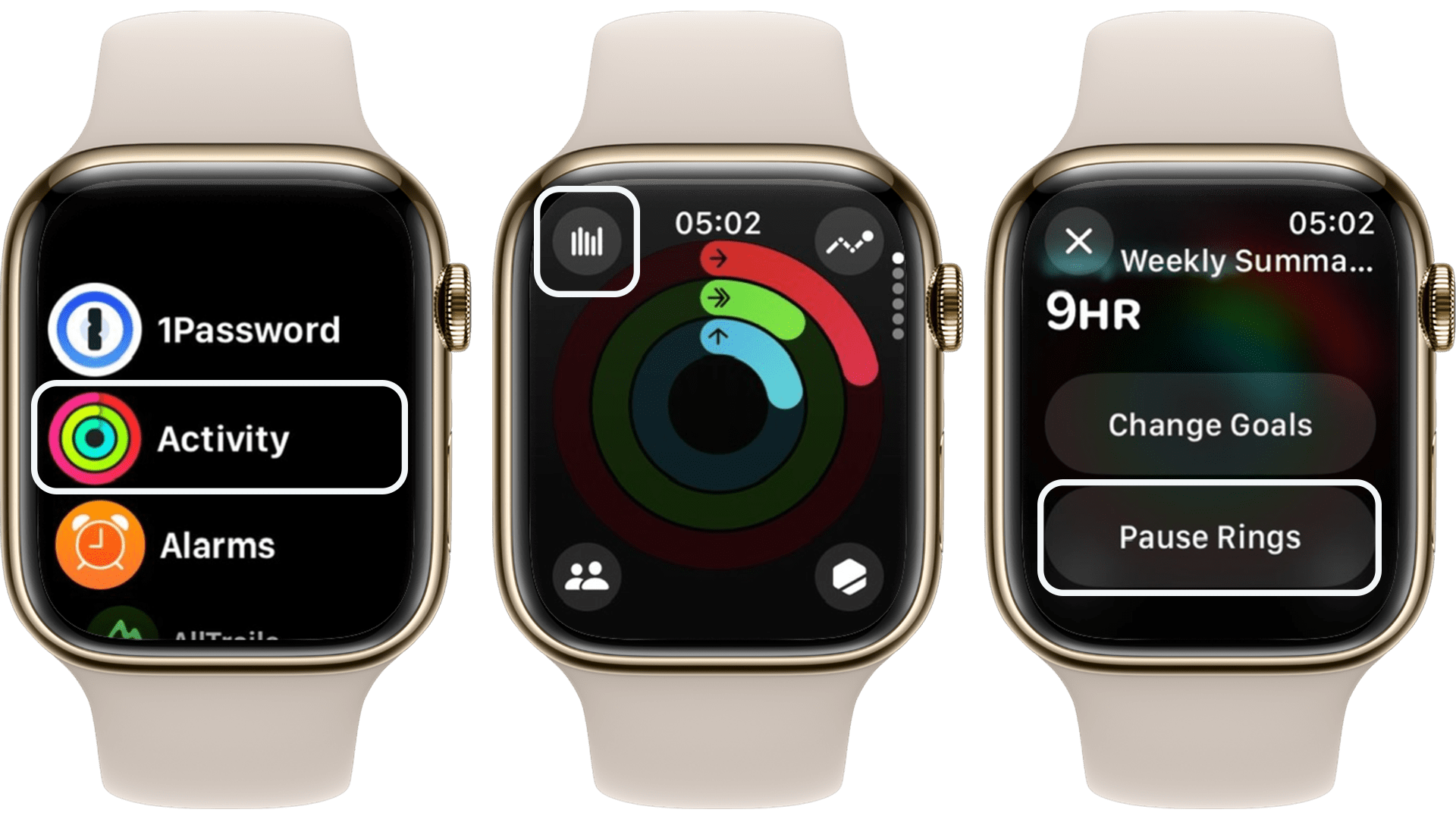
On the Apple Watch running watchOS 11:
Open the Activity app on your Apple Watch.
Tap the bar chart icon in the top left of the first overview screen.
Scroll to find the Pause Rings’ option.
Select Pause Rings and choose the duration for which you want to pause your activity rings.
In a more granular way, it’s also possible to revisit and personalize your activity goals at any time to better fit your routine. This feature is extremely beneficial for balancing daily activities, as our levels of activity can vary. Personally, it helps me manage anxiety and the (in)famous FOMO (fear of missing out).
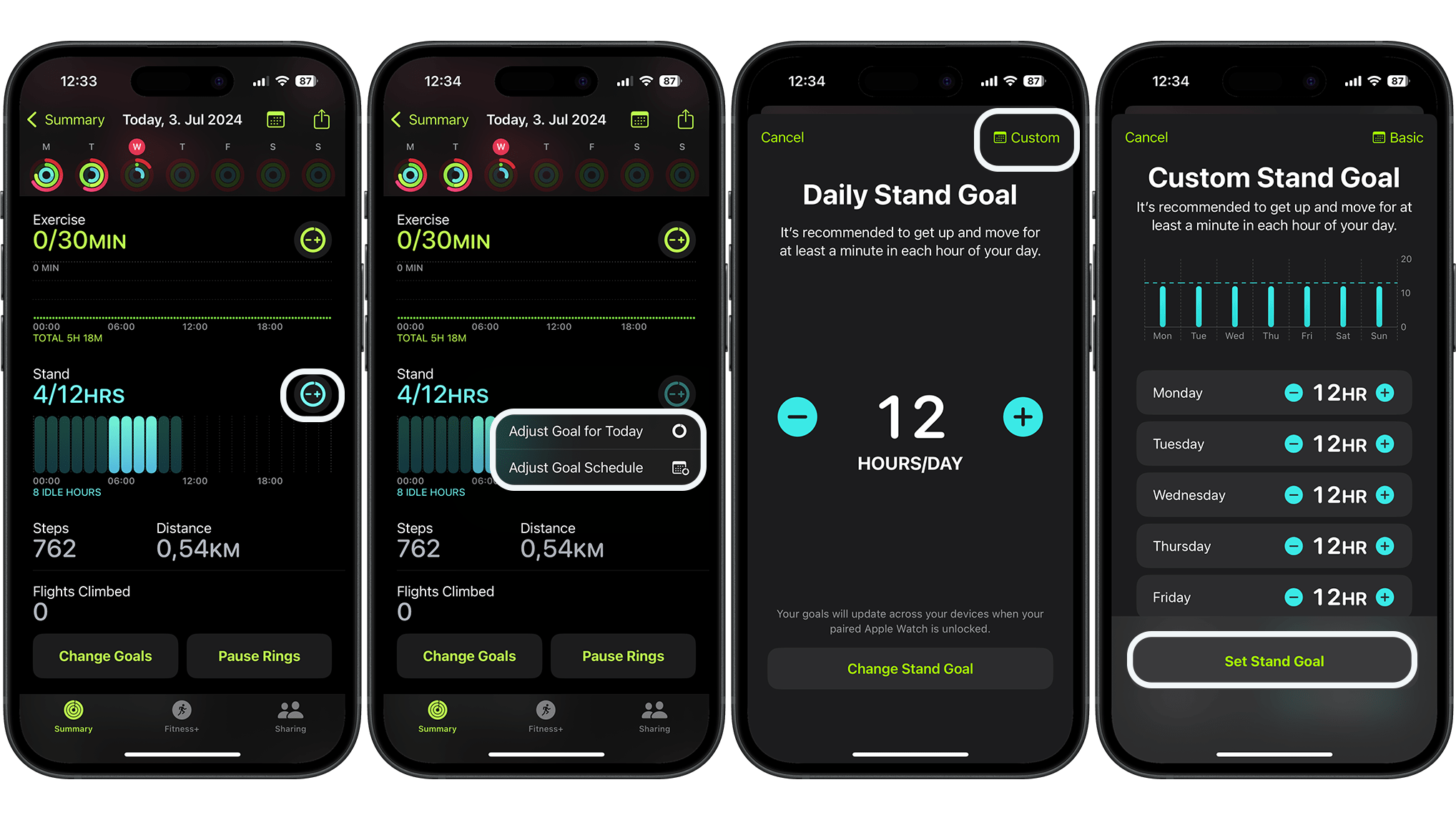
Here’s an extra tip on how to adjust your activity goals to suit your routine—rather than the other way around.
On the Apple Watch running watchOS 11:
Open the Activities App on your Apple Watch.
Tap on the desired category (Movement, Exercise, or Stand).
Use the -/+ buttons to set your goals for each day of the week.
On the iPhone running iOS 18:
Launch the Fitness app on your iPhone.
Tap on your activity rings.
Tap the -/+ buttons to set your goals in the Movement, Exercise, and Stand categories.
These new features in watchOS 11 and iOS 18 allow you to manage your activity goals more flexibly, ensuring you can take breaks without losing your progress.
Ich habe 15 Jahre Erfahrung in der Bewertung von Smartphones und Wearables und vereine technisches Know-how mit einer echten Leidenschaft für Innovation. Ich habe bekannte Tech-Websites wie AndroidPIT und Canaltech in Brasilien geleitet und möchte jetzt meine Expertise mit einem Publikum auf der ganzen Welt – unter anderem in den USA, Deutschland, Frankreich, Spanien und Brasilien – durch ehrliche, praxisnahe Tests teilen.
Kürzlich habe ich meinen Fokus auf digitale Gesundheit verlagert, mit einem besonderen Augenmerk auf Geschlechtergerechtigkeit und dem Ziel den geschlechtsspezifischen Datengraben zu überwinden. Ich brenne dafür, durch einfache, klare Texte Frauen in den Bereichen Technik und Gesundheit eine stärkere Stimme zu geben. Ob ich nun die neuesten Gadgets teste oder neue Trends im Bereich der digitalen Gesundheit erkunde – ich bemühe mich stets, komplexe Themen verständlich aufzubereiten.
Persönlich bin ich ein begeisterter Läufer – ich habe 2024 den Berlin-Marathon absolviert – und bereite mich auf eine lange Radtour von Deutschland nach Österreich vor, die im Jahr 2025 in nur vier Tagen schaffen will.







0 comments