Sorry, but there's really nothing to see here right now. Our server is in maintenance mode – and our
little bot is trying to sort the error messages with its last bit of energy.
Whether it was a data leak, a power outage in the cluster, or just a grumpy bit – we don't know yet.
But what we do know is:
The data drama escalated into a server meltdown. But don't worry: We're on it.
What now?
Everything is surely running smoothly over at our colleagues from inside
digital – why not stop by!
Or you could pass the time by visiting our social media channels – for example Instagram, YouTube or TikTok. At least there are no
server problems there – promised.
Thanks for your patience. Our bot is already rebooting at full speed. 🔧
How-tosTabletActivate Samsung Pass and upgrade to Samsung Wallet: Here’s how
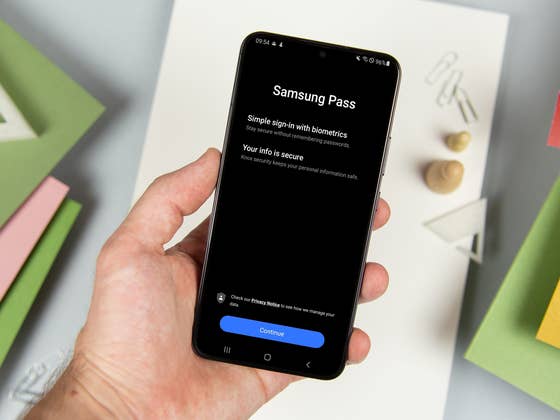
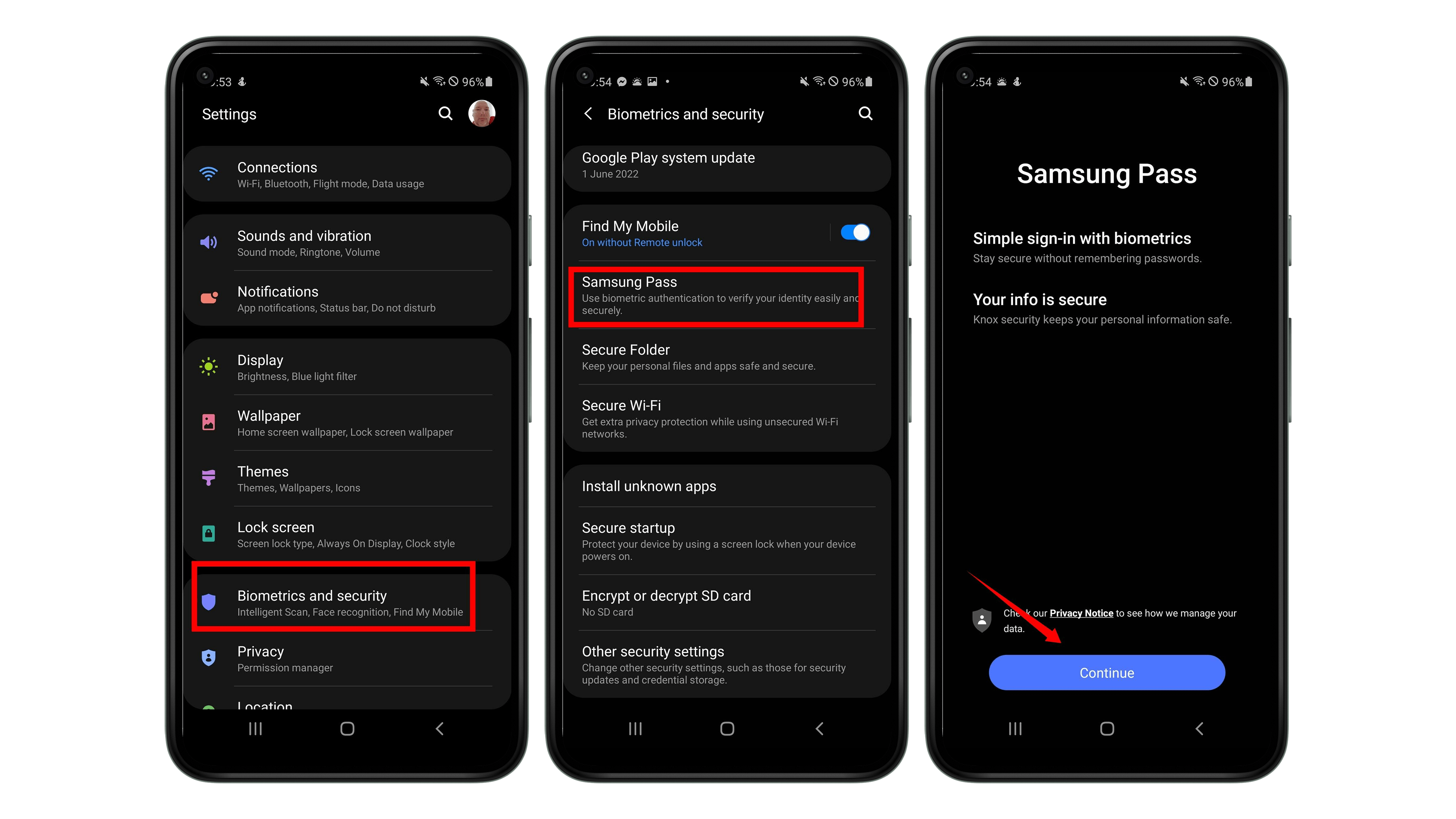
Do you use a Samsung cell phone? If so, then Samsung Pass—Samsung’s own password manager—comes preinstalled on the device. You can find out how to set it up here. We will also let you know how to integrate Samsung Pass into the new Samsung Wallet.
Many of you have one of the many Samsung smartphones in daily use. However, that doesn’t mean that we have to deal with all the services that Samsung offers us on the devices. Samsung Pass is one of those services that comes pre-installed on all Samsung smartphones.
What is Samsung Pass?
Samsung Pass is both a simple and secure authentication service. It allows you to log in to apps, Samsung’s Galaxy Store, or websites (in the Samsung browser) using biometric authentication methods. This saves you from having to type in passwords manually. Biometric data such as fingerprints or iris scans are encrypted and protected on the device thanks to Samsung Knox.
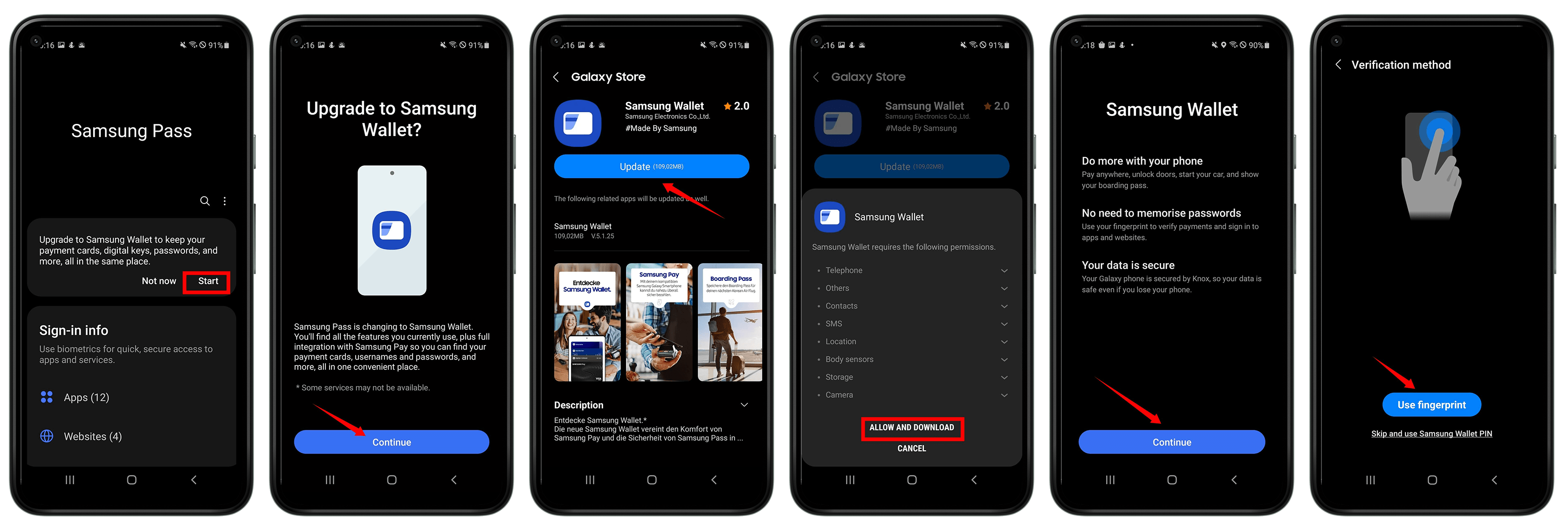
Samsung recently introduced its Samsung Wallet. The services Samsung Pass and Samsung Pay are now combined under one roof. You can currently continue to use Samsung Pass or “upgrade” to Samsung Wallet. We will now explain how to set up the Passport and how to switch to Samsung Wallet.
That’s it—now you can use Samsung Pass. On the start page of the application, you should now find a hint that points to Samsung Wallet. You can dismiss the hint, or follow the prompt to upgrade to Samsung Wallet. This is also very easy, as you just need to follow the app’s instructions.
Upgrade to Samsung Wallet
Under the prompt to switch to Samsung Wallet, simply tap Start.
Confirm the switch request below by tapping Next.
Tap Update to download the file from the Galaxy Store.
That’s it—welcome to Samsung Wallet. The Samsung Pass application will be removed automatically and you will use Samsung Wallet from now on. There you will also benefit from the features that Samsung Pay brings with it, and you can also store your vaccination card, credit cards and boarding passes.
Let us know if you are already using Samsung Wallet and/or if you would like to learn more about Samsung’s new service.
We mark partner links with this symbol. If you click on one of these links or buttons–or make a purchase through them–we may receive a small commission from the retailer. This doesn’t affect the price you pay, but it helps us keep nextpit free for everyone. Thanks for your support!







0 comments