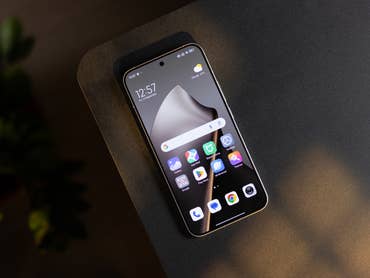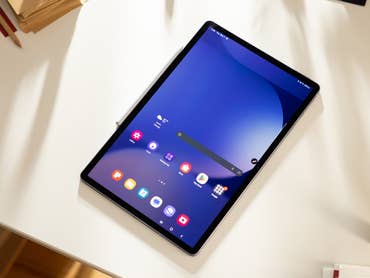
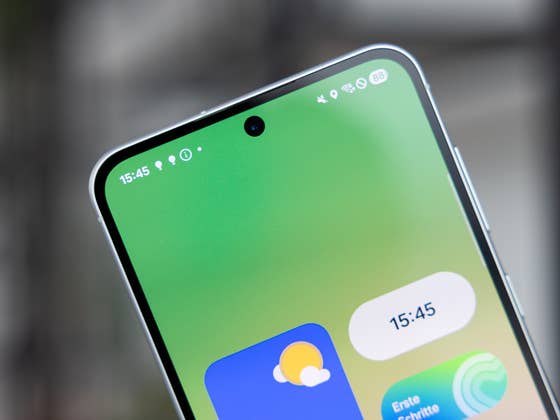
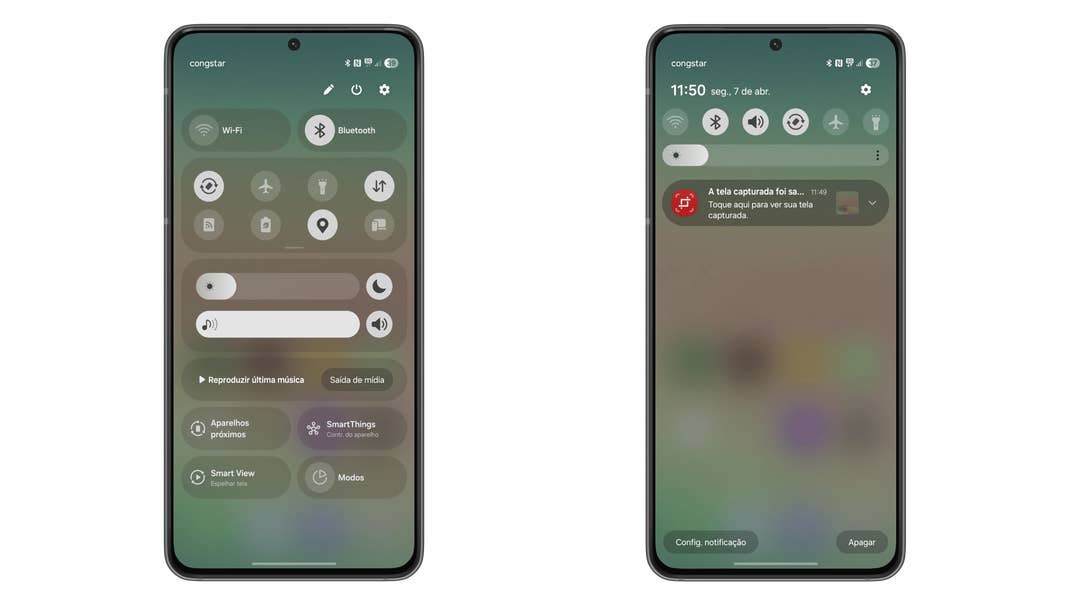
Samsung’s change to its Android 15 customization follows a trend adopted by other smartphone manufacturers and gives more space to the settings on the device, including integrations with other Samsung devices and even smart home devices. But if you don’t like it, you can go back to the old integrated panel.
How to integrate notifications with quick settings
On your Samsung Galaxy device, check that the device is up to date with the latest version of the operating system and follow these steps:
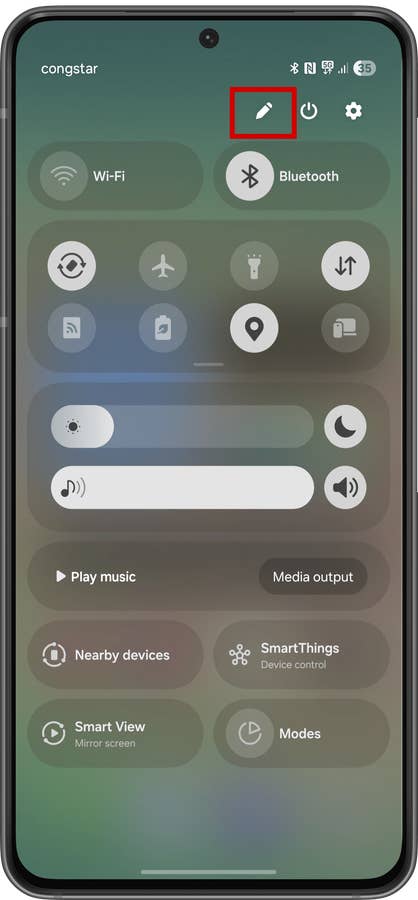
- Open the Quick Settings panel by swiping down from the top right side of the screen;
- Tap on the Pencil icon;
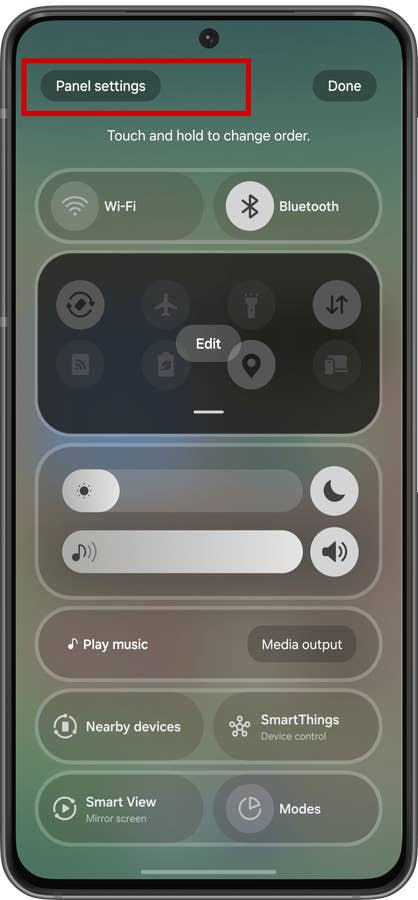
- Choose the Panel settings option;
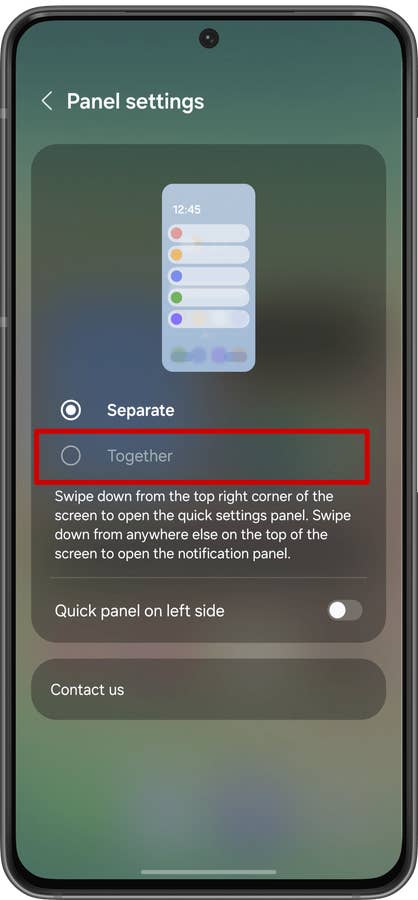
- Select Together;
- Return to the previous screen;
- Tap the Done button.
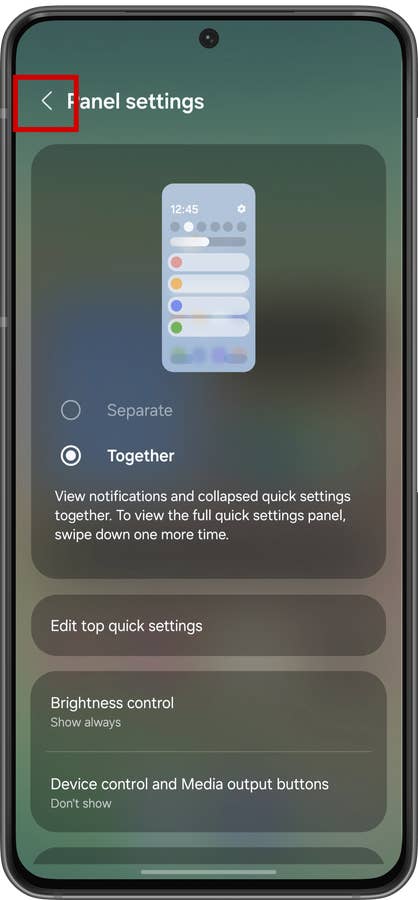
Once this is done, you no longer have to swipe the screen from a specific corner to view the notifications or quick settings. In the Together mode, you can expand the quick settings by swiping the screen down again, just like in older versions of One UI.
To return to the default behavior in One UI 7, simply expand the quick settings panel and repeat the above process, selecting the Separate option.
We don’t yet know if Samsung is preparing a tutorial on the change for devices that have been updated to the new system. Or if the Android 15 upgrade will explain the change, the steps will also apply to new devices that have already been shipped with One UI 7.
Do you prefer the old settings panel with everything integrated, or does the separation by screen area make more sense? Leave your opinion in the comments below.
We mark partner links with this symbol. If you click on one of these links or buttons–or make a purchase through them–we may receive a small commission from the retailer. This doesn’t affect the price you pay, but it helps us keep nextpit free for everyone. Thanks for your support! Prices are based on the date of publication of this article and may be subject to change.