Sorry, but there's really nothing to see here right now. Our server is in maintenance mode – and our
little bot is trying to sort the error messages with its last bit of energy.
Whether it was a data leak, a power outage in the cluster, or just a grumpy bit – we don't know yet.
But what we do know is:
The data drama escalated into a server meltdown. But don't worry: We're on it.
What now?
Everything is surely running smoothly over at our colleagues from inside
digital – why not stop by!
Or you could pass the time by visiting our social media channels – for example Instagram, YouTube or TikTok. At least there are no
server problems there – promised.
Thanks for your patience. Our bot is already rebooting at full speed. 🔧
How-tosTabletProtect Your Phone and Google Account with 2FA and a Security Key
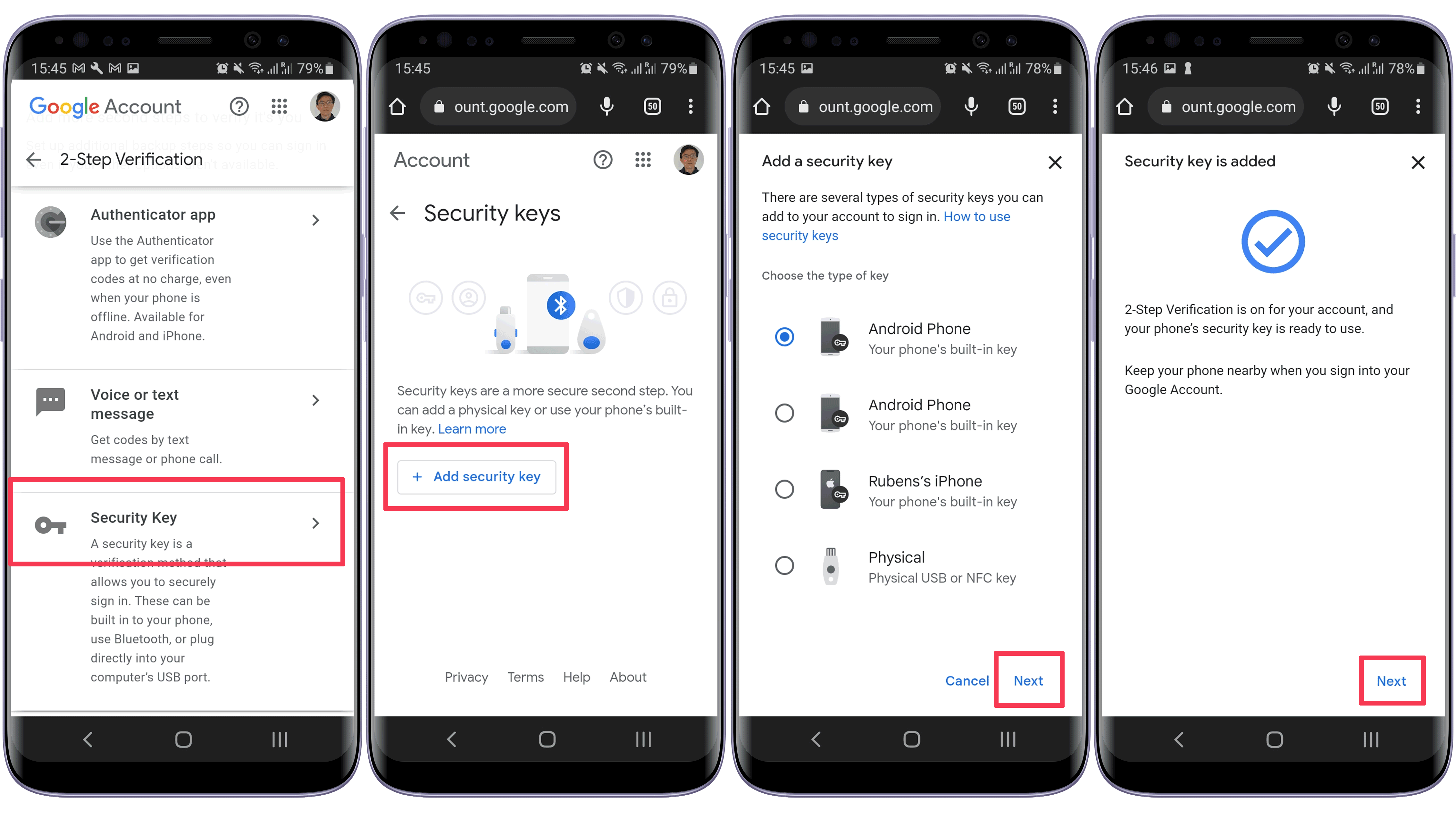
If you are not satisfied with the available two-factor authentication (2FA) options on your Google account, the big tech offers an alternative that can make it easier to log in on a new device. With a security key, your phone—Android or iPhone—can be used to confirm your identity and skip having to type codes on each new login.
The feature is available on devices running Android 5.0, iOS 10, or newer versions of either operating system. The device must be compatible with Bluetooth and have the feature activated. Unfortunately, it is possible to have only one device set as a security device, but you can easily switch keys when upgrading your phone or tablet.
Activate two-factor authentication on your Google account
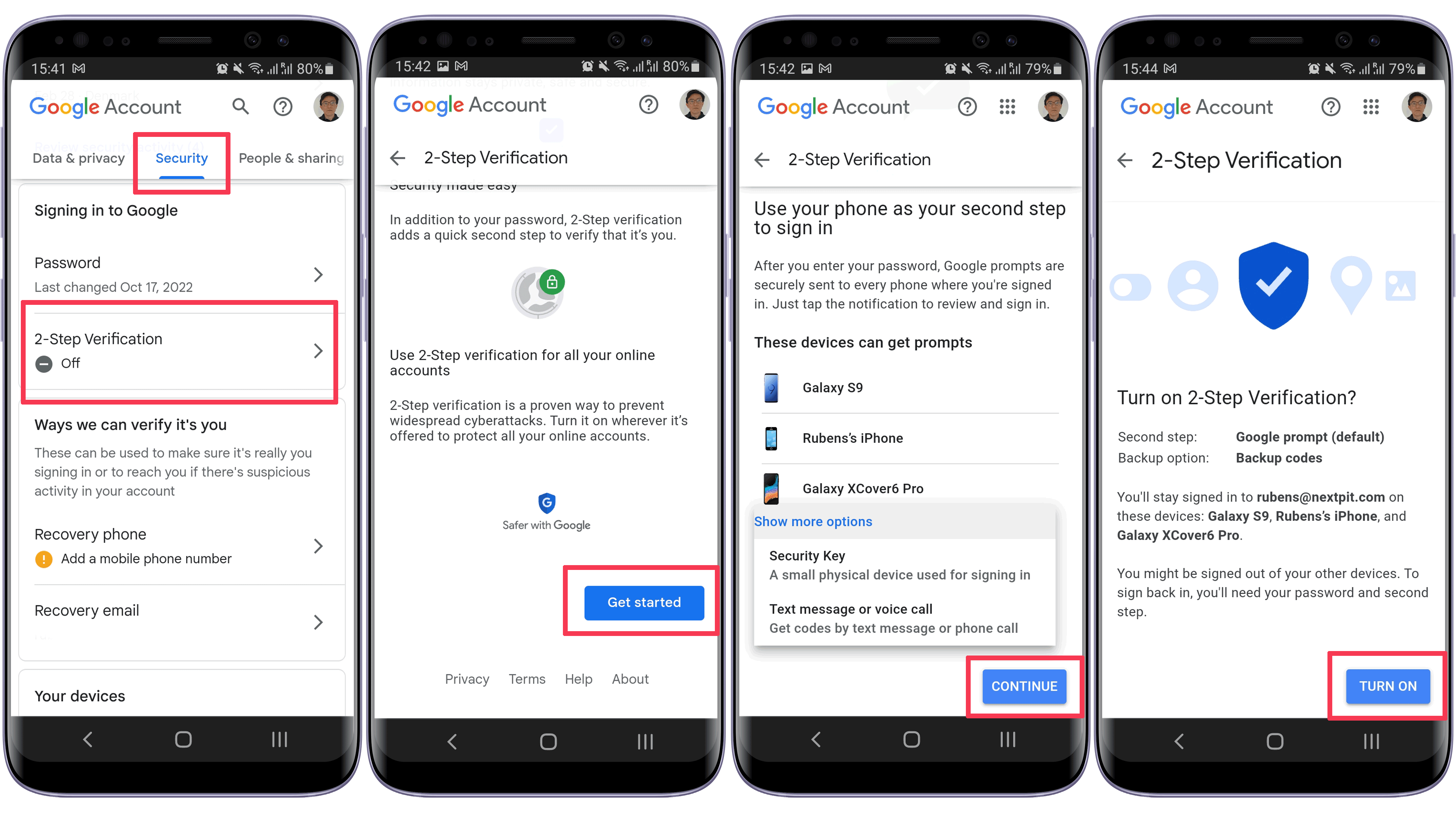
Another requirement for using a security key is activating two-factor authentication on the Google account. If you already have 2fa activated, jump to the next section. If you haven’t, follow these steps:
It is worth repeating that using a phone security key requires both devices to have Bluetooth on. Additionally, the feature is compatible only with Google Chrome and Microsoft Edge browsers.
Next time you try to log in to your Google account—including on Windows and macOS PCs— your security key will automatically communicate with the other device via Bluetooth and you won’t need to use another 2FA confirmation method.
That is it. Now your Google account has an added layer of protection, covering Gmail, YouTube, Drive, Meet, your Android phone, and all other services associated with your Google profile. Do you already use the feature? Prefer USB or NFC keys? Share your tips in the comments below.
We mark partner links with this symbol. If you click on one of these links or buttons–or make a purchase through them–we may receive a small commission from the retailer. This doesn’t affect the price you pay, but it helps us keep nextpit free for everyone. Thanks for your support!
Seit 2008 schreibe ich für verschiedene Websites in Brasilien, Spanien, Dänemark und Deutschland über Technologie und habe mich auf mobile Ökosysteme spezialisiert. Dabei dreht sich bei mir alles um die interessantesten Modelle, ihre Komponenten und natürlich die ganze Welt der Apps. Dabei lege ich nicht nur Wert auf Leistung und Spezifikationen, sondern auch auf Aspekte wie Reparaturfähigkeit, Haltbarkeit und Herstellersupport.






0 comments