Sorry, but there's really nothing to see here right now. Our server is in maintenance mode – and our
little bot is trying to sort the error messages with its last bit of energy.
Whether it was a data leak, a power outage in the cluster, or just a grumpy bit – we don't know yet.
But what we do know is:
The data drama escalated into a server meltdown. But don't worry: We're on it.
What now?
Everything is surely running smoothly over at our colleagues from inside
digital – why not stop by!
Or you could pass the time by visiting our social media channels – for example Instagram, YouTube or TikTok. At least there are no
server problems there – promised.
Thanks for your patience. Our bot is already rebooting at full speed. 🔧
How-tosTabletHow to use Google Lens on your iPhone: Impress your friends with cool AI features!
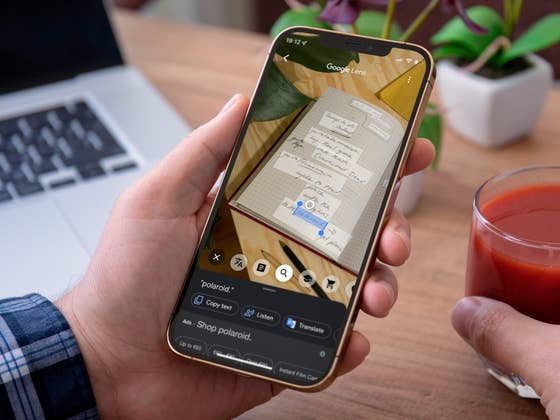
Google Lens is available on iOS devices! In this guide, we will show you how to use Google Lens on an iPhone so that you can enjoy the benefits of this powerful AI tool and impress your friends in the process.
Google Lens is, in my opinion, one of the most successful tools Google has ever developed. It conveniently combines all the neat AI capabilities with intuitive UI and open ecosystem integration. Whether you are using an iPhone 13, a Galaxy S21 or a Pixel 6 Pro, you can use Google Lens quickly to solve a multitude of problems provided you have a data connection, of course.
Before you get started: Google’s powerful AI in your iPhone
Since I moved to Germany, I have come to appreciate Google Lens. Let me tell you; German bureaucracy is something else in terms of complexity. There is a form to fill out for everything! And you will be considered lucky if you find a service with an English website. So a live translator can work miracles.
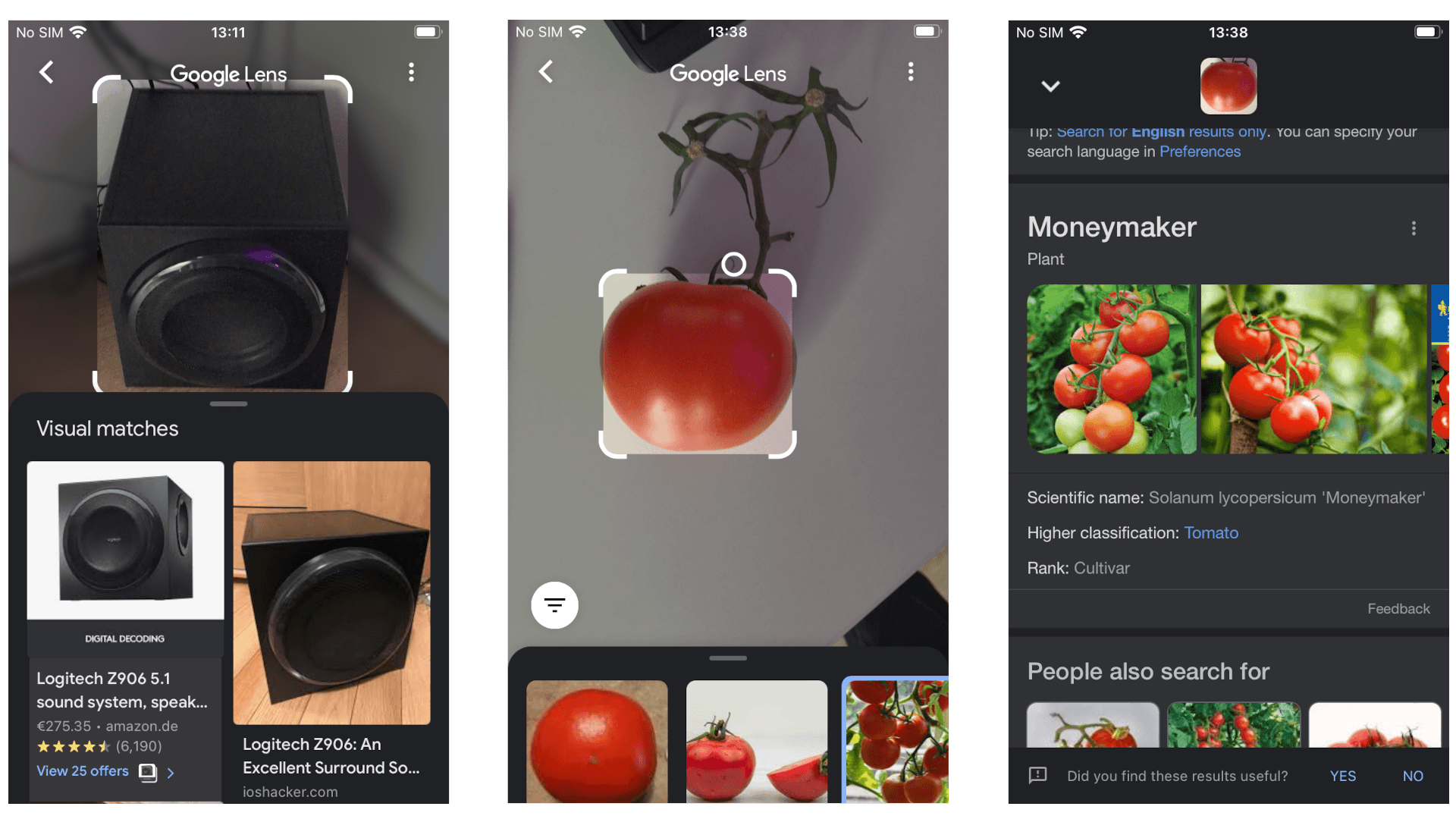
Google Lens is the go-to live translation tool for me. Grocery shopping? It can tell me whether the milk I’m holding is long life or fresh. Looking for a product that has no barcode? I just shoot a picture of it, and it identifies it with considerable accuracy.
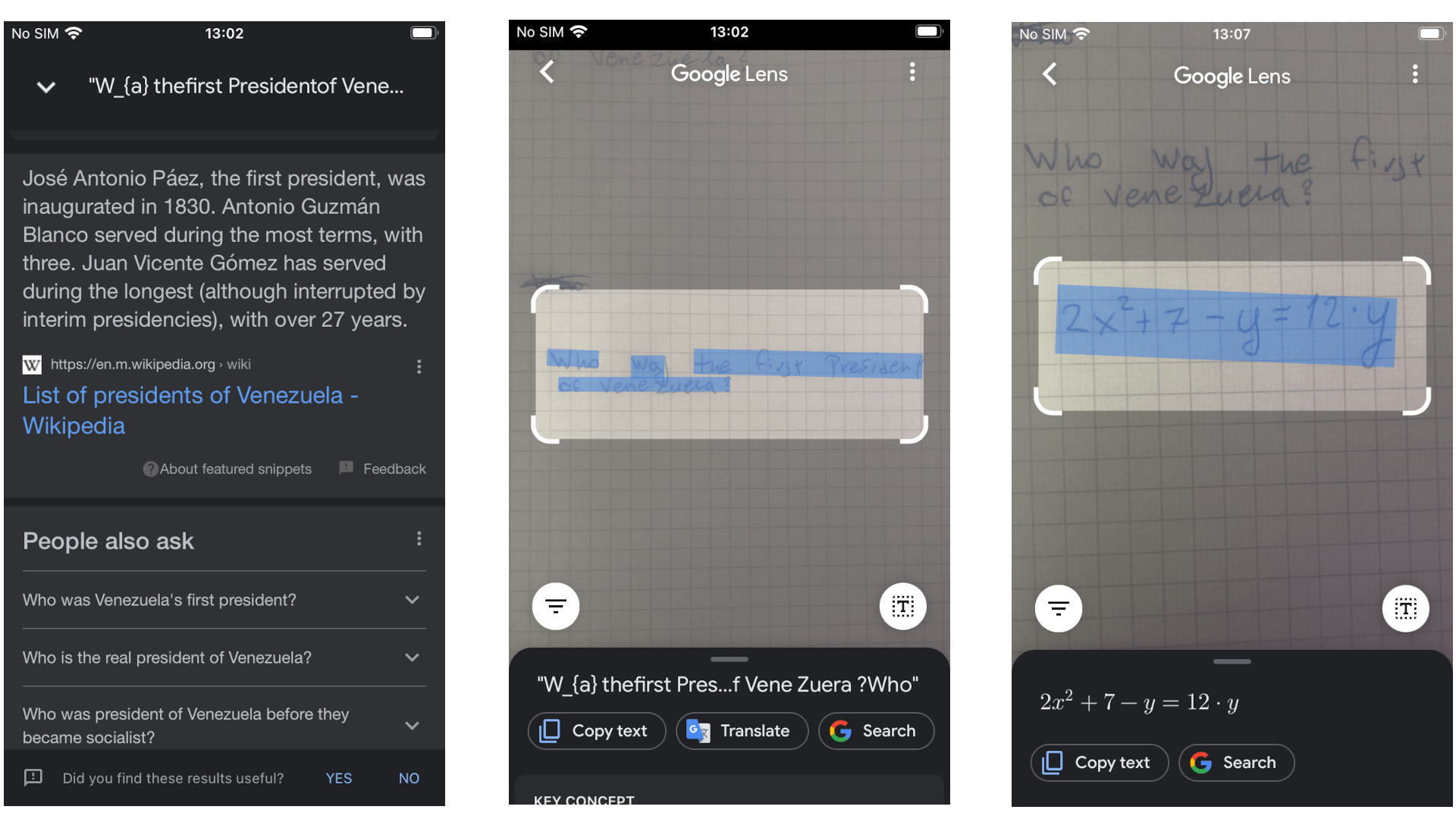
But I also have a nerdy side in me. Sometimes I really want to know the scientific name of that flower I walk by or see cooking recipes for that weird mushroom I’ve never seen before. Or perhaps I have some handwritten notes I need to be transcribed really quick from a meeting! The abilities of this tool are seemingly endless, and thankfully they are the same in both Android and iOS.
iOS 15 has many of those features integrated by default, but they do not cover the broad spectrum that Google Lens does. Also, not all iOS15 devices can support the native integrations. Live Text, for example, can only be used from iPhone XS and later.
This is what you will need for this guide: An iPhone and access to the App Store.
How to use Google Lens on your iPhone
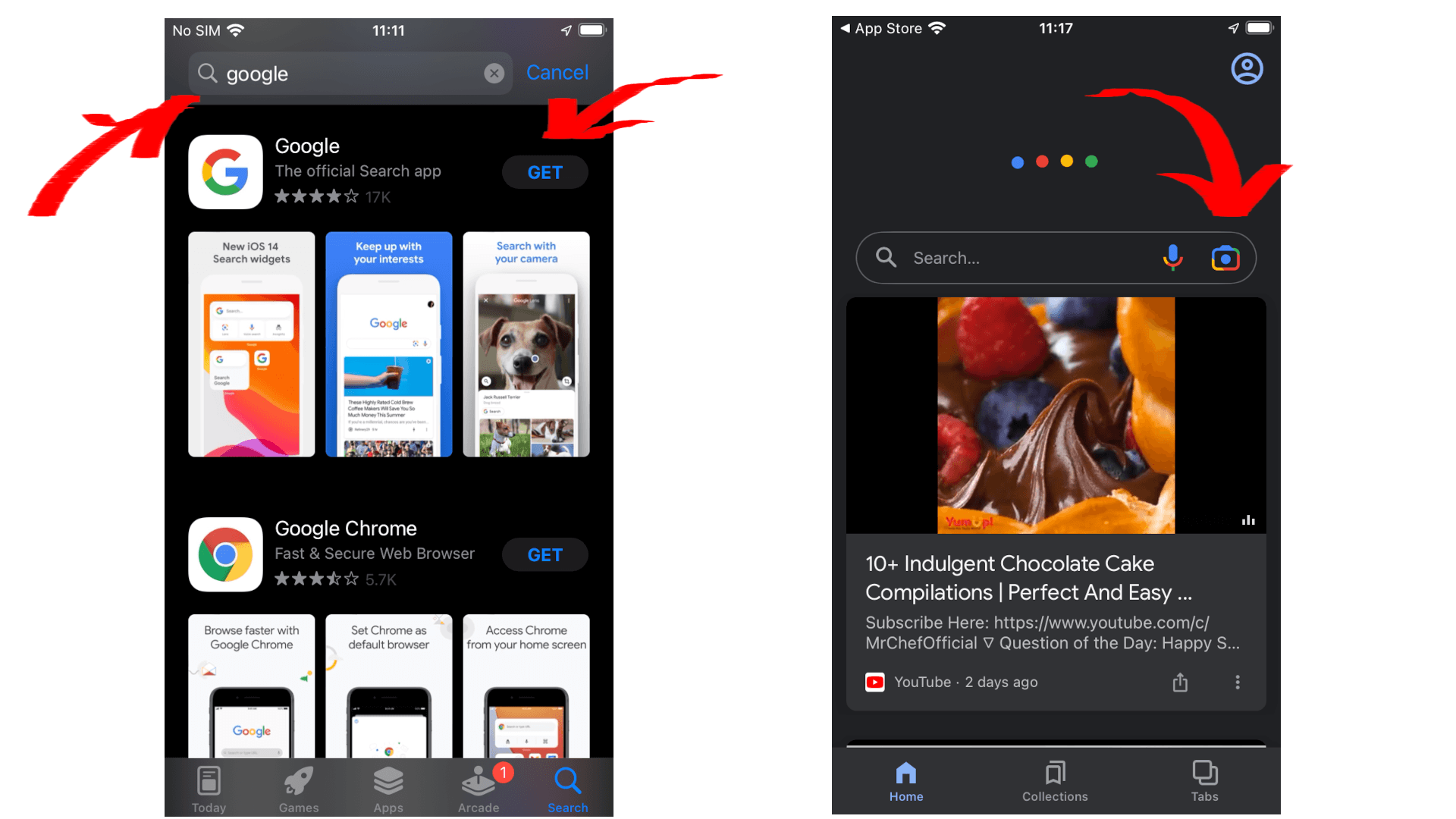
Using Google Lens on iOS is very easy since the only thing you require is basically the Google App from the App Store.
1. You open the App Store. 2. Search for the Google App. 3. Tap Get.
If you have already tried out the app, you may feel a little overwhelmed by the number of features and the very little explanation the UI offers about them. Yes, the accuracy can be weird sometimes, but this is not a real issue; Using a bit of human intuition alongside it, you can get good results after a couple of tries.
Google Lens is primarily pointing you in the right direction. In the example of the tomato picture from earlier in the article, the one that looked most similar to mine was the third option. But after changing the angle a couple of times, it was able to recognize it more consistently.
Here is a small list of useful tools that Google Lens can help you with:






0 comments