
Use an old WhatsApp phone number
If you have a new smartphone but still use your old phone number, there is no way around signing up for WhatsApp again. To use your old phone number for WhatsApp, do the following:
- Launch WhatsApp.
- Key in your old phone number.
- Enter the two-factor authentication code (if available).
- Download data from the last available backup.
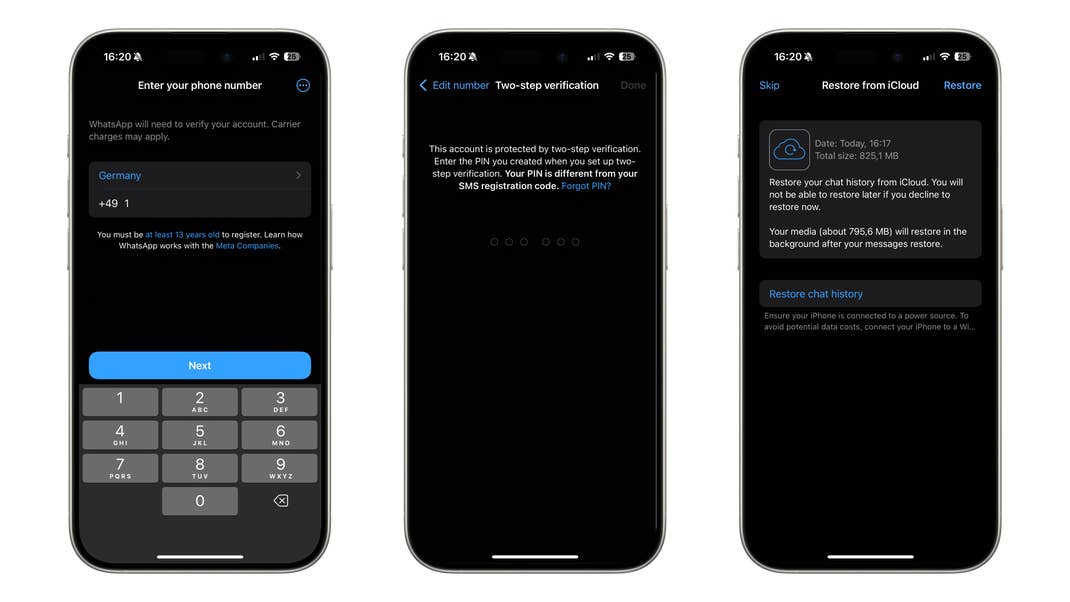
After this, just wait until all data from the backup has been downloaded before you can use the old number in WhatsApp. Here is something else to think about: WhatsApp will ask you for permission to access your contacts. For WhatsApp to display and synchronize your contacts, we recommend you allow such access. You do not need to perform verification via SMS.
That’s it! Now, you can simply continue to use your old WhatsApp account as before. Best of all, you don’t even have to update your contacts about your phone number.
Change your WhatsApp phone number
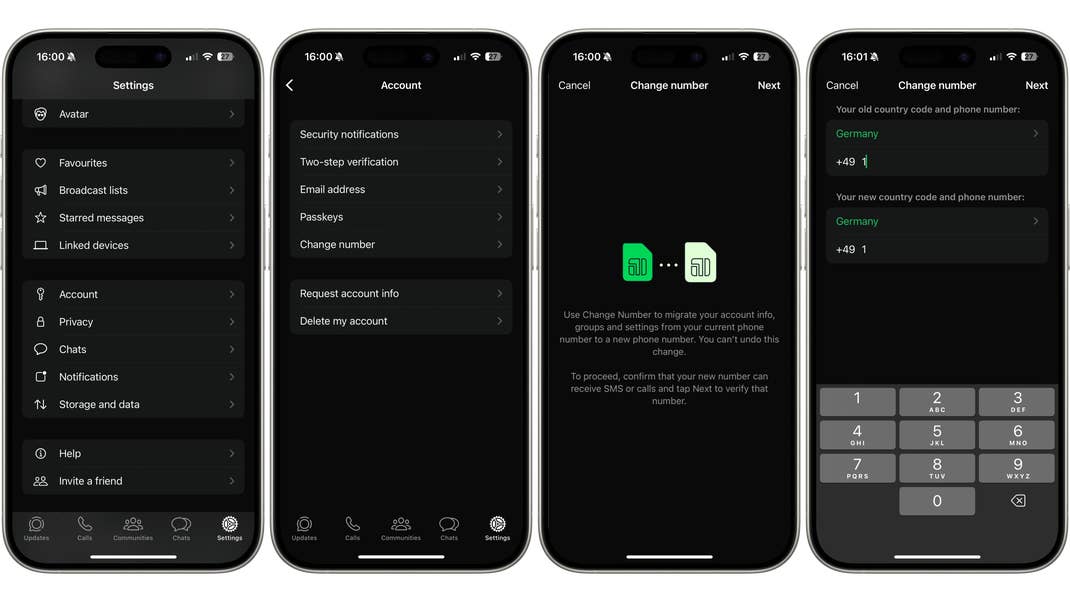
If you have a new phone number, you will logically have to key it in WhatsApp. To change the phone number, do the following:
- Go to Settings.
- Select Account.
- Go to Change number.
- Type in the old and the new numbers.
- Determine whether your contacts should be notified.
Did the instructions help you? Please let us know in the comments what you think about such options.
We mark partner links with this symbol. If you click on one of these links or buttons–or make a purchase through them–we may receive a small commission from the retailer. This doesn’t affect the price you pay, but it helps us keep nextpit free for everyone. Thanks for your support! Prices are based on the date of publication of this article and may be subject to change.