Last week, my colleague Zois Bekios posted a tutorial showing how to change the voice of the Google Assistant, the topic of which generated great interest among the NextPit community. The fact is that voice assistants are available on our smartphones at the click of a voice command and are becoming a growing presence in our homes as well. So it is no surprise that there is a lot of interest in this topic.
In addition to showing how to change Siri’s voice in this tutorial, I also share a tip for getting the iPhone’s virtual assistant to pronounce your name correctly.
How to change Siri’s voice in a few steps
With the announcement of iOS 14.5, Siri gained new voices and, as mentioned above, no longer defaults to the female voice. Soon, when you set up a new Apple device, you will be able to opt for the female, male, or even gender-neutral voice right from the initial settings of your iPhone.
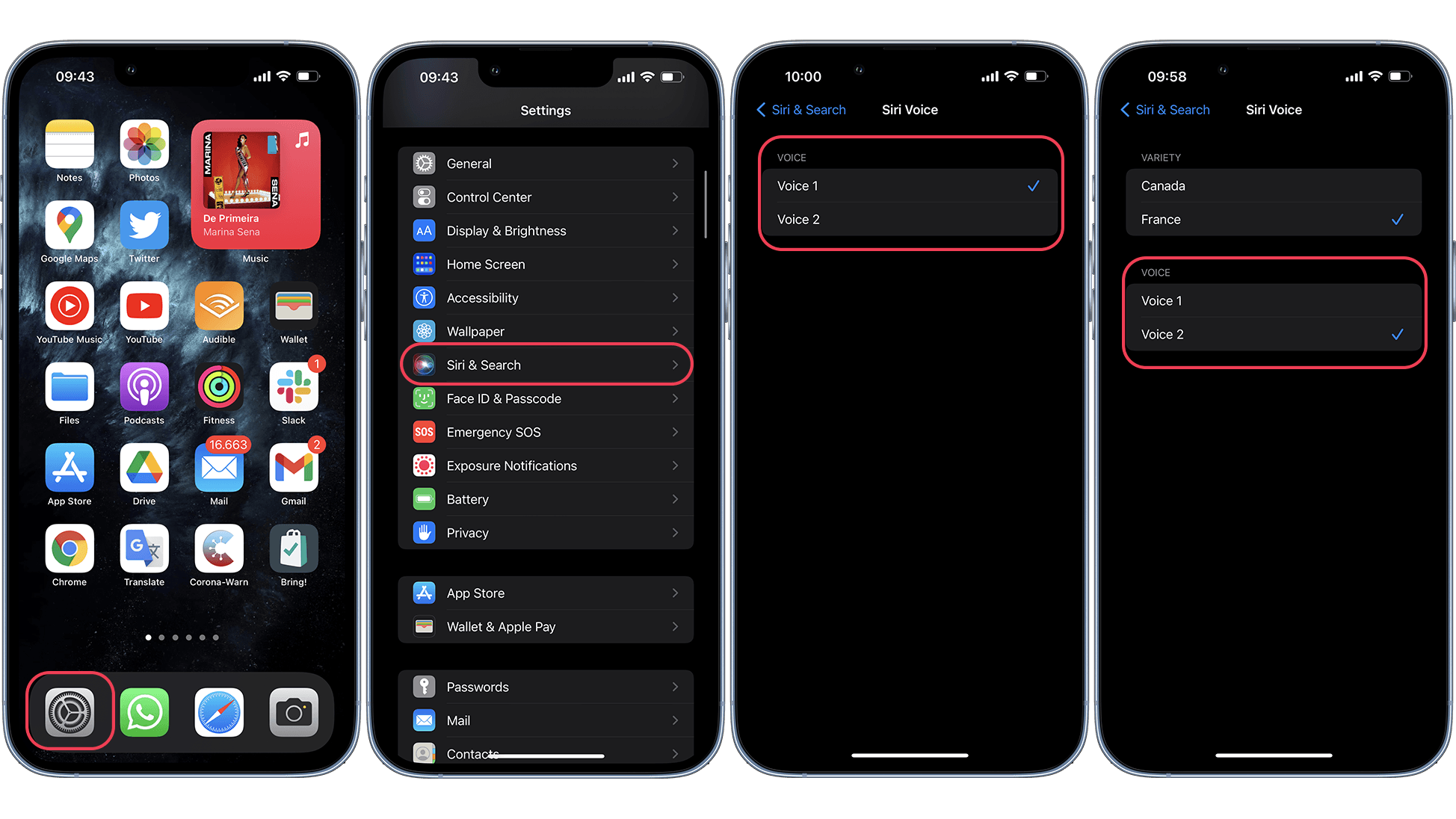
The most interesting thing about all of this is that once you make your selection, Apple will change Siri’s voice on all devices connected via Apple ID. However, if you have been using an Apple phone for a while, chances are high that you still use the female voice as the default. However, it is very easy to change this, just follow the following path:
- Open the Settings app.
- Navigate to Siri & Search.
- Select the Siri Voice option.
- Here you can choose the Variety of voices, such as American or Indian.
- In the Voice section, you can select from five different options.
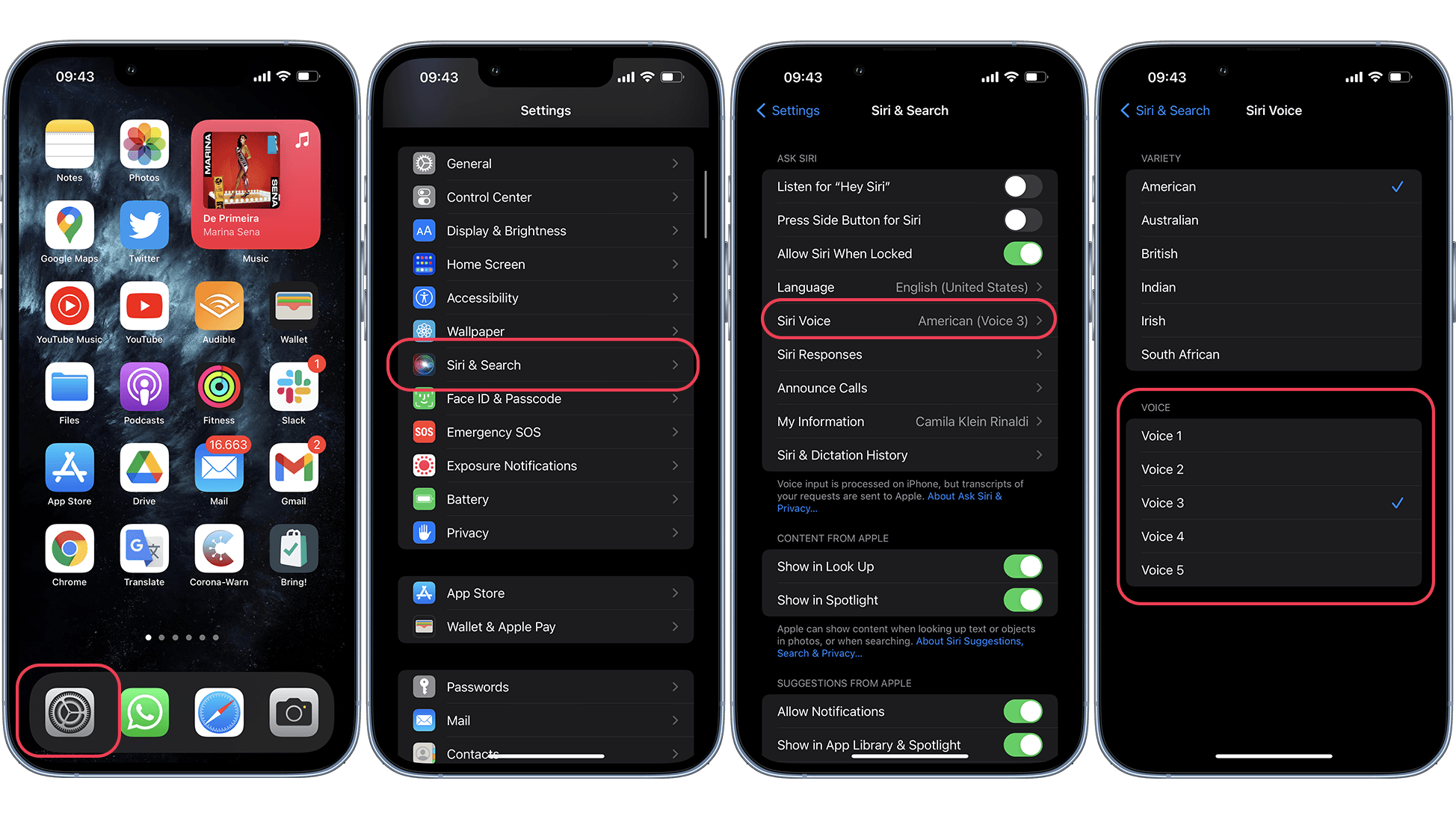
In English, Apple offers two options for male and female voices, as well as a gender-neutral option (Voice 5) for those using the beta version of the iOS 15 operating system. However, I have to say that the gender-neutral voice sounds to my ears like a variation of the female voice, even though Apple has tried to balance the male and female voices here. Please share your experience with the gender-neutral voice in the comments of this article, as I am curious to know your opinion on the topic.
Also, unfortunately, languages like French and German only have two voice options, one male and one female so far. Hopefully, Apple will offer more variations with the announcement of the next version of iOS 15.4 or iOS 16.
How to make Siri pronounce your name correctly
Another quite relevant point when talking to a voice assistant is certainly the correct pronunciation of our own name, right? Unlike my colleague Zois Bekios (Greek), my name is a bit simpler to pronounce. However, if Apple’s virtual assistant has trouble pronouncing your name correctly, it’s easy to change that:
- Open the Contacts app and select your profile.
- Tap Edit, and navigate to the Add Field option to insert the items Pronunciation First Name and Pronunciation Last Name.
- Fill in the fields with the desired pronunciation and Save the changes.
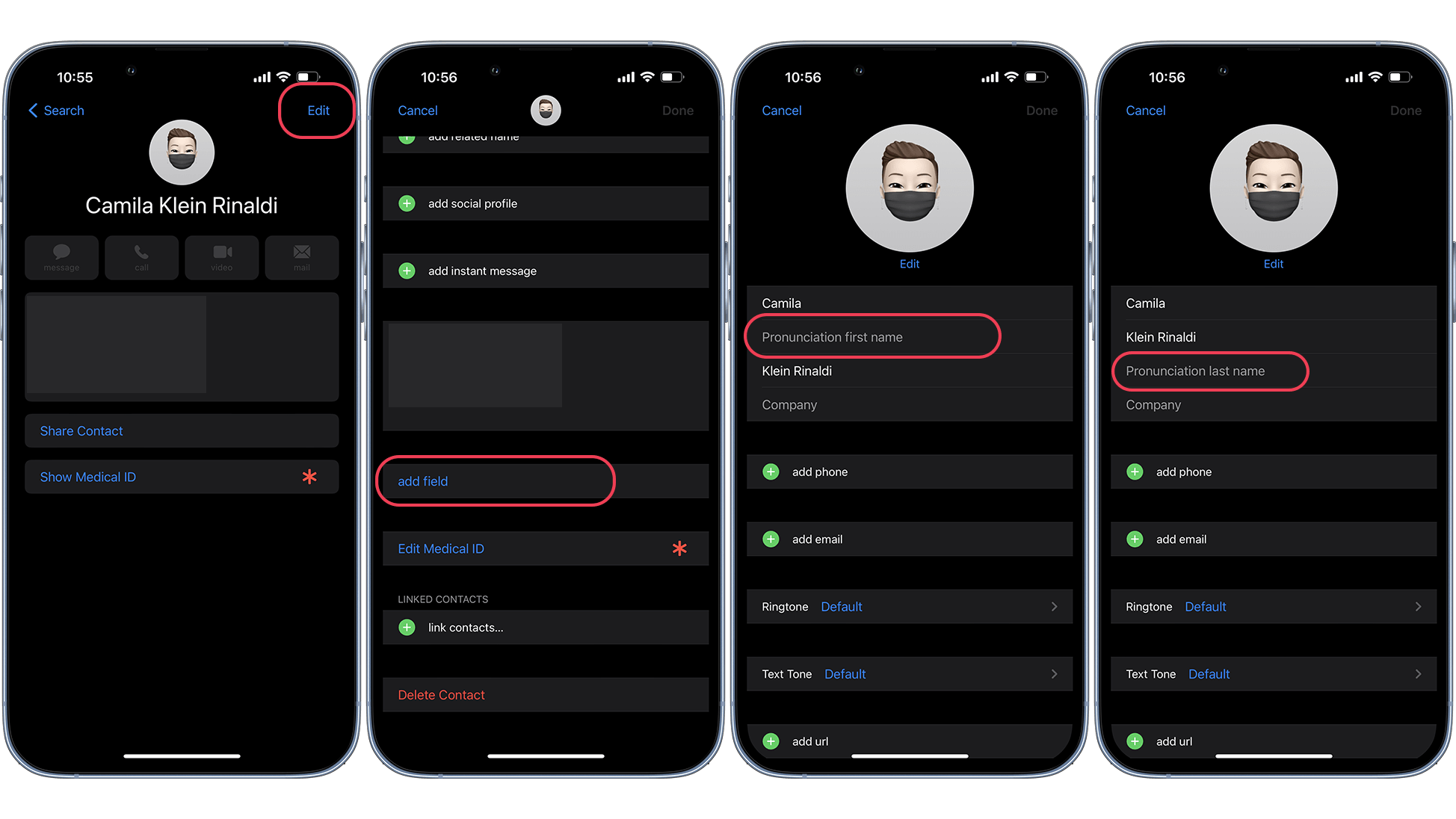
There, now Siri can pronounce your name as you wish. Here, you can also set the pronunciation of different names as well, just follow the tutorial above, and instead of selecting your name, choose the desired contact profile.
That’s it, now you know how to change the voice of Siri on your iPhone and how to optimize the pronunciation of your name when using Apple’s voice assistant. Did you already know these two configuration options? Which voice do you use with Siri?