Sorry, but there's really nothing to see here right now. Our server is in maintenance mode – and our
little bot is trying to sort the error messages with its last bit of energy.
Whether it was a data leak, a power outage in the cluster, or just a grumpy bit – we don't know yet.
But what we do know is:
The data drama escalated into a server meltdown. But don't worry: We're on it.
What now?
Everything is surely running smoothly over at our colleagues from inside
digital – why not stop by!
Or you could pass the time by visiting our social media channels – for example Instagram, YouTube or TikTok. At least there are no
server problems there – promised.
Thanks for your patience. Our bot is already rebooting at full speed. 🔧
While Google Photos is a powerful cloud-based photo gallery with advanced features, it has lacked a basic ability: downloading multiple cloud media files to a device in a seamless way. This is finally changing with the latest Android app version, which will enable bulk photo downloads.
Google Photos has long allowed you to upload multiple files manually or automatically to the cloud. However, when switching phones or using multiple devices, you might need to download photos and videos. Previously, this could only be done by downloading single media files, which was time-consuming.
Initially, Android Authority reported hidden features in the latest Google Photos that would allow users to bulk download photos or videos from the cloud that are not already stored locally on the device. Now, as spotted by a reader of the outlet, Google has seemingly begun rolling out this feature.
How Bulk Download Works in Google Photos for Android
This new bulk download feature allows users to download multiple photos or videos that are synced in Google Photos but not currently stored on their device. On our test devices, it’s available on both the Galaxy Z Fold 5 and Galaxy A54, so it’s unclear exactly when it was added for some users.
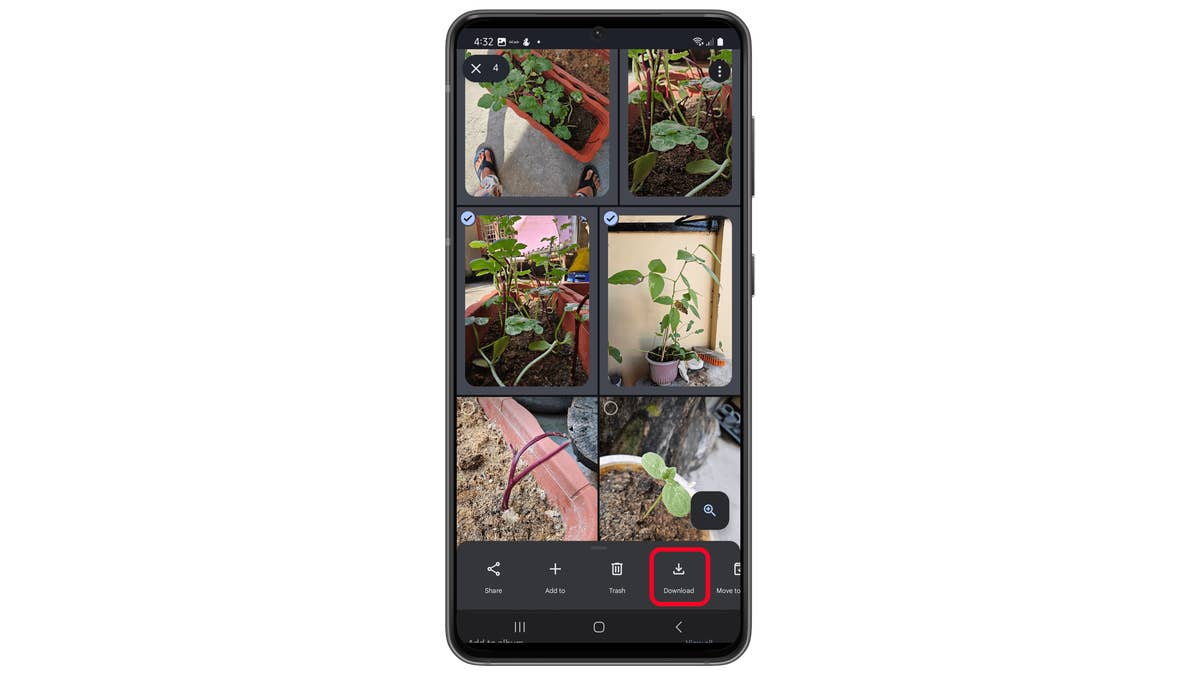
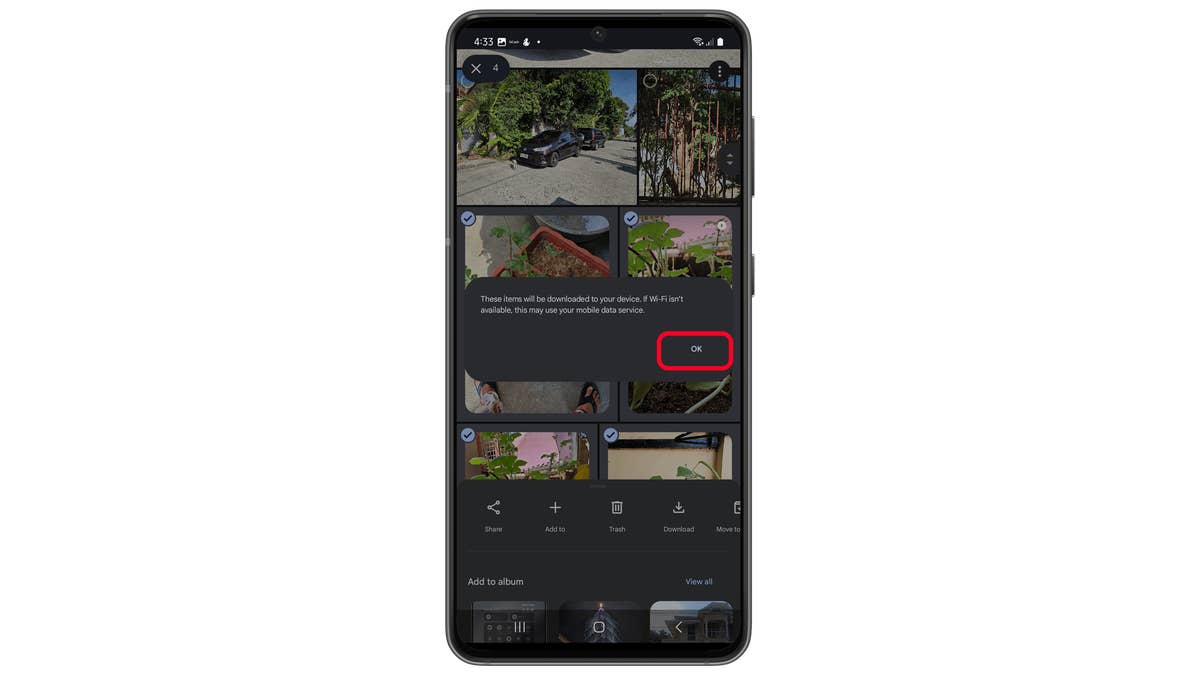
Previously, when bulk download wasn’t available, selecting multiple photos and videos would not display the Download button. Now, the button remains visible. Once you’ve chosen the media and tap “Download,” a data usage warning may pop up for metered Wi-Fi connections. After confirming, the files download in the background, and you can see an animated progress indicator on each photo or video.
If you have the feature on your device, here’s how to use it:
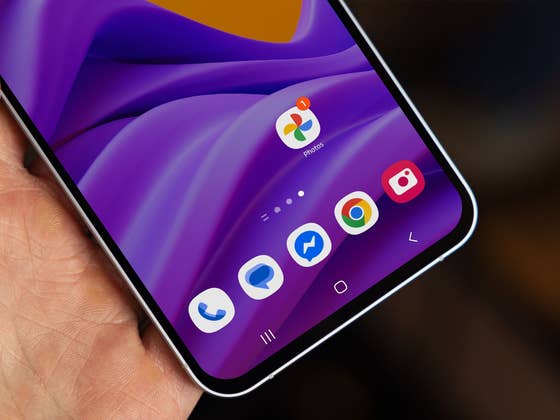
Open Google Photos.
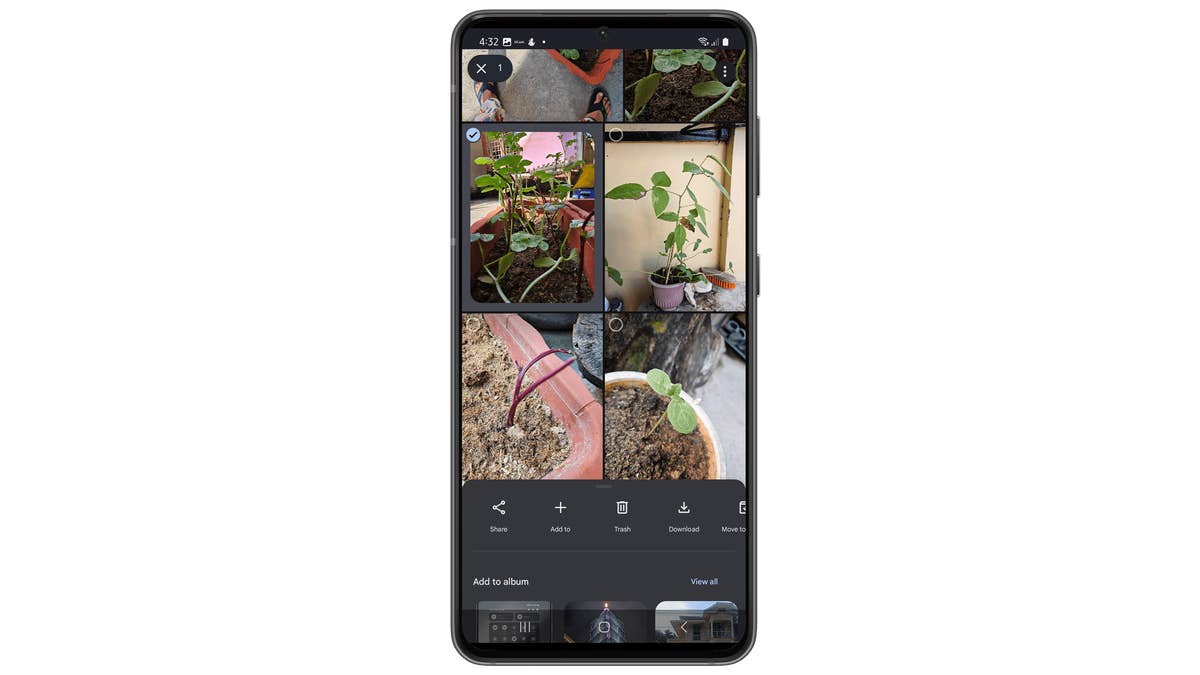
Select the desired photos or videos.
Tap Download.
Confirm to continue downloading if prompted.
Select multiple photos or videos in Google Photos.
Quelle: nextpit
Tap the Download button to begin bulk download.
Quelle: nextpit
Tap Continue to confirm bulk download in Google Photos.
Quelle: nextpit
Alternatively, files already present in the local storage will be automatically skipped, even if included in the selection. This makes the process more convenient, as you won’t need to individually deselect or manually check which items are already available offline.
Interestingly, Google Photos for iOS already allows downloading of cloud photos or videos with shared accounts, although the steps might differ slightly.
Are you using Google Photos as your default gallery and photo cloud storage app? What are your thoughts on the addition of bulk download? Please let us know down in the comments.
We mark partner links with this symbol. If you click on one of these links or buttons–or make a purchase through them–we may receive a small commission from the retailer. This doesn’t affect the price you pay, but it helps us keep nextpit free for everyone. Thanks for your support!





0 comments