Apple’s iOS 18.2 introduces a significant update, bringing a second wave of Apple Intelligence and AI features to supported iPhone models. Among the highlights is the integration of Siri with ChatGPT, empowering users to make use of the latter for more complex queries. If you’re looking to set up ChatGPT as part of your Siri experience, follow this guide for step-by-step instructions.
Why Use ChatGPT Over Siri?
ChatGPT on the iPhone offers distinct advantages compared to Siri, particularly for addressing complex questions and nuanced contexts. Additionally, ChatGPT supports a broader range of languages than Apple’s AI assistant, making it a more versatile tool overall.
However, Siri maintains its strengths, especially in handling extended conversations thanks to its deep integration with Apple Intelligence. Siri can carry context across interactions, whereas ChatGPT—being platform-agnostic—responds to one prompt at a time. To continue a natural conversation with ChatGPT, you’ll need to reopen the app.
Another key difference is accessibility: Siri supports both voice and text-based commands, while ChatGPT integration through Apple Intelligence is limited to text input. Regardless, ChatGPT is a more powerful AI solution despite some limitations.
How to Enable ChatGPT with Siri on Your iPhone
To use ChatGPT alongside Siri on a compatible iPhone, you’ll first need to activate the integration. Here’s how to set it up:
- Open Settings on your iPhone.
- Navigate to Apple Intelligence > Siri.
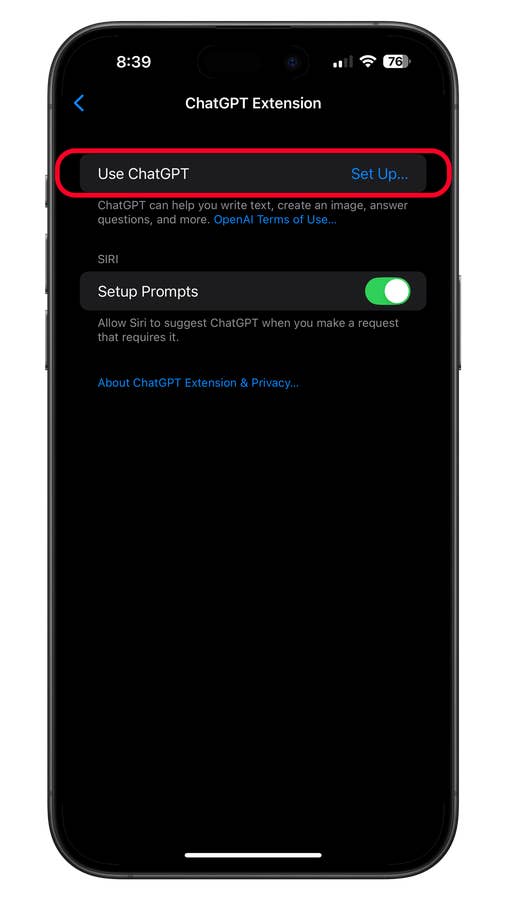
- Tap on Use ChatGPT to initiate setup.
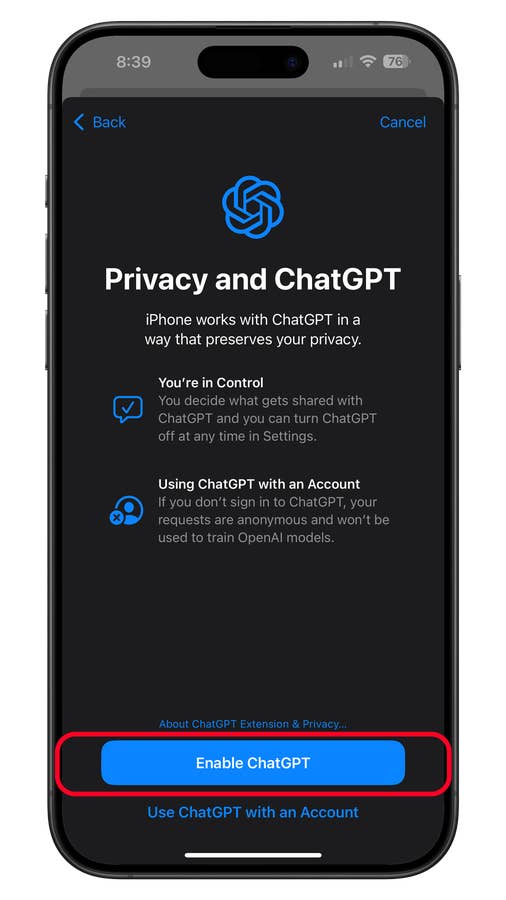
- Follow the on-screen instructions and select Enable ChatGPT when prompted.
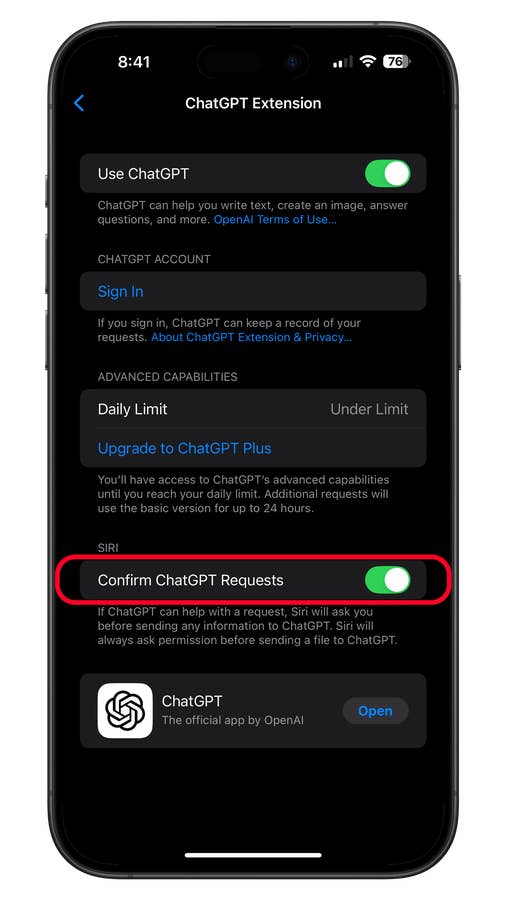
- In the same section, toggle on Confirm ChatGPT Requests.
- Tap the back button to save your changes.
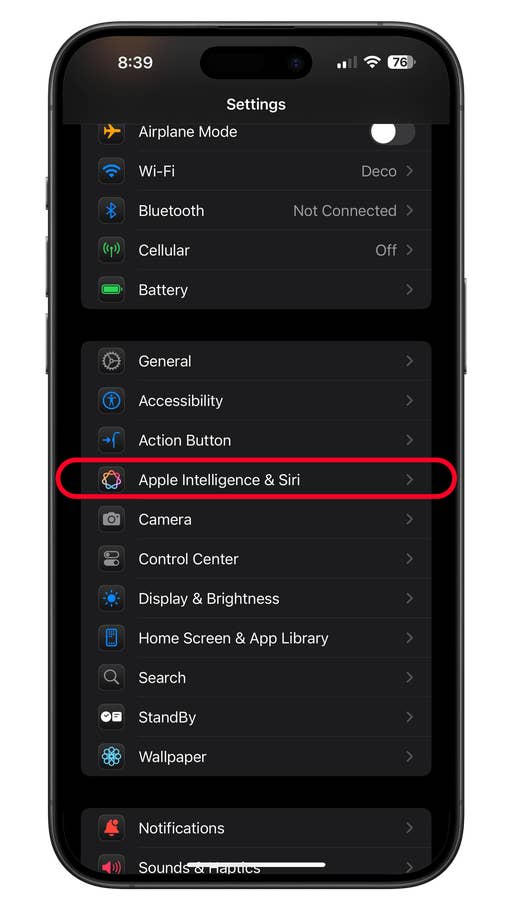
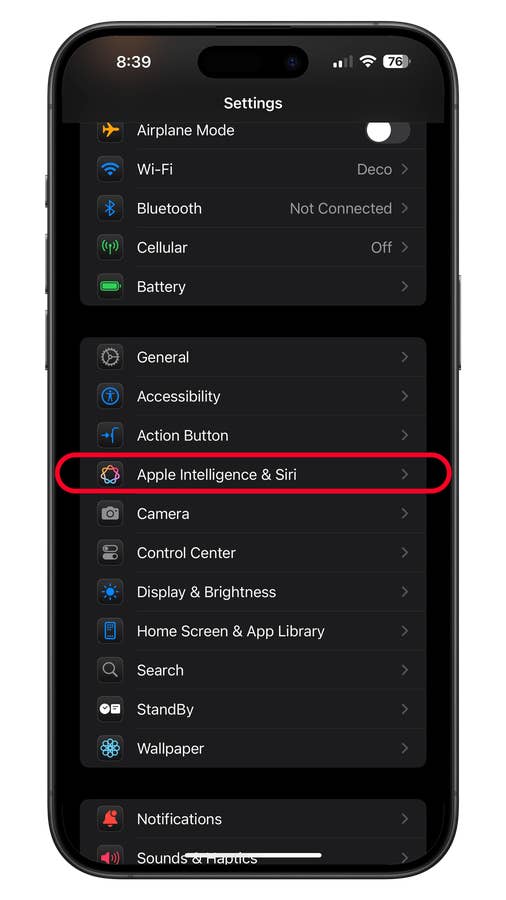
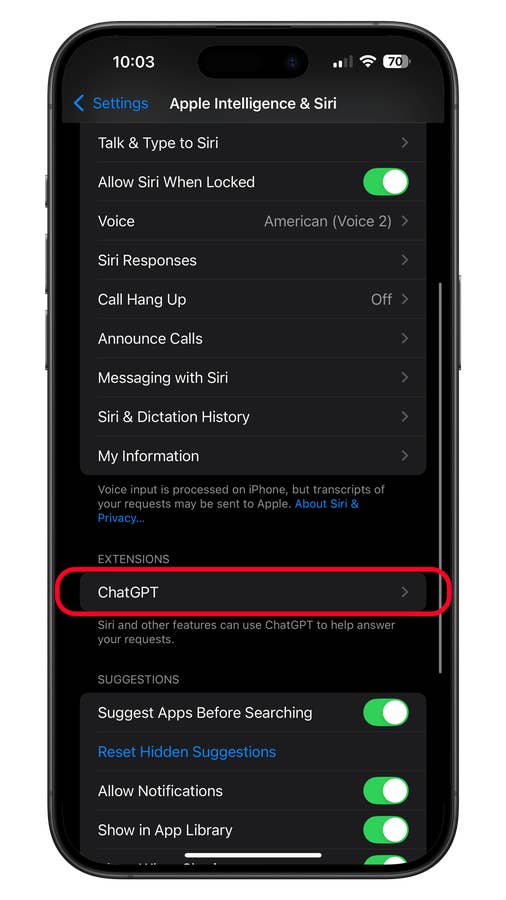
Open settings and then select Apple Intelligence and Siri.
Quelle: nextpit
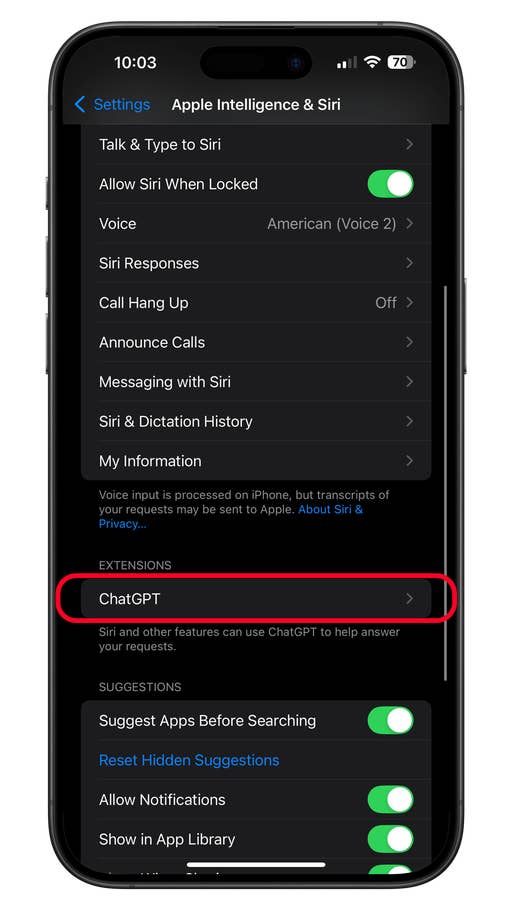
Select ChatGPT. Remark: If this option is not showing up, youu0027re phone is not Apple Intelligence enabled.
Quelle: nextpit
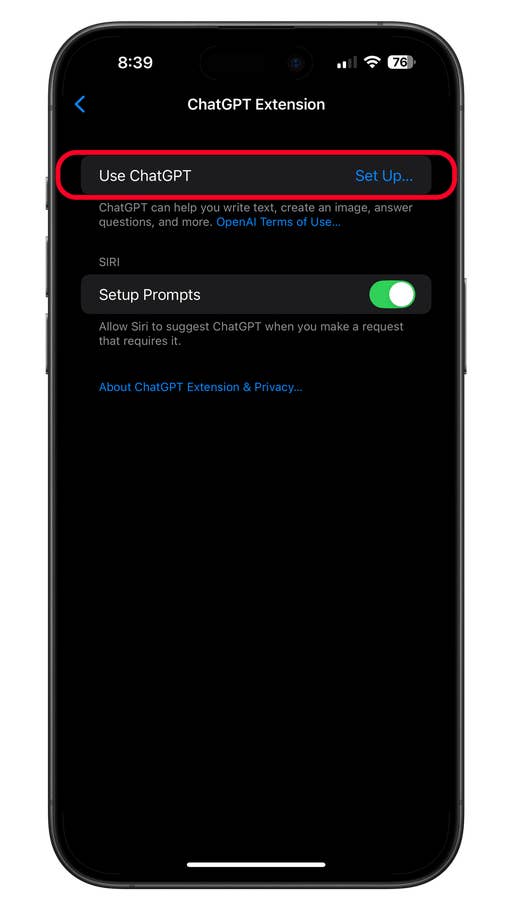
Tap on Use ChatGPT to continue the setup.
Quelle: nextpit
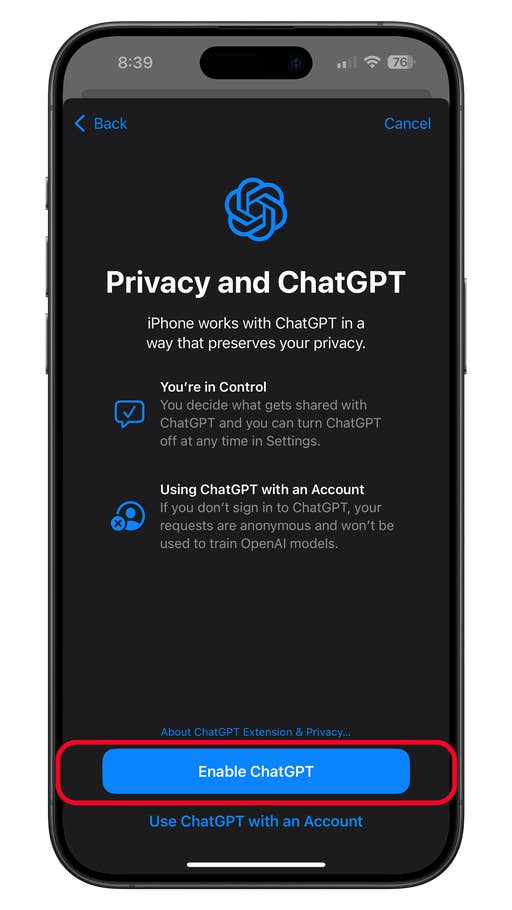
To proceed, tap on Enable ChatGPT.
Quelle: nextpit
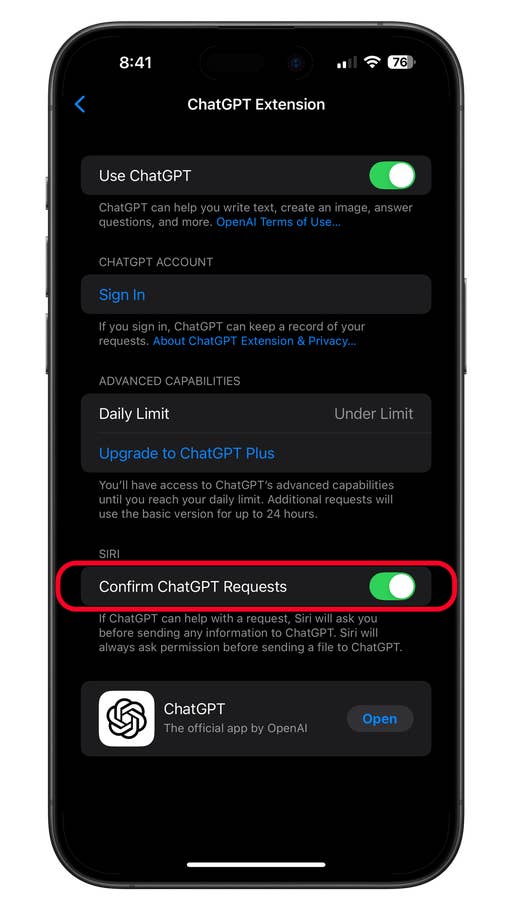
Toggle on the Confirm ChatGPT Requests.
Quelle: nextpit
How to Launch ChatGPT with Siri on Your iPhone
Once enabled, ChatGPT can be accessed via Siri or Type to Siri. Remember, you’ll need to include a prefix or identifier like “ask ChatGPT” or “use ChatGPT” in your command to direct Siri to the AI chatbot.
How to access ChatGPT via Siri
With iOS 18, Apple added Type with Siri. This basically allows you to type your queries to the AI assistant including the ChatGPT action.
- If Siri is enabled on your lock screen, press and hold the side button to activate Siri.
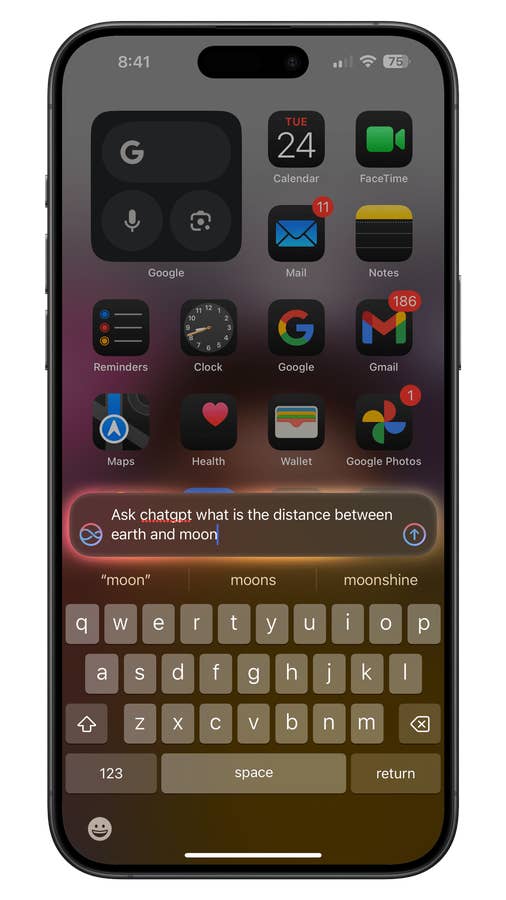
- Begin your command with “ask ChatGPT,” followed by your query or instruction.
- Alternatively, use the Action Button to launch Siri after configuring it for this purpose.
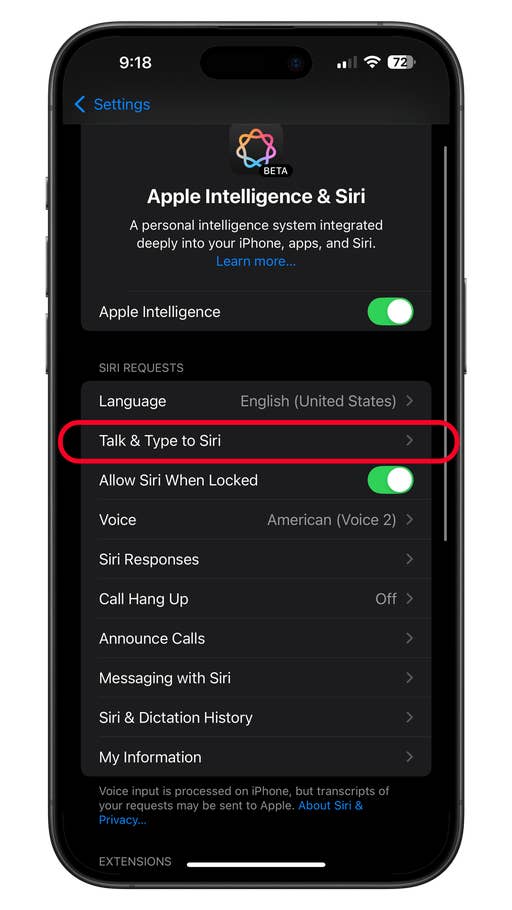
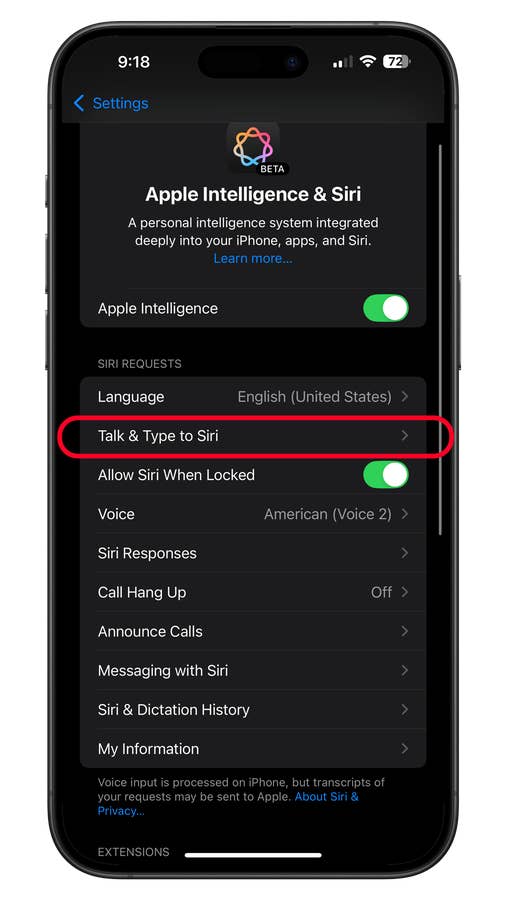
Tap on Talk u0026 Type to Siri.
Quelle: nextpit
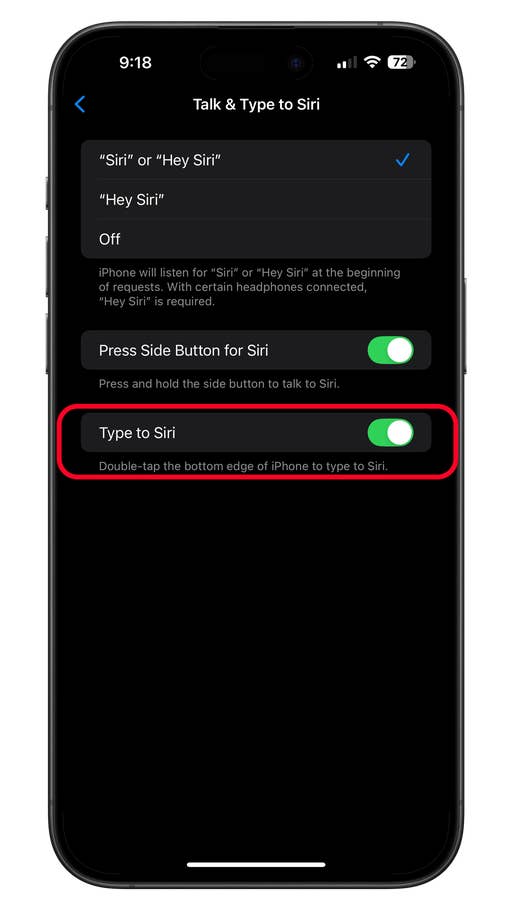
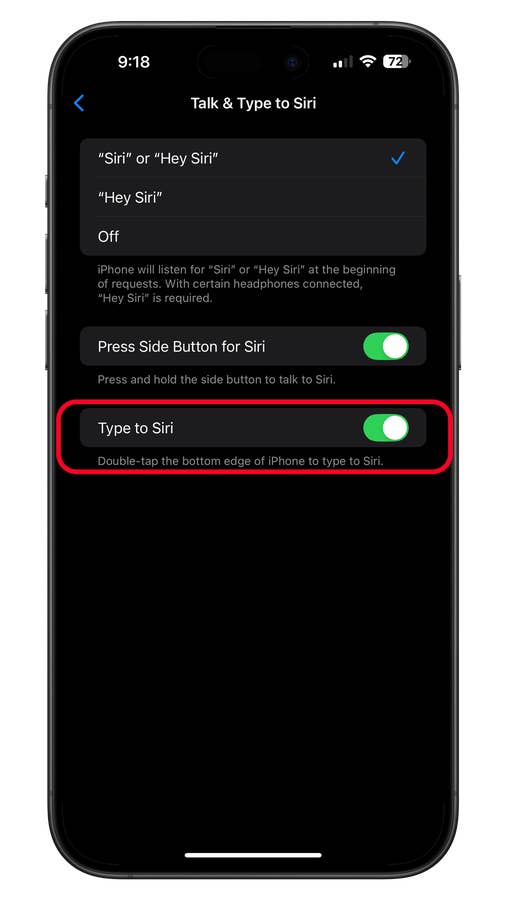
Toggle on Type to Siri.
Quelle: nextpit
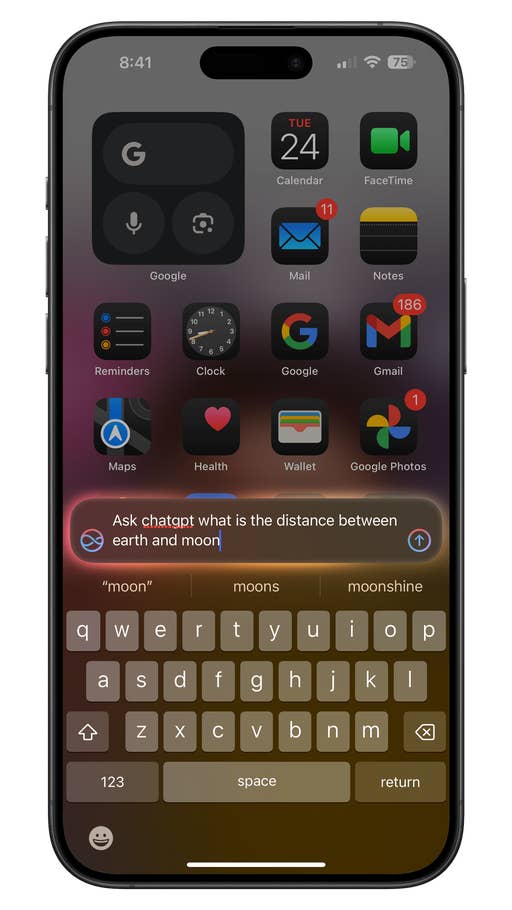
Double tap on the bottom bar to summon Type to Siri.
Quelle: nextpit
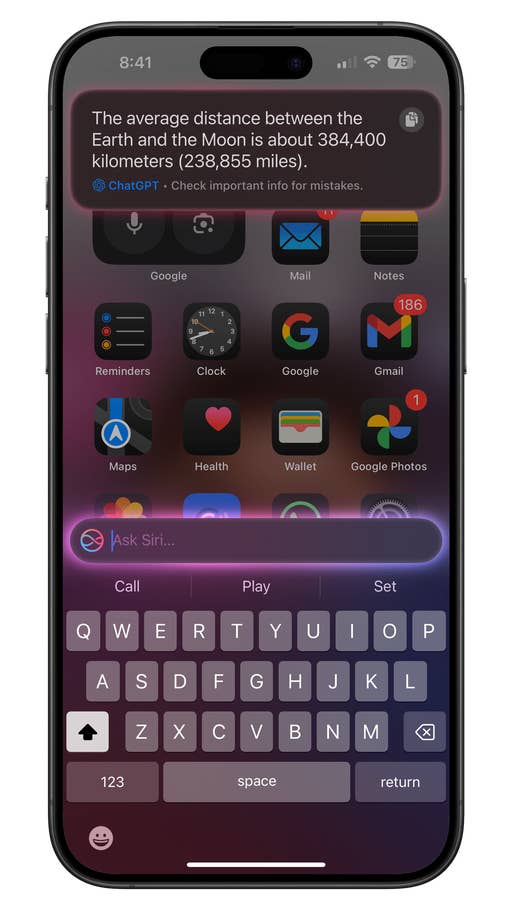
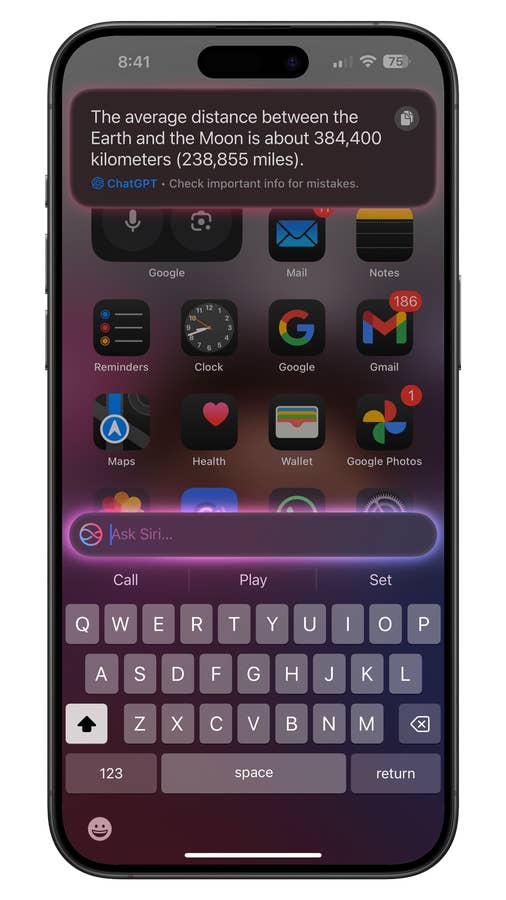
Responses from ChatGPT are displayed on a floating card on the top.
Quelle: nextpit
How to Use ChatGPT with Type to Siri
iOS 18 introduces Type to Siri, a feature that lets you type queries directly to Siri, including commands for ChatGPT. To enable this:
- Open Settings on your iPhone.
- Go to Apple Intelligence > Siri.
- Select Talk and Type to Siri.
- Toggle on Type to Siri.
- Save your changes.
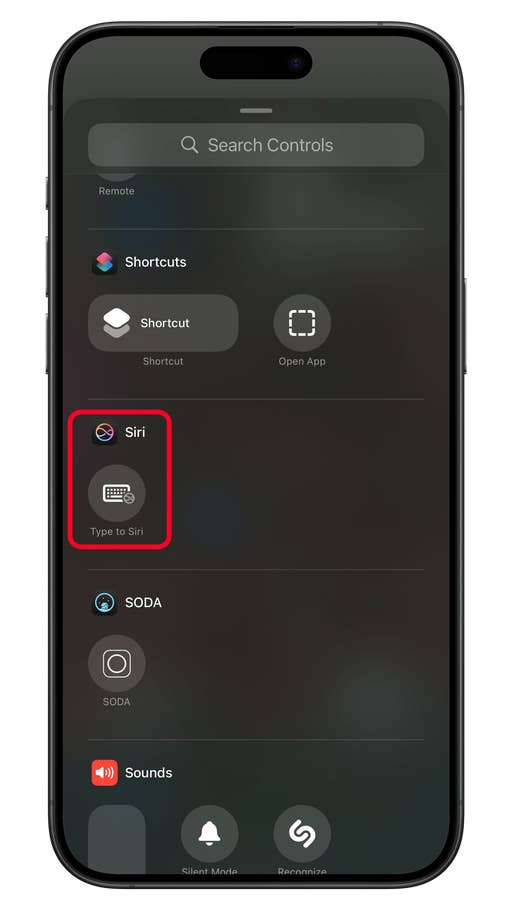
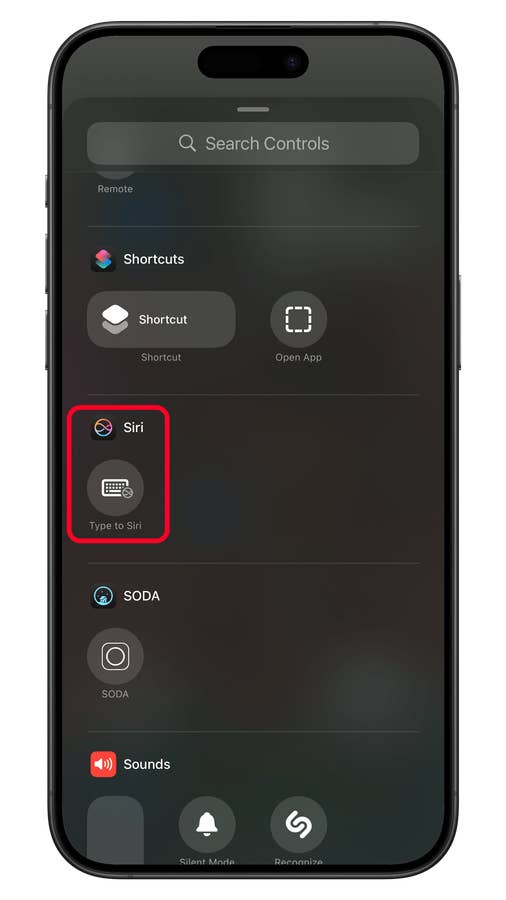
Customize the Control Center and add the Type to Siri shortcut.
Quelle: nextpit
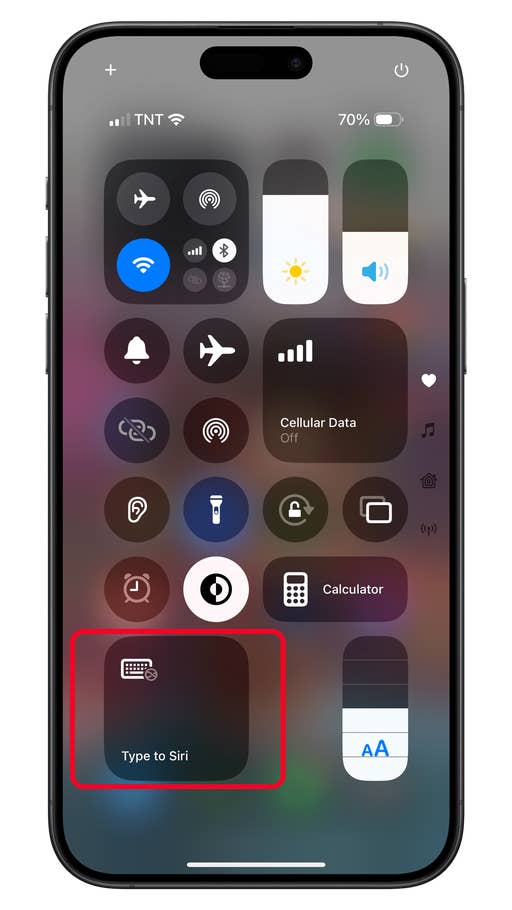
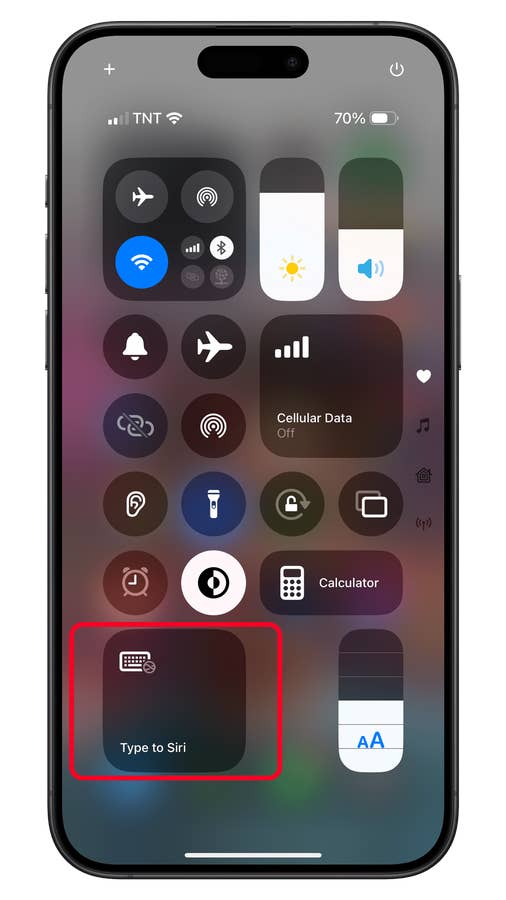
Launch Type to Siri from the Control Center.
Quelle: nextpit
After activation, you can launch Type to Siri by double-tapping the bottom bar of your screen or using the Action Button. For quicker access, customize the Control Center or Lock Screen by adding Type to Siri as a shortcut.
Which iPhones Support ChatGPT Integration?
ChatGPT integration with Siri is available on the iPhone 15 Pro (review), iPhone 15 Pro Max (review), and the entire iPhone 16 series (review). Older iPhone models do not currently support this feature.
Have you tried Apple Intelligence yet? Which AI features are your favorites? Share your thoughts in the comments—we’d love to hear from you!








0 comments