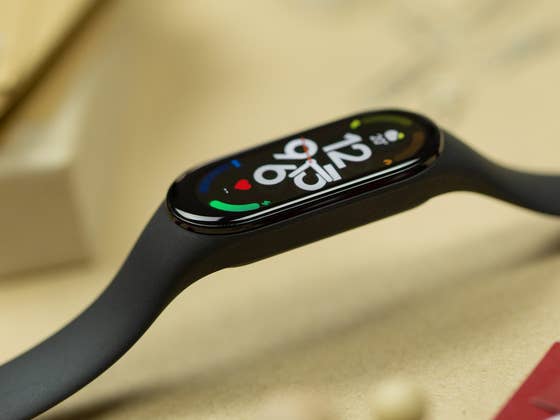
This nice feature that Xiaomi has added to its fitness trackers is all about the vibration, which is often not very clear depending on the type of incoming message. An incoming call on the smartphone vibrates noticeably differently than an incoming text message, but apart from that, the patterns are very similar.
- Related: Xiaomi Smart Band 7 review
This means that we have to look at the watch every time to be sure whether we are just getting a WhatsApp message or an SMS, or are reminded of an appointment. However, Xiaomi lets you decide how you want your smart wristband to vibrate! We will now tell you how to set your very own vibration patterns.
Xiaomi Smart Band 7: Personalize your own vibration patterns
- In the Mi Fitness app, tap Device at the bottom of the bar.
- Scroll down and select Vibration.
- In the menu, now select the category for which you want to change the vibration.
- Choose either the Standard or Custom option.
- If you have not yet defined your own pattern, tap on the red Add button at the bottom.
- Tap on the Smart Band shown there to record your desired pattern.
- Press Play to check the vibration on the tracker, or tap Record to the right to re-record.
- If everything matches, tap the check mark in the upper right corner to confirm the new vibration pattern.
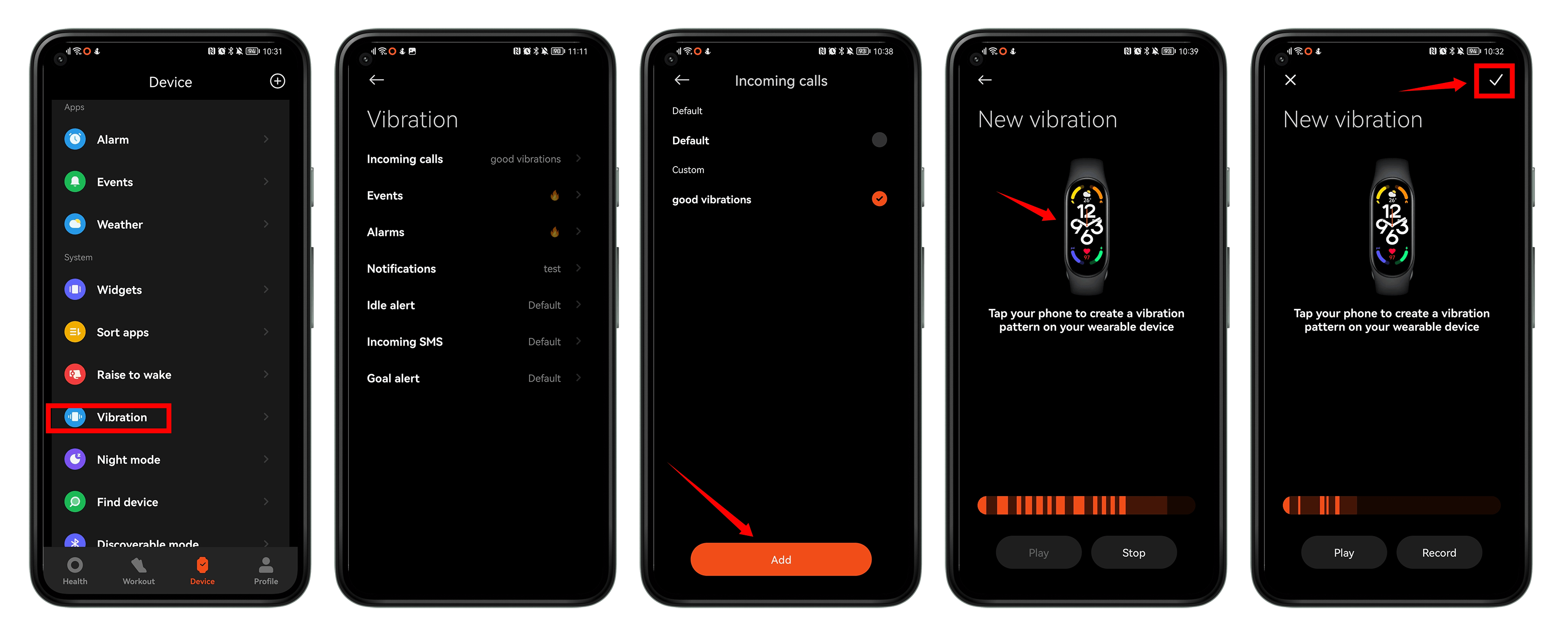
Done! Now you have set your very own vibration pattern for the desired function. From now on, this new pattern is available to you, so you could select it for other categories as well.
This vibration feature was also available on the Xiaomi Mi Band 6, even though I just stumbled across it now. So check out the compatible Xiaomi, Redmi and Poco watches and trackers—it’s quite possible that it will work there as well.
What do you say? Is this a welcome change in the monotony of vibrations or is such a function too niche for you? Feel free to let me know in the comments.