Sorry, but there's really nothing to see here right now. Our server is in maintenance mode – and our
little bot is trying to sort the error messages with its last bit of energy.
Whether it was a data leak, a power outage in the cluster, or just a grumpy bit – we don't know yet.
But what we do know is:
The data drama escalated into a server meltdown. But don't worry: We're on it.
What now?
Everything is surely running smoothly over at our colleagues from inside
digital – why not stop by!
Or you could pass the time by visiting our social media channels – for example Instagram, YouTube or TikTok. At least there are no
server problems there – promised.
Thanks for your patience. Our bot is already rebooting at full speed. 🔧
How-tosVR & ARImprove Galaxy Watch 4 battery: How to turn off the remote connection
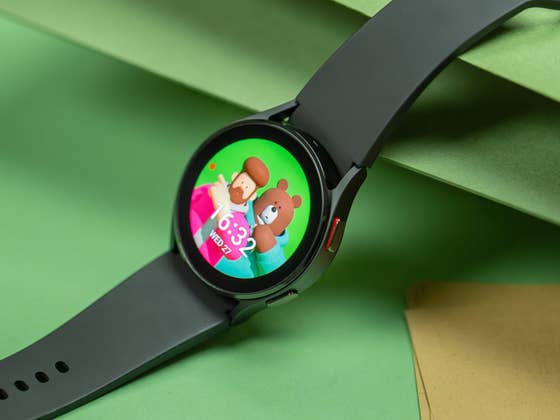
With a super-small profile and its light weight, the Samsung Galaxy Watch 4 is a particularly slim and fashionable smartwatch. However, this form factor also means that the battery life is not particularly long due to an undersized battery. The “Remote Connection” feature can help with that – in this tutorial, we’ll tell you how to disable it.
My relationship with smartwatches is still difficult in 2022. On the one hand, I find the gadgets practical and they would even help me as a regular runner in terms of health, on the other hand, it annoys me to charge the wearables every night. That was my biggest criticism with the Galaxy Watch 4 review.
However, I discovered a setting in the Galaxy Watch 4 Classic’s menu that is supposed to improve the battery life according to the Samsung forum. It is called “Remote Connection”, is activated by default and guarantees a connection of the smartwatch to the smartphone even when the Bluetooth connection drops. The smartwatch then switches to the Wi-Fi module and synchronizes the data via your home network.
How to deactivate the “remote connection” function
However, it is not necessary that the Galaxy Watch 4 constantly synchronizes with your phone even without a Bluetooth connection. If your smartphone is not within range anyway, you cannot view the data anyway. So it’s enough if the Samsung smartwatch transmits its information to the cell phone when you approach it. If you agree with me, you can turn off the feature as follows:
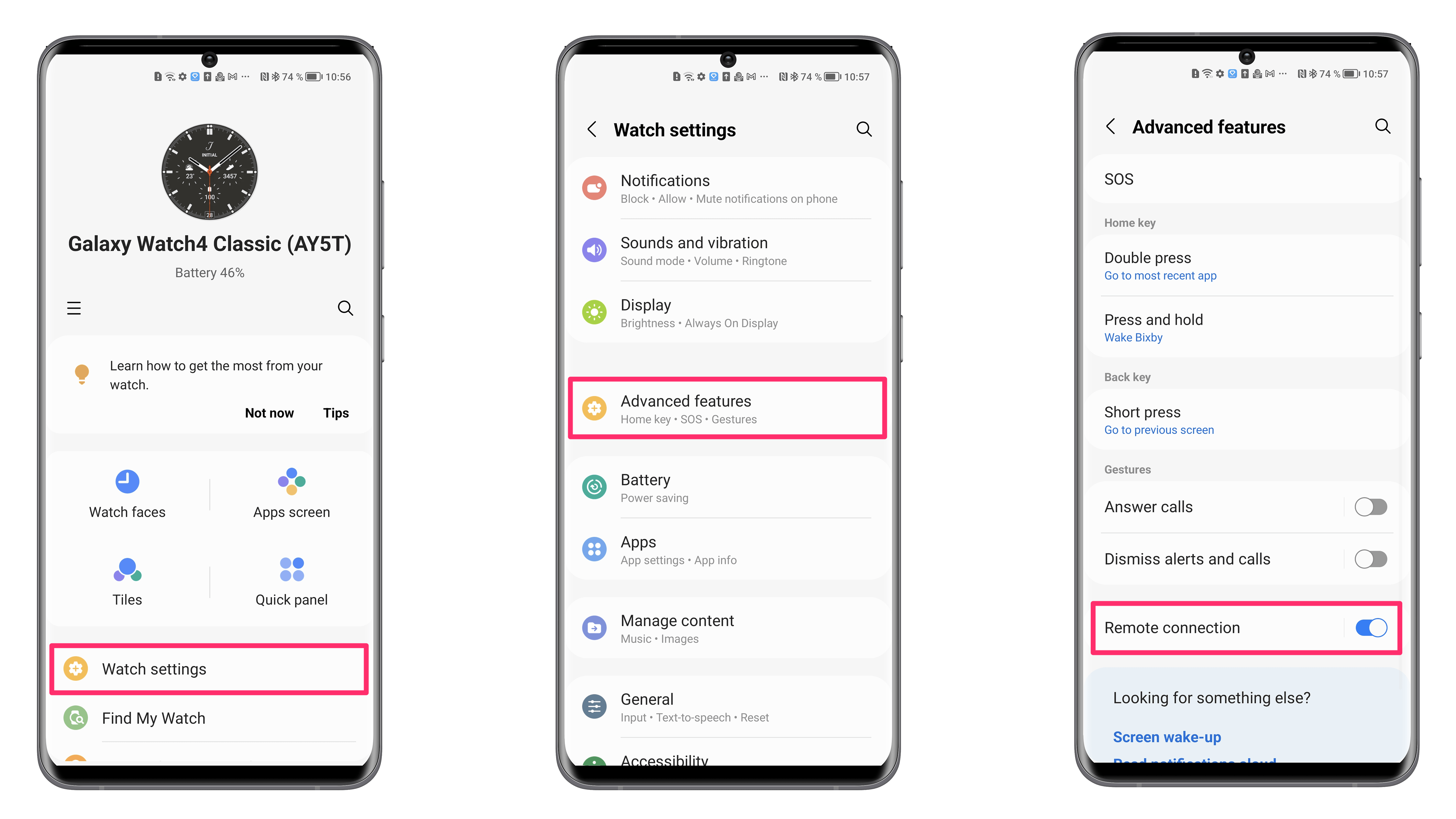
Turn off remote connection on your Galaxy Watch 4:
On your phone—not the smartwatch.
Open the Samsung Wearable app.
Go to the Settings of your Galaxy Watch 4 or Galaxy Watch 4 Classic.
That’s it! Now it’s just a matter of paying attention to how the battery life of your smartwatch behaves over the next few days. Since the Galaxy Watch 4 Classic just arrived in the editorial office for a review and for some tutorials like this one, I wasn’t able to test the battery life myself yet. So feel free to share your experiences with me in the comments!
Do you use a Samsung Galaxy Watch and are happy to receive Samsung Watch tutorials? Let me know in the comments!
We mark partner links with this symbol. If you click on one of these links or buttons–or make a purchase through them–we may receive a small commission from the retailer. This doesn’t affect the price you pay, but it helps us keep nextpit free for everyone. Thanks for your support!






hi. I need to know if the watch 4 can work ONLY with the wifi at home, and not be connected to the phone via BT.
If this is possible, please, send me the steps to set the watch up ,?