
Contents
The Apple Watch Series 6 and earlier models, as well as all Watch SEs, do not support the full-size keyboard that has been integrated into watchOS due to the reduced size of their casing. Instead, there are third-party keyboard options that will work alongside scribbling and dictation functionality.
How to use the keyboard on the Apple Watch Series 7 and later models
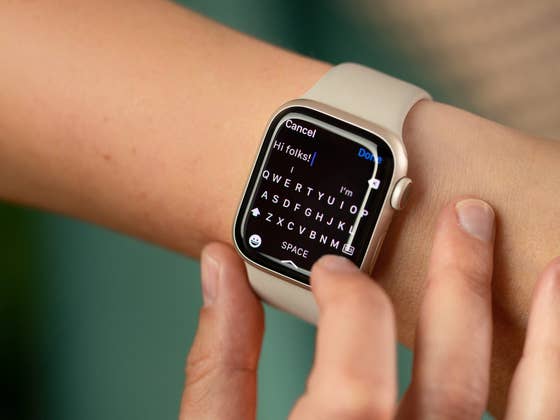
With watchOS 8, Apple has introduced a true AZERTY keyboard which is obviously more efficient and faster compared to dictating or doodling. However, this full-size keyboard is compatible with watches that have larger screens, starting with the Watch Series 7 through to the Watch Series 9 and Watch Ultra 2.
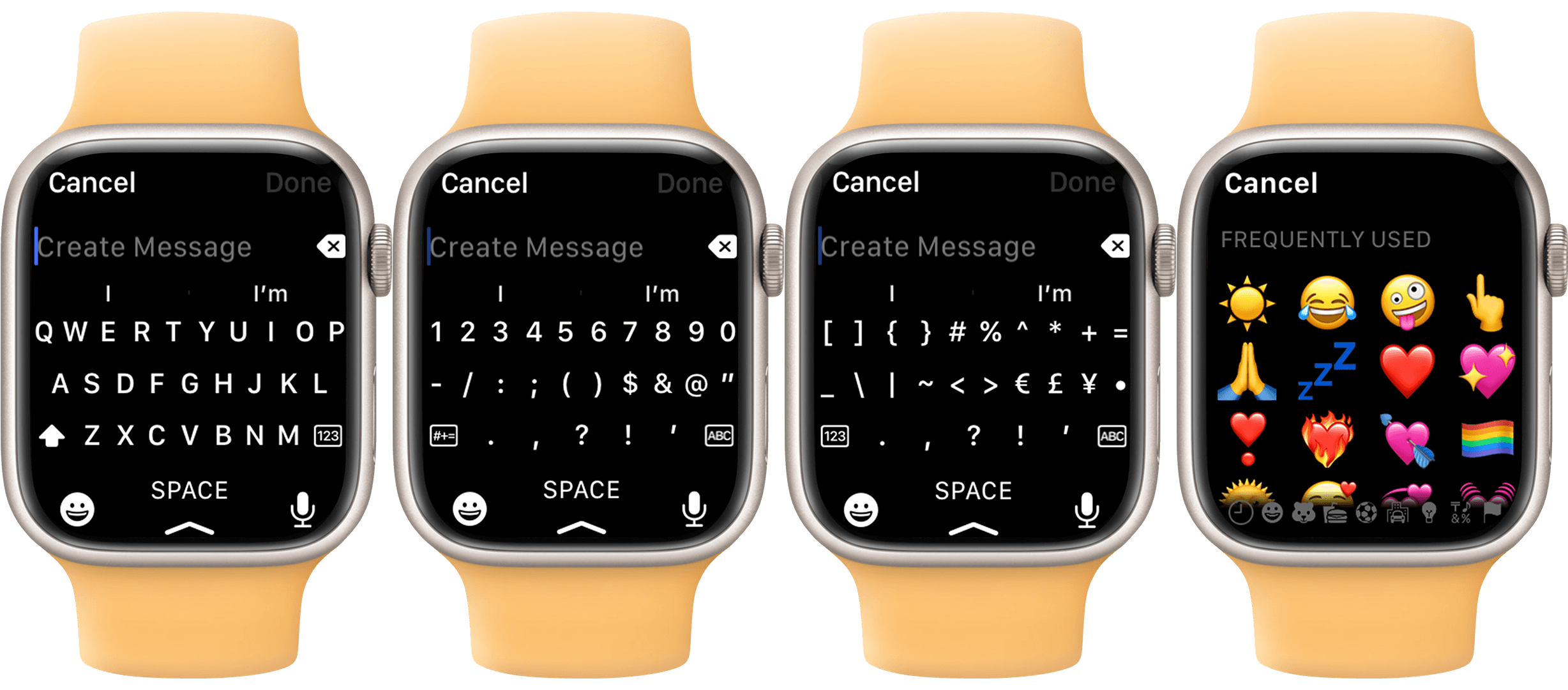
If you’re already using the latest version of watchOS, the keyboard will automatically appear when you need to enter text or create a reply to a message or e-mail. The keyboard also features a QuickPath or swipe function that lets you enter text by dragging over the letters without having to press each character individually.
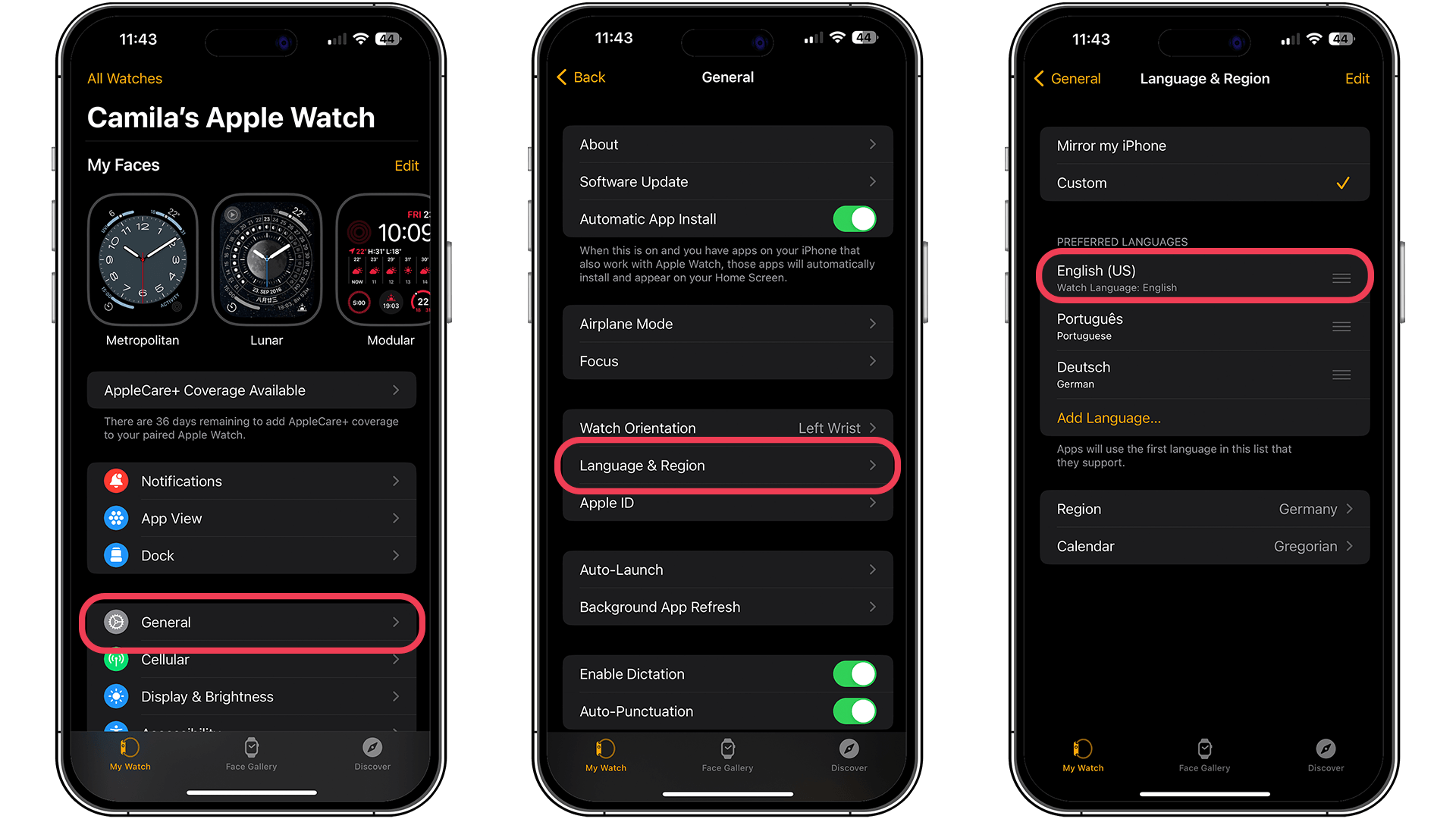
On the other hand, the keyboard supports only a few languages. These are English, German, Spanish, Japanese, Italian, Portuguese and French. To change the keyboard language, proceed as follows:
- Open the Watch application on your iPhone.
- Go to General, then Language and Region.
- Touch Customize and choose your preferred language.
How to use the keyboard on an Apple Watch SE, Watch Series 6, and older models
Scribbling with your fingers
There are several ways to enter text on older Apple Watch and SE models. The first method we recommend is doodling, which lets you type with your finger on the screen. This method generally works for short, simple answers.
Here’s how to access scribble on your Apple Watch.
- Reply to an e-mail or message, or compose a new one.
- Press the Scribble icon.
- Slide your finger across the screen to write a letter or form words.
- Use the digital crown to navigate to the letter or word you wish to modify.
- Touch any word to display word suggestions while scrolling the crown to the desired option.
- Press the send button when you’re finished.
Voice dictation
The other notable way to enter text is by dictation. Similar to scribbling, it can be accessed when replying to a message or e-mail, as well as when creating new entries. To activate dictation, follow the steps below:
- Go to the Messages or Mail application.
- Reply or compose a new message.
- Choose the microphone icon or slide up if you’re on the keyboard.
- Start speaking as soon as you’ve pressed the button.
- You can use punctuation by adding it to your dictation.
- Press Done when you’re finished speaking.
Smart reply and emojis
In addition to using your voice or finger, the Apple Watch features a smart reply feature that lets you use default answers instead of typing on the keyboard.
You’ll find the default answers under the input selection view in the messaging application or when you select Reply. As for emojis, they’re easily accessible when using dictation, scribble, or the QWERTY keyboard.
Third-party keyboards to install
If you want a full keyboard on your Watch SE or earlier model, or even access to the official keyboard, FlickType and WatchKey are two recommended keyboards. Both are free versions that offer a full-size keyboard, but you’ll need to buy them to use all the features offered by these apps.
What’s your favorite way to enter text on your Apple Watch? Do you have any suggestions?