
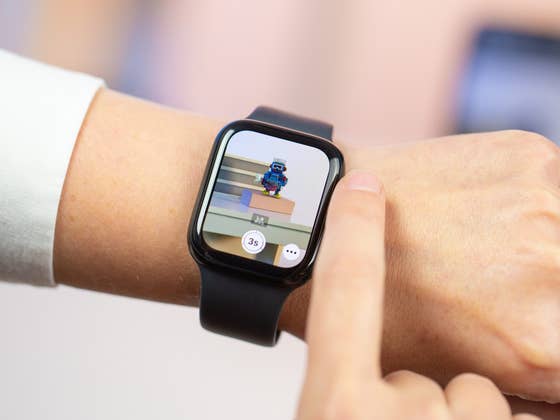
The camera app on your Apple Watch can be used for remote camera control and to set a shutter timer. Additionally, you also have access to settings like Timer, Flash, Live Photo, HDR, and the ability to switch between front and rear cameras. The Camera Remote and timer feature has been available since watchOS 5.
- Also read: iPhone 14 Pro Max review
In this concise guide, we’ll demonstrate how to utilize the camera app on the new Apple Watch SE to manage the iPhone 14 Pro Max camera zoom, capture photos, and browse through the images directly on your smartwatch running WatchOS 9.
- Want to master your iPhone? Check out these 20 iOS tips and tricks
How to use Camera Remote and timer on Apple Watch
To control the iPhone camera zoom with the Apple Watch, you’ll use the watch’s digital crown, while tapping or swiping on the screen handles other features like taking pictures and browsing through recent shots. Follow our step-by-step guide for effortless navigation through this tutorial:
- Ensure Connectivity: First, make sure your iPhone and Apple Watch are connected via Bluetooth. To check, go to the Settings app on your iPhone, tap Bluetooth, and confirm your Apple Watch is listed as connected.
- Launch Camera App on iPhone: Open the Camera app on your iPhone and position it to capture the desired shot.
- Access Camera Remote on Apple Watch: On your Apple Watch, press the Digital Crown to open the app screen. Locate and tap the Camera Remote app, which resembles a camera icon.
- Preview iPhone Camera View: The Camera Remote app on your Apple Watch will now display a live preview of what your iPhone camera sees. This enables you to frame the shot without touching your iPhone.
- Zoom In/Out: On the Apple Watch screen, use the Digital Crown to zoom in or out. Rotate the crown clockwise to zoom in, and counterclockwise to zoom out. You’ll see the zoom level adjust in real-time on both your Apple Watch and iPhone.
- Capture the Shot: Once you’ve achieved the desired zoom level and framed your shot, tap the shutter button on your Apple Watch to capture the photo. The image will be saved in your iPhone’s Photos app.
Now, we’ll guide you through reviewing your shots on your Apple Watch using various actions:
- View a photo: To view a photo, tap the thumbnail located in the bottom-left corner.
- See other photos: To browse through your other photos, simply swipe left or right.
- Zoom: To zoom in or out, turn the Digital Crown.
- Pan: If you’d like to pan across a zoomed photo, just drag your finger on the image.
- Fill the screen: To make a photo fill the entire screen, double-tap on it.
- Show or hide the Close button and shot count: Tap the screen to either display or hide the Close button and the number of shots taken.
- Close: Once you’re done reviewing your shots, tap the Close button to exit.
By following these simple steps, you can effortlessly zoom in and out using your Apple Watch to control your iPhone camera, as well as quickly review and navigate through your shots. Enhance your photography experience with this convenient, hands-free method.
We mark partner links with this symbol. If you click on one of these links or buttons–or make a purchase through them–we may receive a small commission from the retailer. This doesn’t affect the price you pay, but it helps us keep nextpit free for everyone. Thanks for your support! Prices are based on the date of publication of this article and may be subject to change.