Sorry, but there's really nothing to see here right now. Our server is in maintenance mode – and our
little bot is trying to sort the error messages with its last bit of energy.
Whether it was a data leak, a power outage in the cluster, or just a grumpy bit – we don't know yet.
But what we do know is:
The data drama escalated into a server meltdown. But don't worry: We're on it.
What now?
Everything is surely running smoothly over at our colleagues from inside
digital – why not stop by!
Or you could pass the time by visiting our social media channels – for example Instagram, YouTube or TikTok. At least there are no
server problems there – promised.
Thanks for your patience. Our bot is already rebooting at full speed. 🔧
NewsVR & ARWear OS 5 is Bricking Pixel Watches—Here’s How It Could Be Fixed
Google’s Pixel Watch 2 and Pixel Watch users started to receive the Wear OS 5 update early this week. But a few days after the release of the big update, the company paused the rollout, primarily due to users’ reports of bricked devices after the update. If your Pixel Watch is affected here’s the possible fix.
Also read: Google Pixel Watch 3 vs. Watch 2 comparison
The issue first came to light on Reddit a day after users started to update to the latest build. Specifically, a few Pixel Watch and Watch 2 users faced the soft-bricked described of an unresponsive system while others got a black screen with a tiny crossed-out Bluetooth logo at the bottom after they had updated their smartwatches.
Some users also reported of messy interface with wrong fonts all over the main navigation, settings menu, and texts. While this is a less concerning bug compared to a stuck screen, it is associated with an unusable Play Store app that doesn’t show apps when opened.
These software hiccups appear to be random with particular variants being mentioned. In addition, only a few number of users were affected rather than being a widespread problem.
Now, more than a couple of days after several reports surfaced, Google seemingly pulled the update for all eligible devices, although there is still no official statement yet regarding the buggy software.
A possible fix to soft-bricked Google Pixel Watch (2)
As suggested by users, the soft-bricked can be resolved by resetting the Pixel Watch or Pixel Watch 2, and it surprisingly worked for many users. However, the process will erase the data in the Pixel Watch and requires you to enter your PIN and pair it to your phone again, although this can be restored if a backup is available.
If you’re Pixel Watch is among those affected, below is the short step-by-step guide:
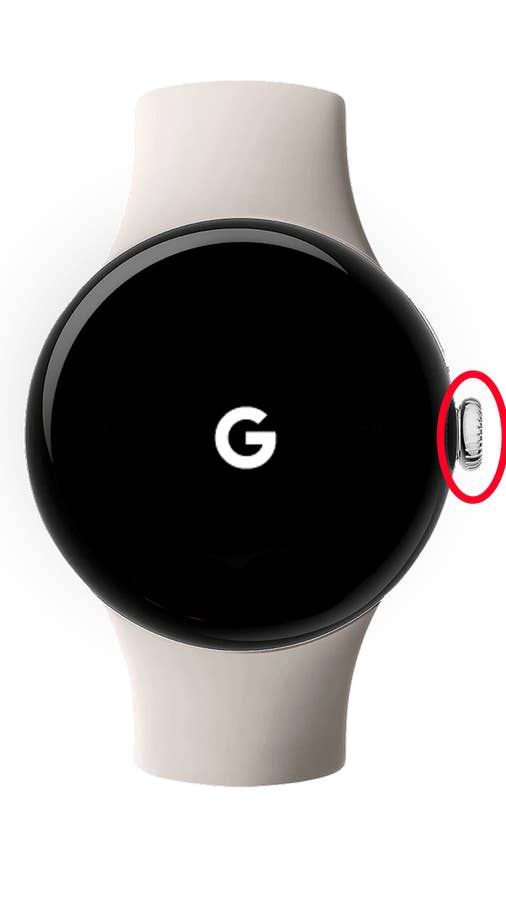
Long press the crown and side button for 20 seconds until the white G logo appears.
If off, press the crown for a few seconds.
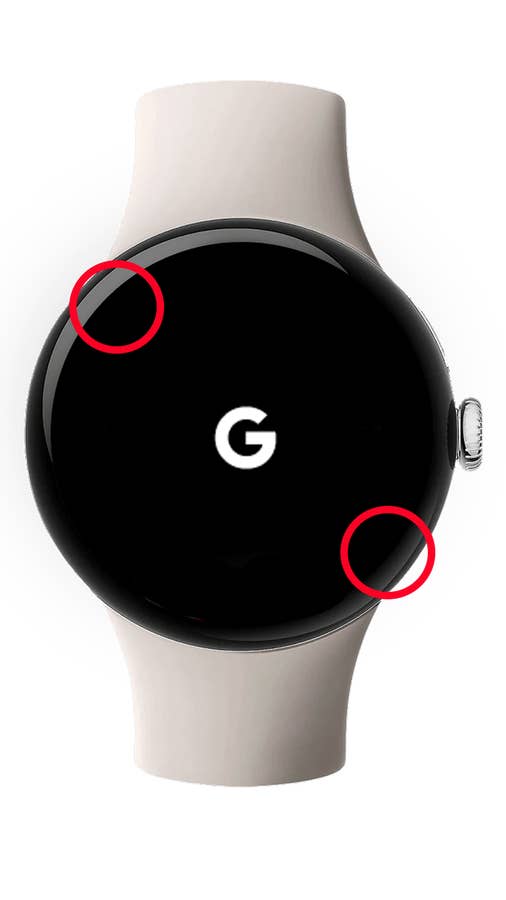
When the G logo appears, tap the upper-left and lower-right edges of the screen simultaneously to enter Fastboot mode.
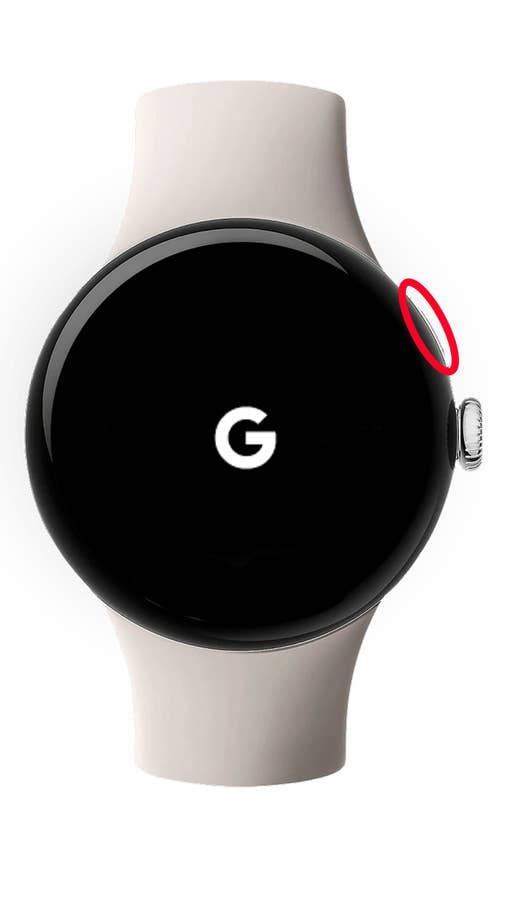
Press the side button to scroll down.
Highlight Recovery Mode and press the crown. No Command will appear.
Press and hold the crown, and swipe up.
Swipe down to Wipe Data/Factory Reset.
Swipe right to reset your watch and PIN.
Swipe right again to confirm.
Reset from your phone settings.
Restart your Pixel Watch or Watch 2 by long pressing the digital crown until the G logo appears.
Quelle: nextpit
Touch the upper left side and lower right side of the screen to enter Fastboot mode.
Quelle: nextpit
Press the side button to continue resetting and follow the remaining steps.
Quelle: nextpit
If these steps don’t work, you can reset via your phone. Otherwise, there are other methods listed on Google’s support page.
Presently, it’s unclear when Google will resume the rollout of the Wear OS 5 update. But with the search giant already acknowledging the issue, we might see the firmware being available in the coming days.
Do you own a Pixel Watch or Pixel Watch 2 and have installed Wear OS 5? If yes, share with us your experience or perhaps if you’ve encountered the same concern.
We mark partner links with this symbol. If you click on one of these links or buttons–or make a purchase through them–we may receive a small commission from the retailer. This doesn’t affect the price you pay, but it helps us keep nextpit free for everyone. Thanks for your support! Prices are based on the date of publication of this article and may be subject to change.
Jade Bryan has been a Junior Technology Editor at nextpit since 2022. His tech journey began much earlier, tracing back to the early days of Android and the peak of the Nokia era. With years of experience contributing to various publications and tech forums, he specializes in providing practical tips and troubleshooting guides for users.
At nextpit, Jade’s expertise extends beyond smartphones and operating systems to include electric vehicles and the latest in gaming. He is particularly interested in how these evolving technologies intersect and shape our daily lives.
Outside of work, Jade is usually immersed in MMORPGs or catching up on his favorite anime and television shows.