Sorry, but there's really nothing to see here right now. Our server is in maintenance mode – and our
little bot is trying to sort the error messages with its last bit of energy.
Whether it was a data leak, a power outage in the cluster, or just a grumpy bit – we don't know yet.
But what we do know is:
The data drama escalated into a server meltdown. But don't worry: We're on it.
What now?
Everything is surely running smoothly over at our colleagues from inside
digital – why not stop by!
Or you could pass the time by visiting our social media channels – for example Instagram, YouTube or TikTok. At least there are no
server problems there – promised.
Thanks for your patience. Our bot is already rebooting at full speed. 🔧
How-tosiPhone Low Power Mode: Activate it to save battery life
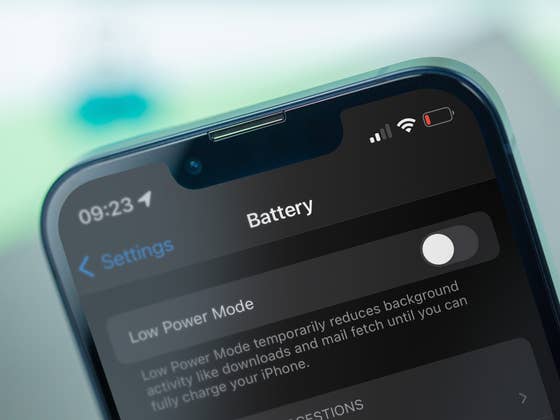
If the battery level of your iPhone drops below 20 percent, iOS suggests that you activate the battery saving mode. But did you know that you can also activate it with a full battery? This is recommended if you have to live without access to a nearby power outlet for some time. In this short tutorial, we’ll introduce you to the inconvenient yet practical tip!
Over the last few weeks, I was on the road several times without knowing where the next power outlet was. In my iPhone 13 mini review, I had already found out that it’s best to recharge the mini-iPhone within 24 hours. Despite having a powerbank in my backpack, I wanted to get the most out of my phone battery. This is where the iPhone’s battery saving mode comes in.
I already knew this from situations where the smartphone battery dropped below the 20 percent mark, but can it also be activated when the battery is full? After a quick search in iOS, I discovered a couple of methods that I’d like to share with you during our coffee break today. Here goes nothing!
Activate iPhone power saving mode in settings
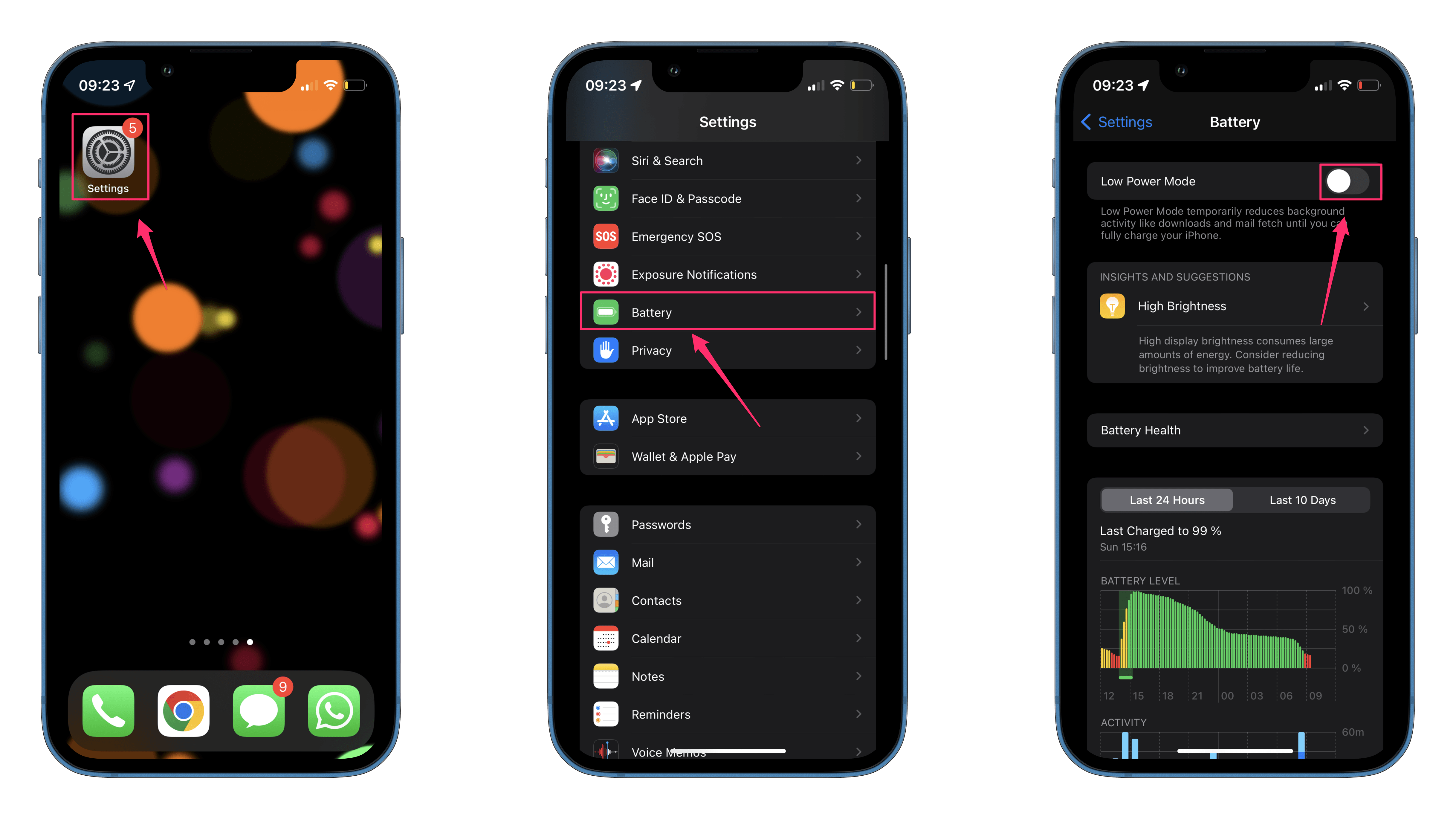
The first method is the more cumbersome one in my opinion. This is because you have to go into your iPhone’s settings and enable the Low Power Mode slider in the “Battery” tab. The exact steps are as follows:
Apple’s operating system is simple enough that you would certainly have found the Low Power Mode yourself. However, there is a trick that makes it a bit easier to access this mode.
Move Low Power Mode to the control center
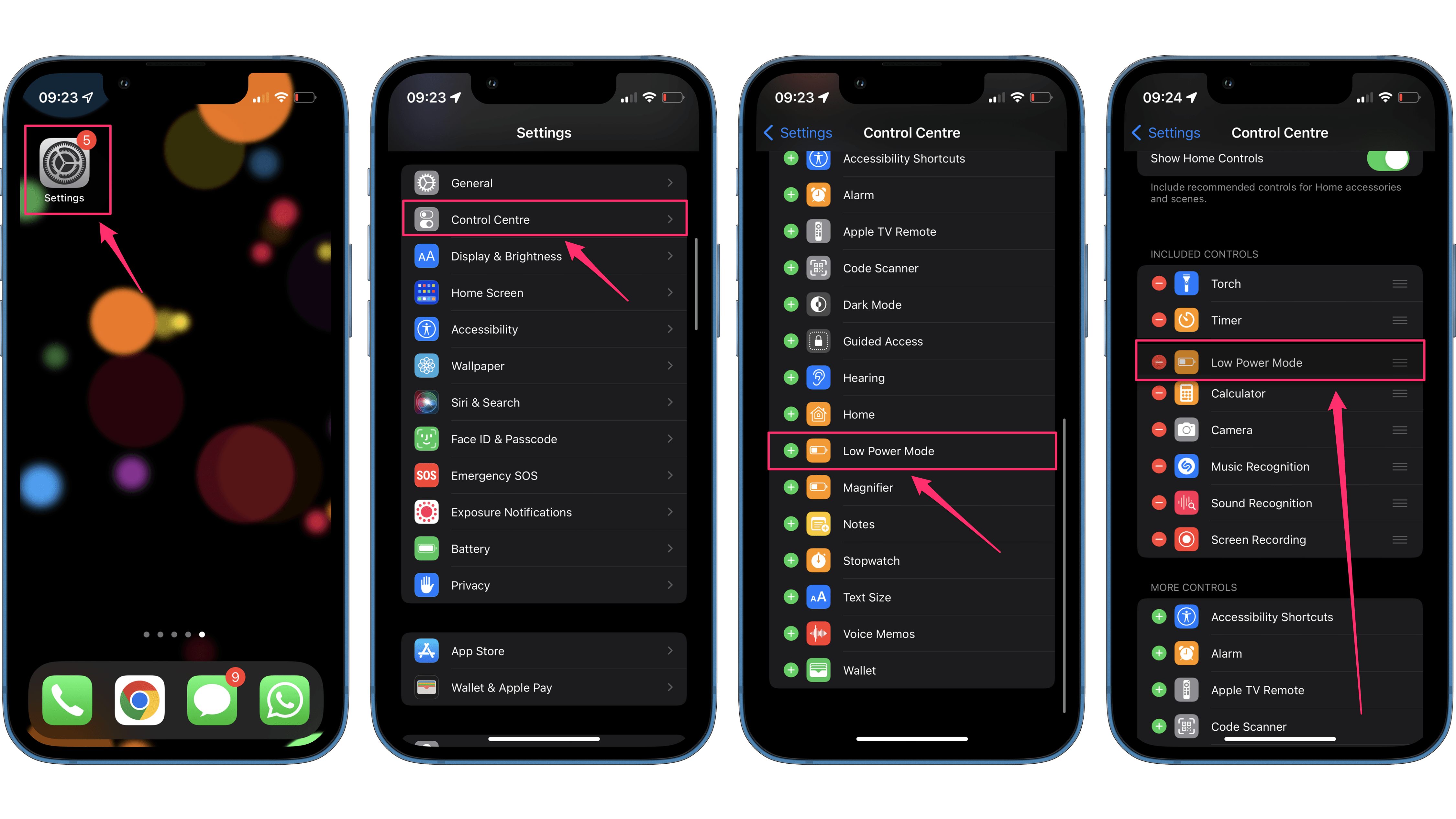
If you swipe down to the right of an iPhone with a notch, you will access the control center. On models with a home button, such as the iPhone SE 2022, you have to swipe upwards from the lower edge of the display. By default, you will not see the Low Power Mode in the control center, but you can activate it there. To do so, go to the Control Center settings on your iPhone.
Go to the Settings again.
Select Control Center.
Scroll down and tap on the plus symbol at the Low Power Mode.
After doing so, you can access this function via the control center.
Additional tip: In the same menu, drag and drop it to the position that suits you best.
After doing the above, you only need a swipe and a tap with your finger to activate the function. In my opinion, this makes accessing this mode far more practical and easier. By the way, you can see that the Low Power Mode is activated when you look at the battery indicator. It turns orange whenever it is enabled.
That’s it! Was this tip, which many people are searching for online (surprisingly), helpful for you? If not, what is your iPhone secret tip that nobody else knows? Let me know in the comments!
We mark partner links with this symbol. If you click on one of these links or buttons–or make a purchase through them–we may receive a small commission from the retailer. This doesn’t affect the price you pay, but it helps us keep nextpit free for everyone. Thanks for your support!







0 comments