Contents
Pros of the Ugreen DXP480T Plus
- Excellent build quality
- Docker and VM support
- Feature-packed mobile app
- Simple installation (+ included tools)
- Upgradable RAM
Cons of the Ugreen DXP480T Plus
- Expensive
- Requires latest-gen network to be fully utilized
Ugreen DXP480T Plus release date and price
Ugreen not only launched a family of network-attached storage devices (NAS) but did so with aplomb, with a crowdfunding campaign that attracted a lot of attention. Truth be told, the devices were already developed but the software both inside the device and its companion mobile was clearly in a work in progress state.
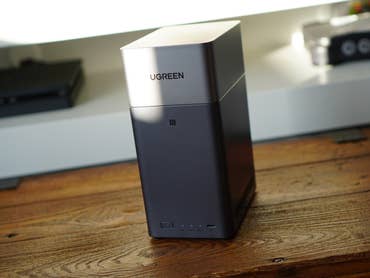
The tested unit has an MSRP of $999.99 and is the only one to not use the traditional drive caddy design. The DXP480T Plus is a pure NVMe SSD NAS, with four m.2 slots in the 2280 standard and easy installation.
This model is geared towards content creation, with a fast processor and very fast networking, capable of hosting files for image and video editing. Additionally, it supports Wi-Fi 6 for added versatility and dual Thunderbolt ports.
Attractive aluminum alloy design
- Compact metal chassis.
- Clean, elegant design.
- Packed with all accessories.
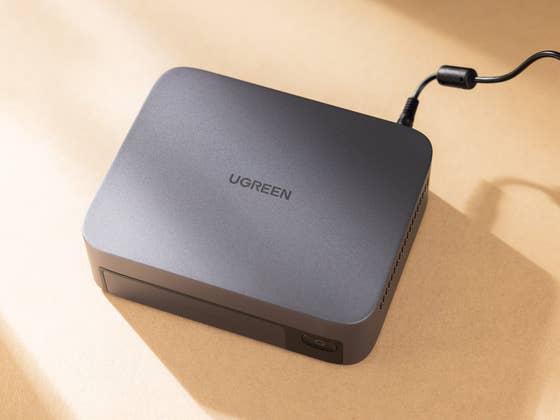
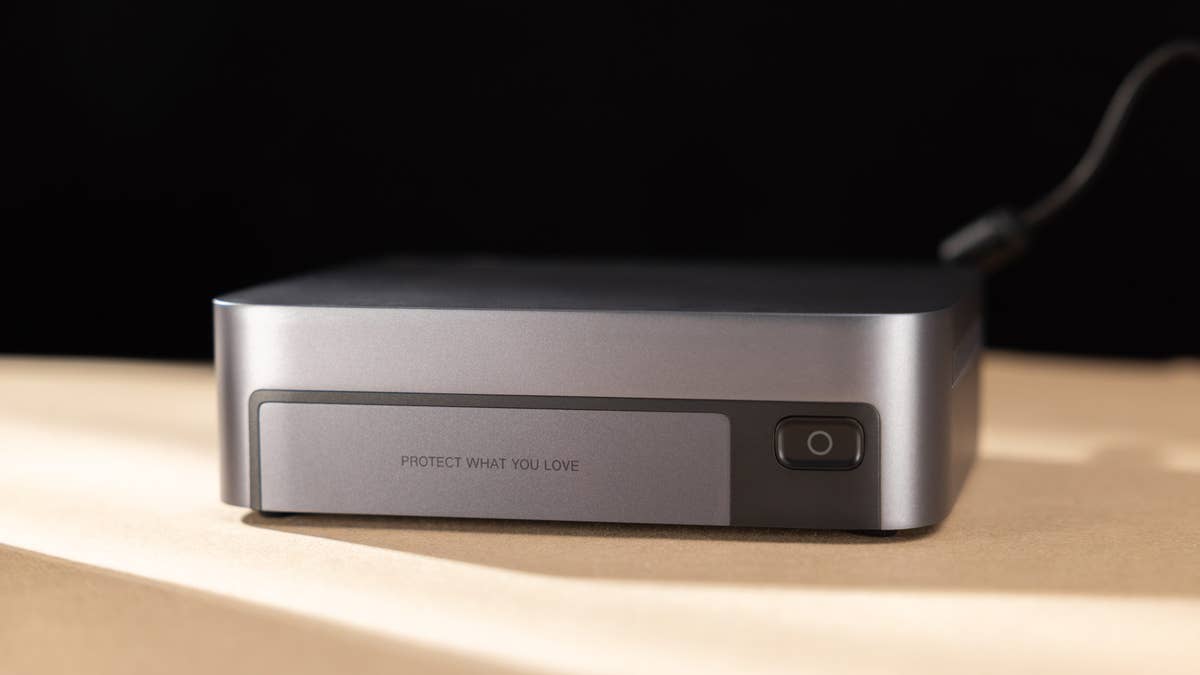
The Ugreen DXP480T Plus follows the brand’s elegant dark gray (gunmetal) design, with a metallic chassis that is cool to see and also in terms of heat dissipation. Its overall design evokes a user-friendly appliance and will fit most studios and desktops.
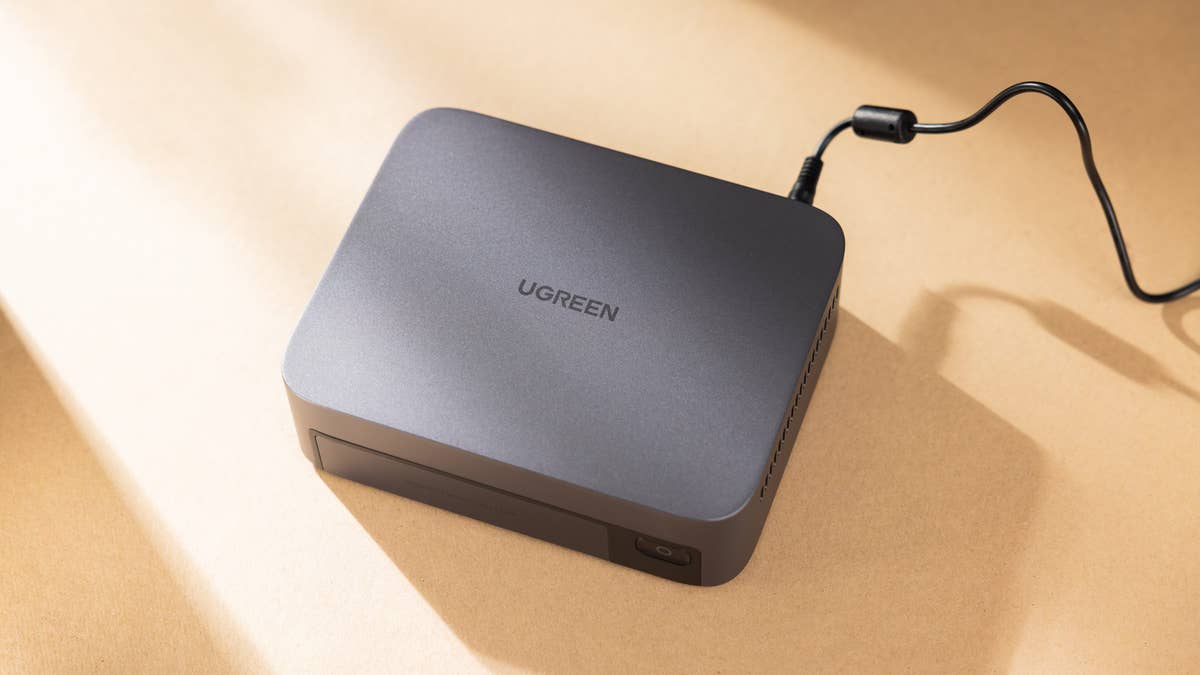
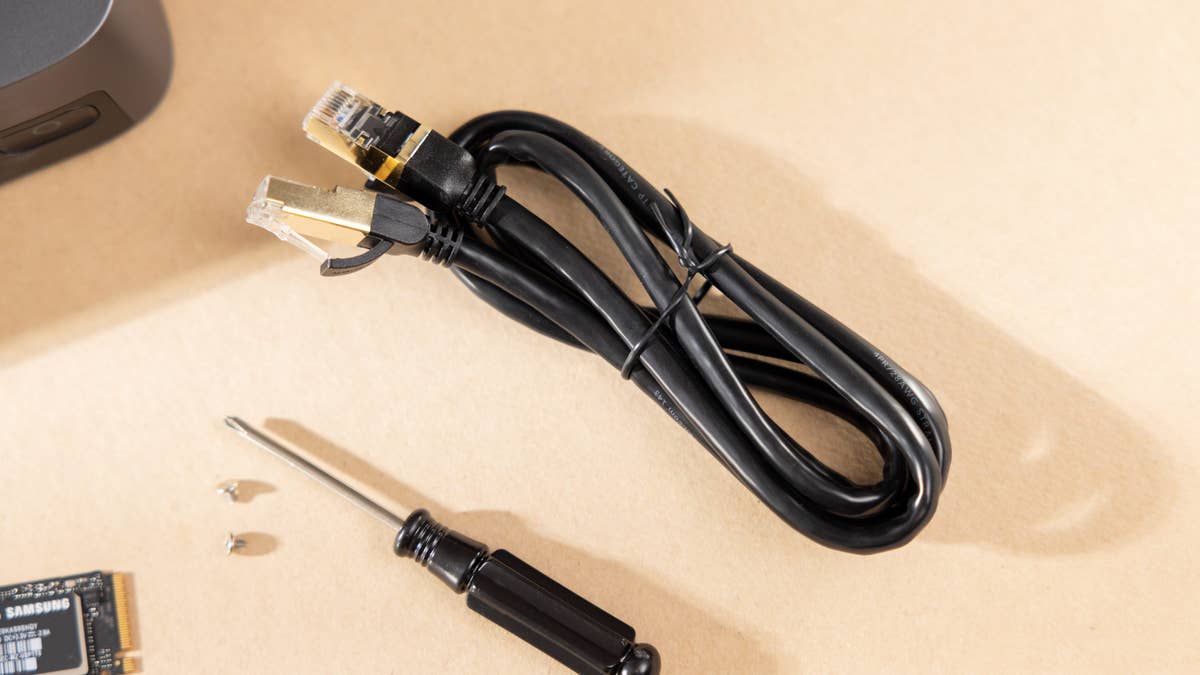
Bundled with the DXP480T Plus is a complete set of accessories to start using it. Besides the obligatory power supply, Ugreen packs a Cat7 cable, thermal pads for 4 SSDs, extra mounting screws, and a magnetized Philips screwdriver. You will only need an m.2 SSD to start using the unit.
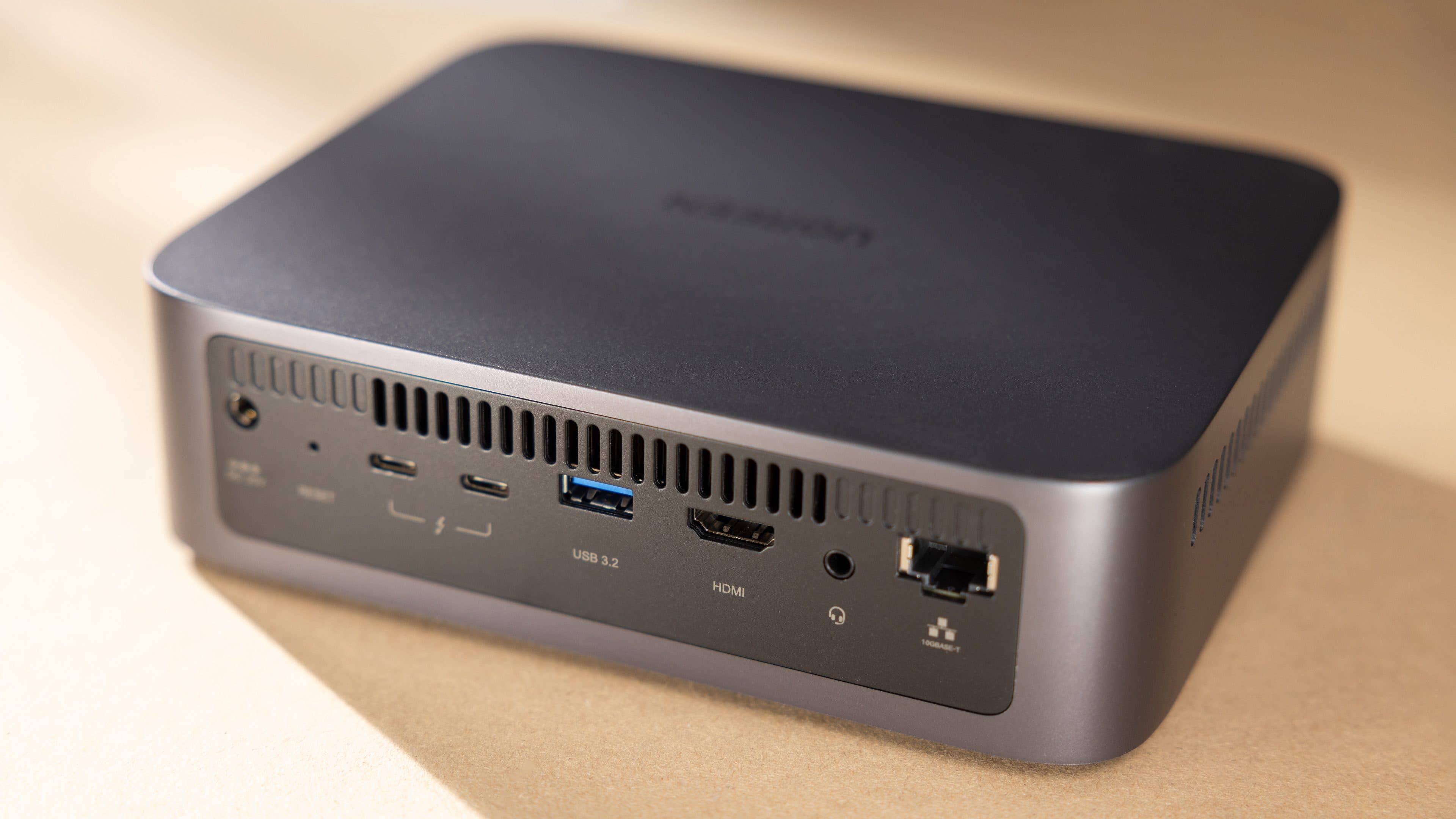
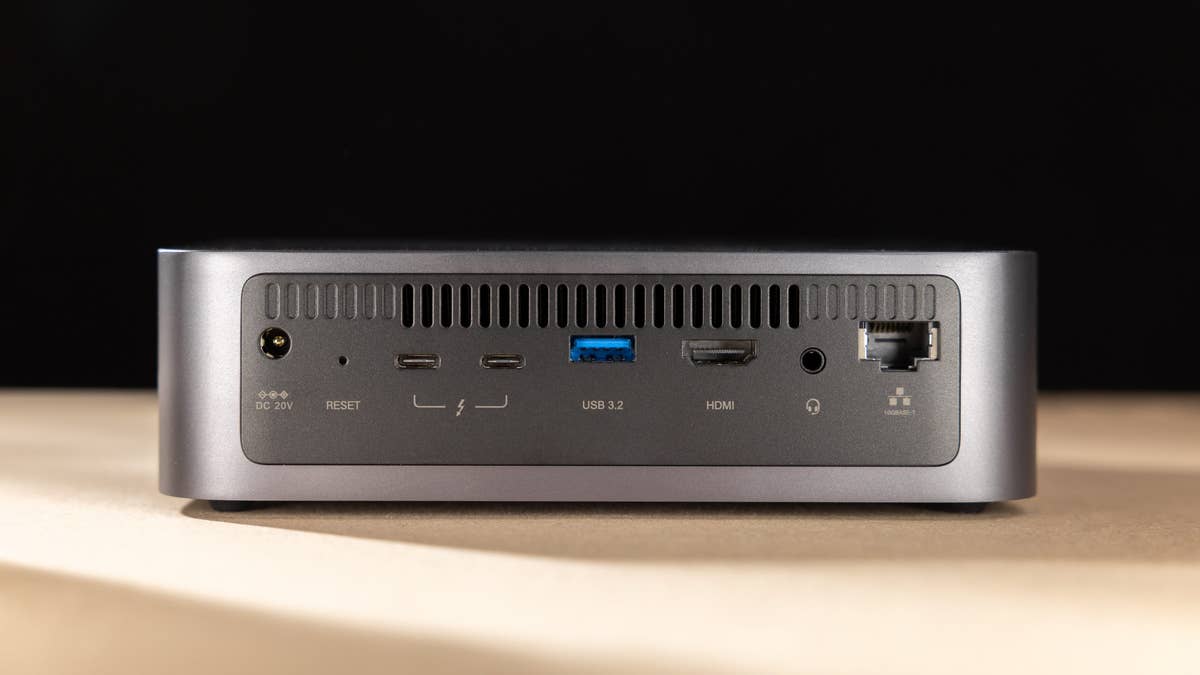
In the front, the Ugreen NAS features only a power button and a silk-screened “Protect what you love” message. Both sides only have air vents, and on the back, we find all the DXP480T Plus ports:
- 20V DC power input
- Reset button
- 2 Thunderbolt
- 1 USB-A 3.2
- 1 HDMI
- 1 Audio jack
- 1 RJ45 10GBASE-T
All the installation required is done on the bottom panel. Two screws hold the drive bay which is easily opened with the included screwdriver. The bay features 4 slots for m.2 NVMe SSDs but is only compatible with the 2280 size. Thankfully it is the most popular standard and cheapest in terms of price/capacity.
The drive bay cover includes two small fans that are quiet during usage but are designed to only cool the SSDs, with the help of the included thermal pads. The CPU has a laptop-style blower fan, which can be accessed by removing 8 extra screws: 2 under the rubber feet, 2 inside the drive bay, and the 4 m.2 screws.
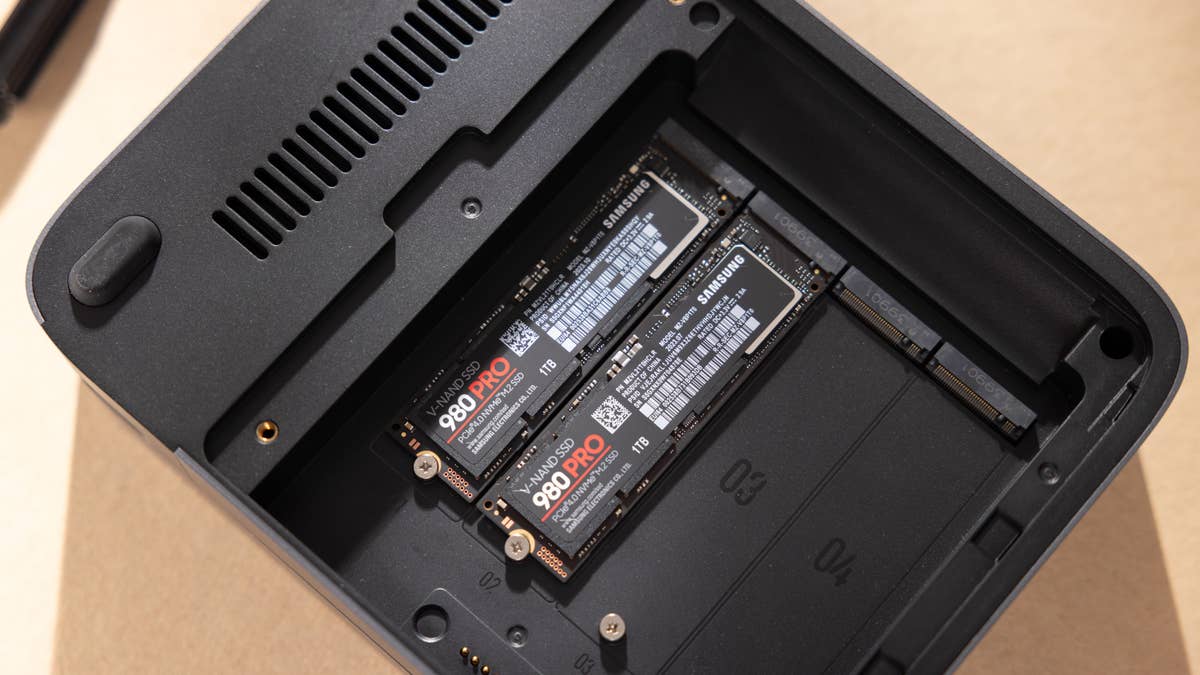
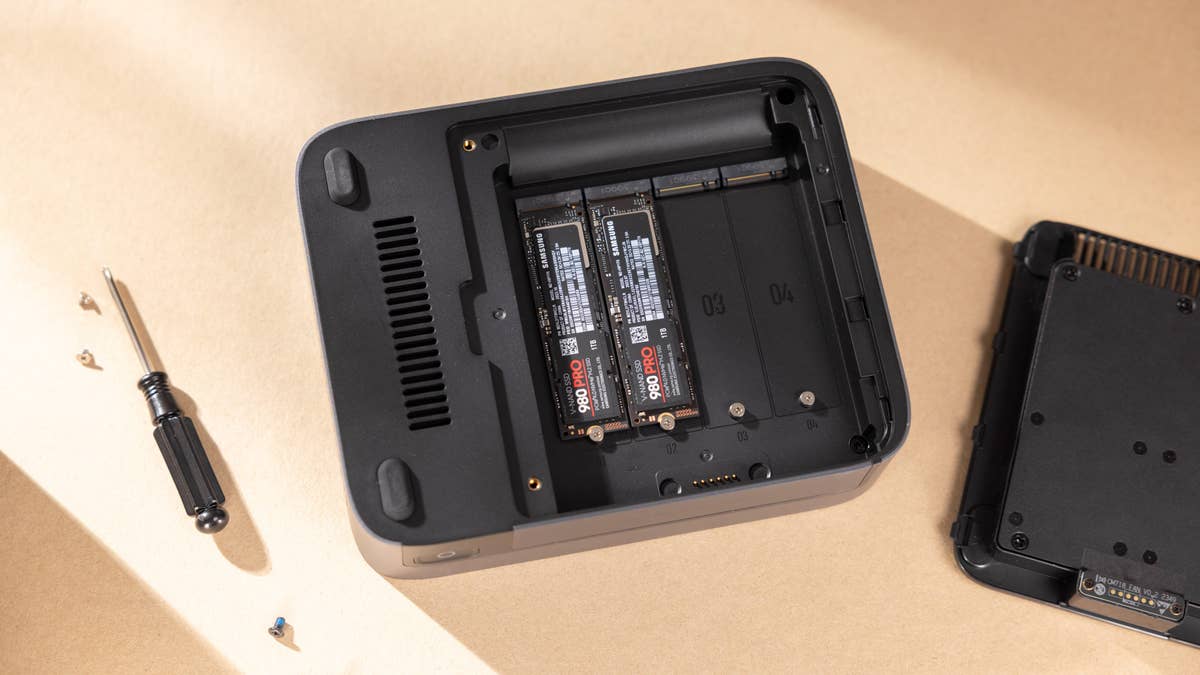
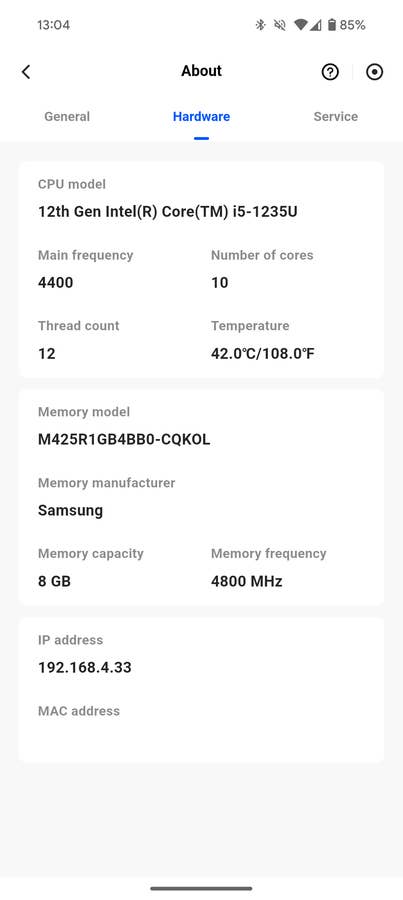
Opening the DXP480T Plus reveals two SODIMM slots for DDR5 memory. The unit comes with 8 GB but can be officially expanded up to 64 GB (with some redditors going for 96 GB). The motherboard also features a 2242 m.2 SSD for the internal UGOS system and the removable Wi-Fi 6 card (we didn’t have a Wi-Fi 7 card to test, unfortunately).
Easy-to-use software on PC and mobile
- Feature-packed mobile app.
- Well-polished native system.
- Compatible with 3rd-party OSs.
- Docker and VM support.
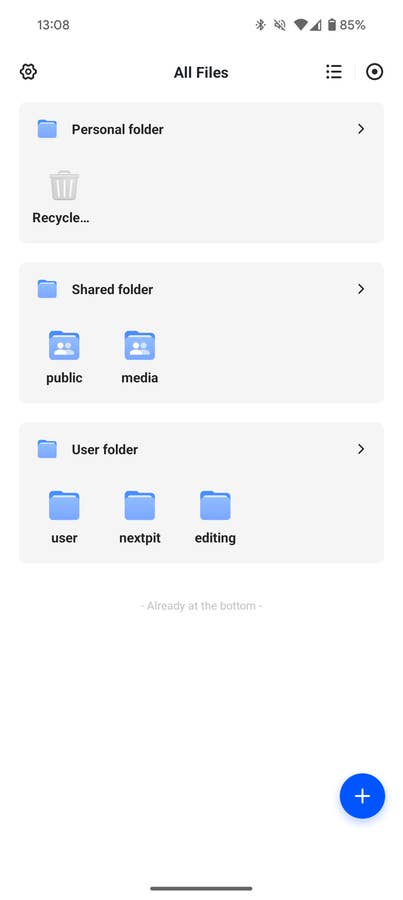
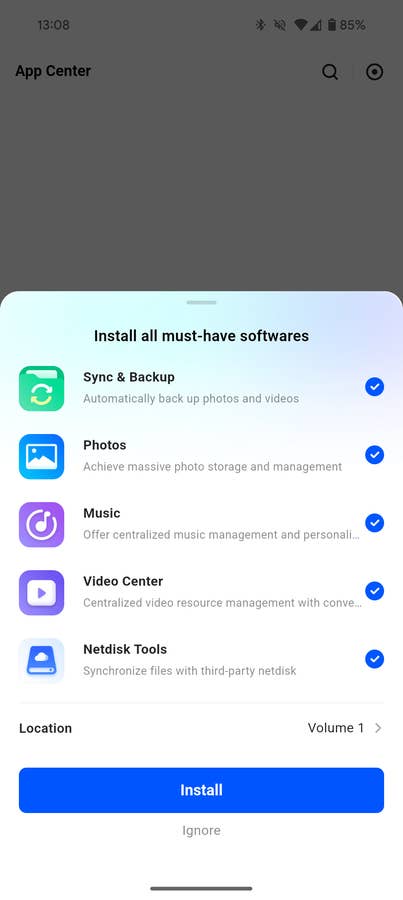
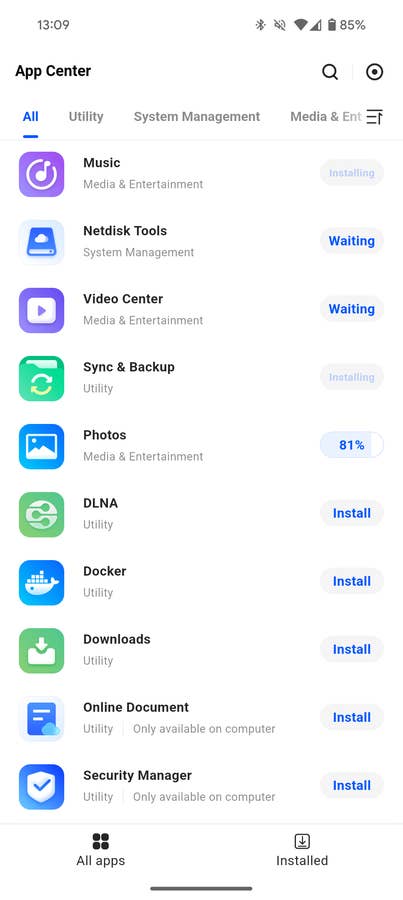
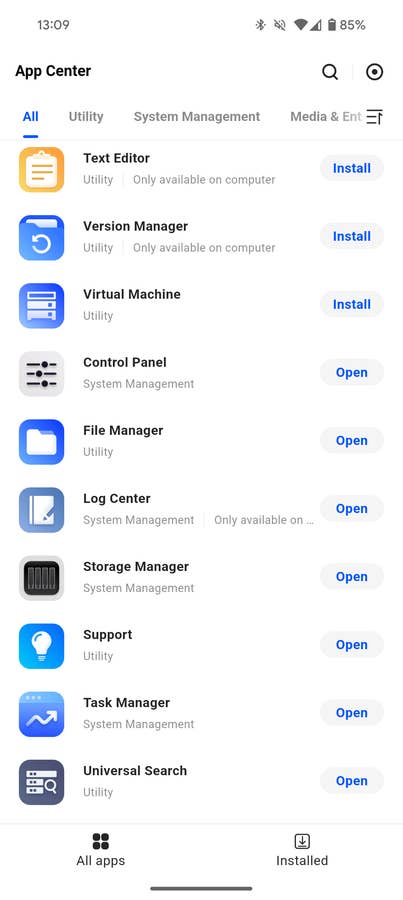
As with the DXP4800 Plus we tested in March, setting up the Ugreen NAS was simpler than on the competition, with a complete mobile app that can do all the initial configuration. There is also the option of using a traditional web interface or a desktop app.
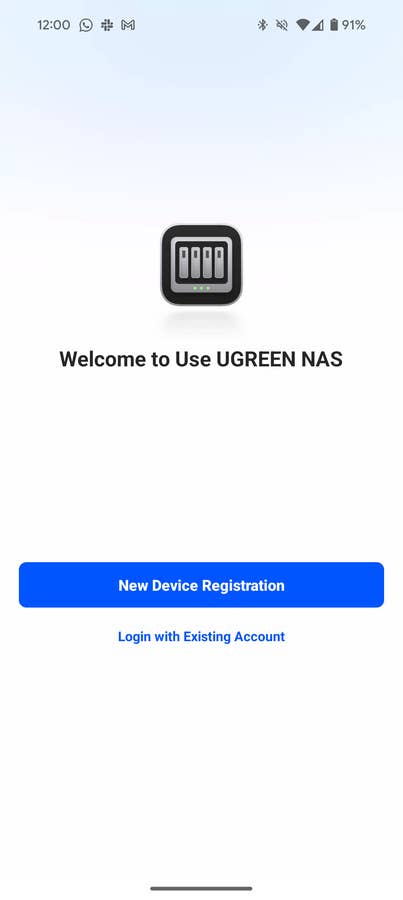
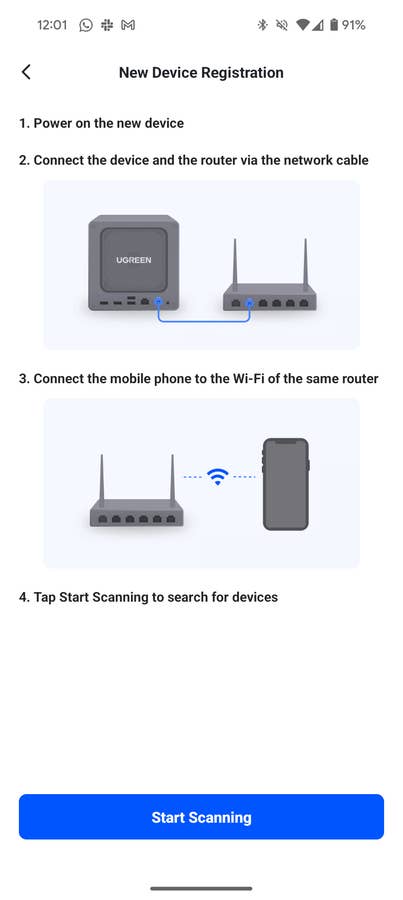
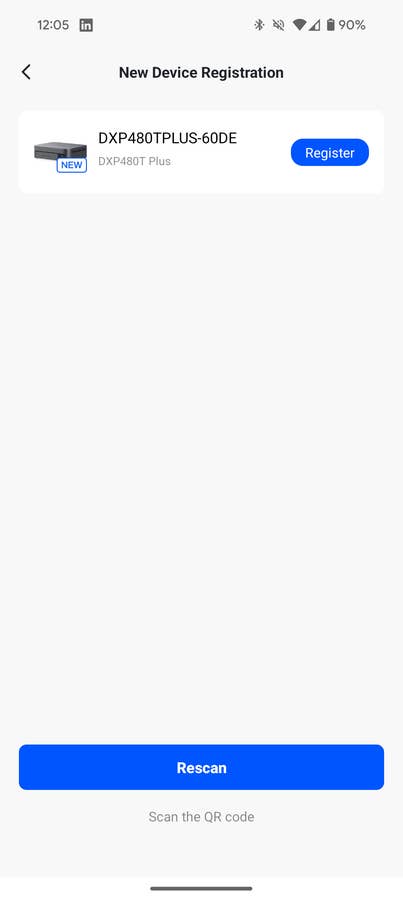
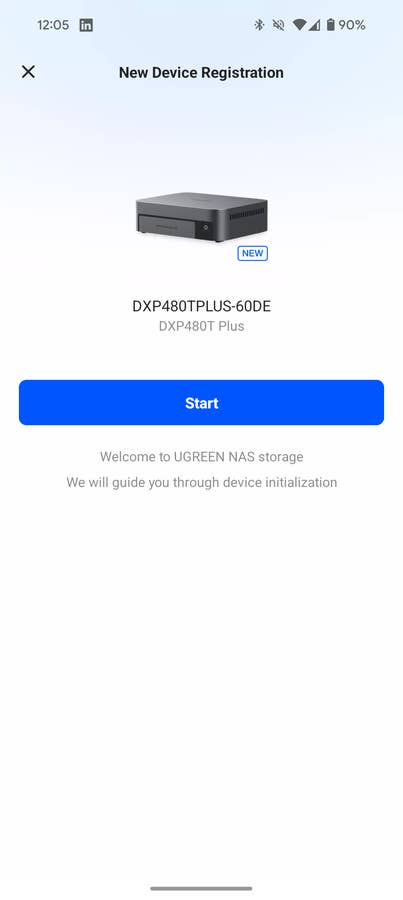
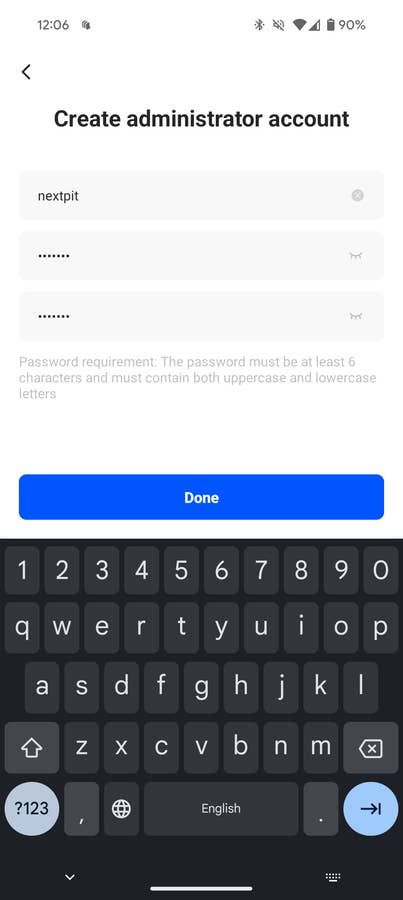
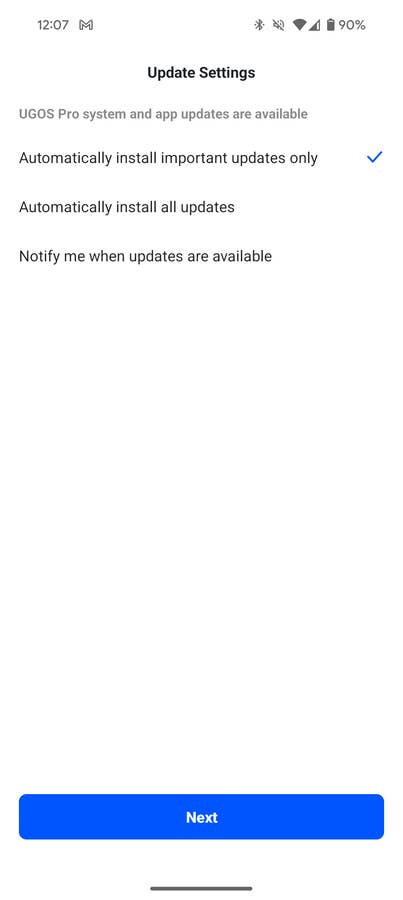
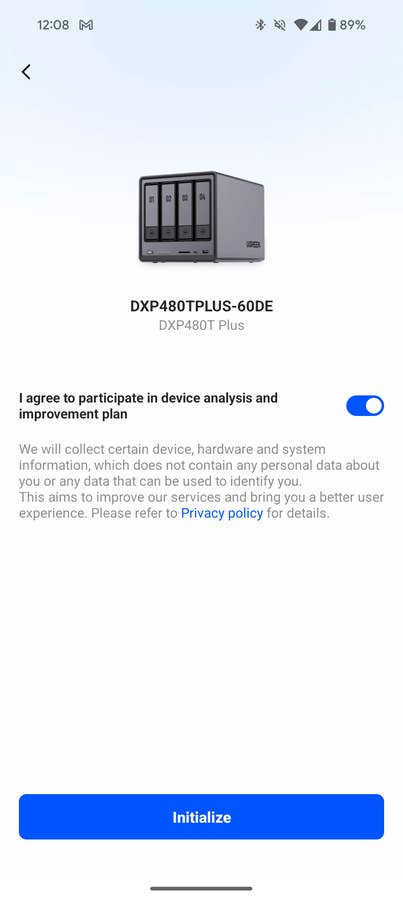
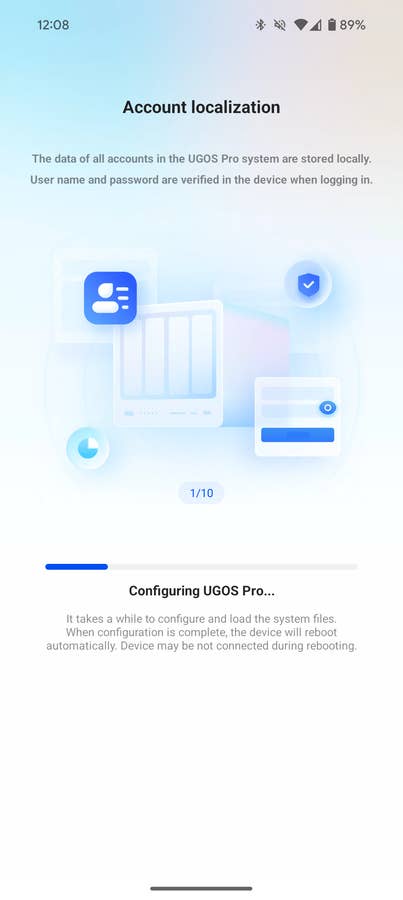
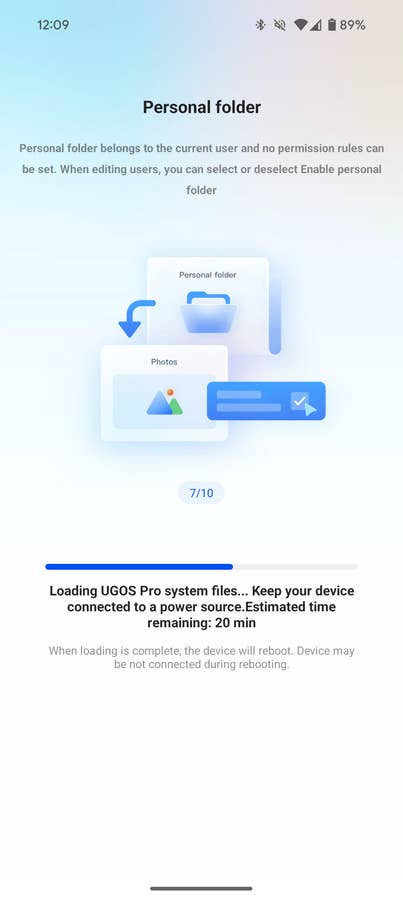
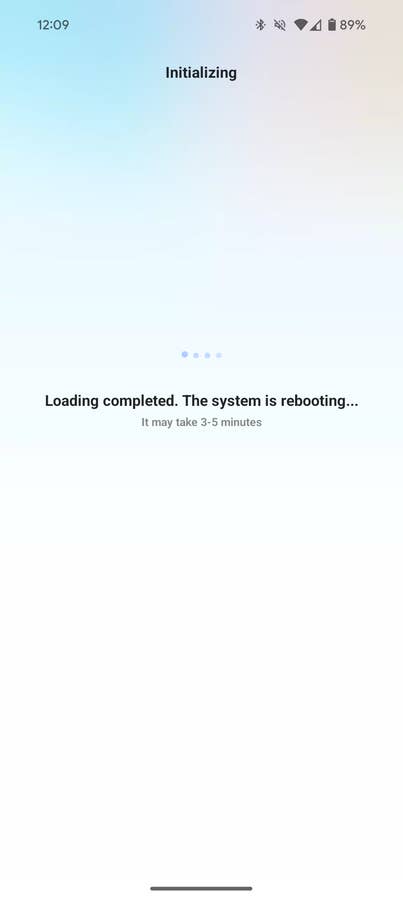
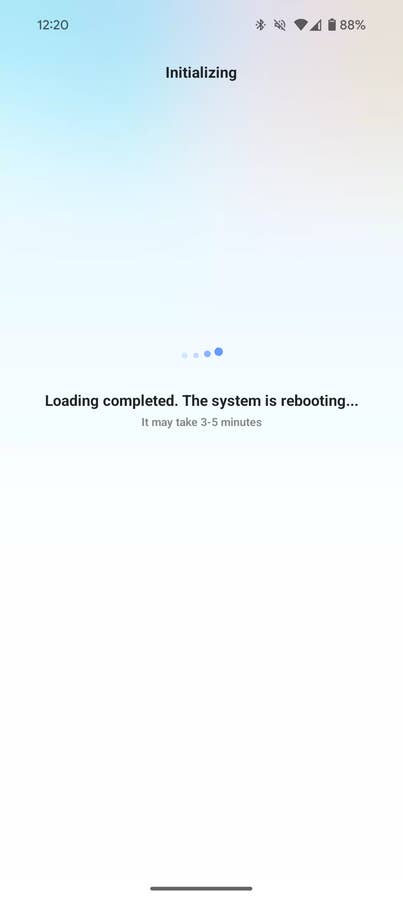
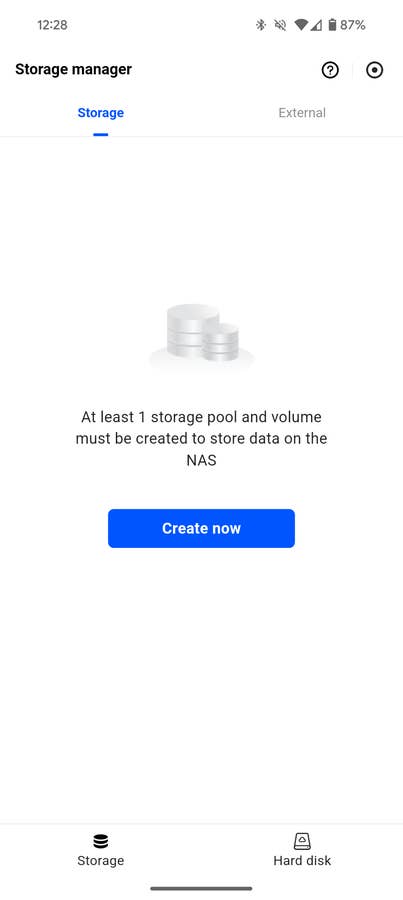
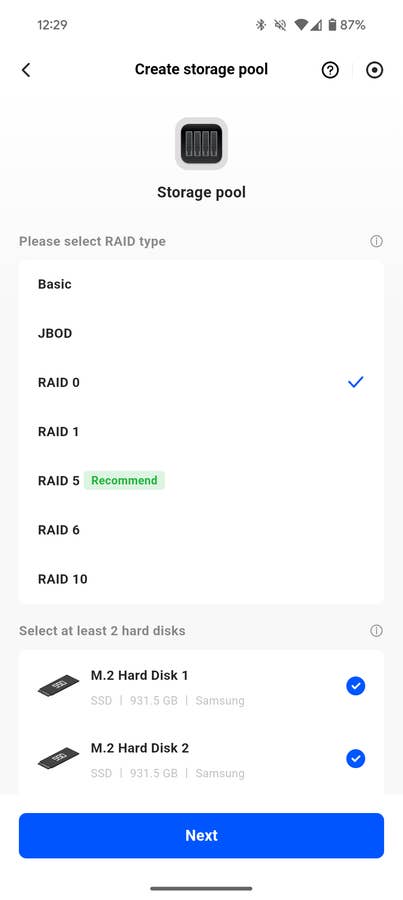
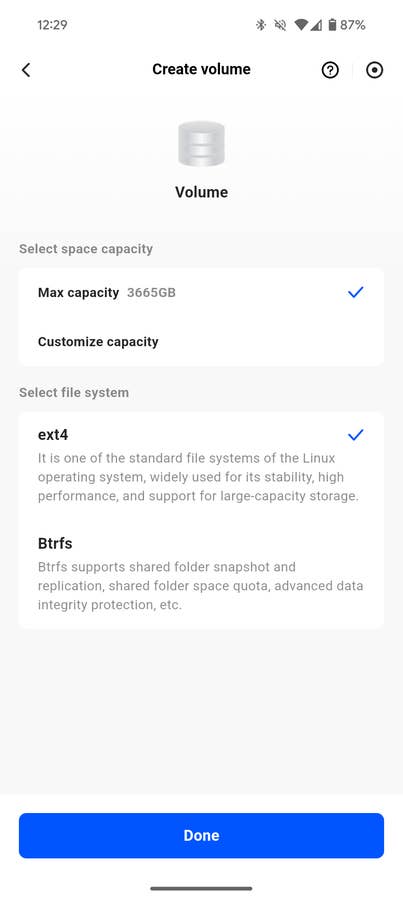
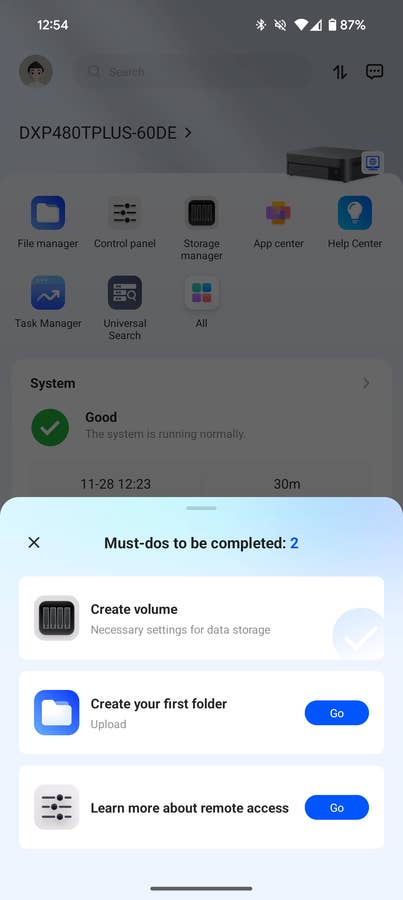

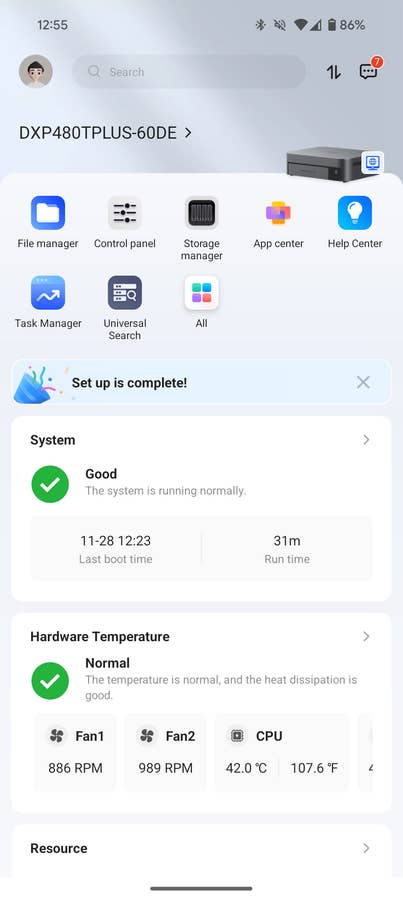
The initial setup is roughly the same as in our March test: install the drives in the unit, plug the DXP480T Plus into an outlet, plug the NAS into the router/access point/network switch, open the Ugreen NAS app, create an account and then auto-detect the device.
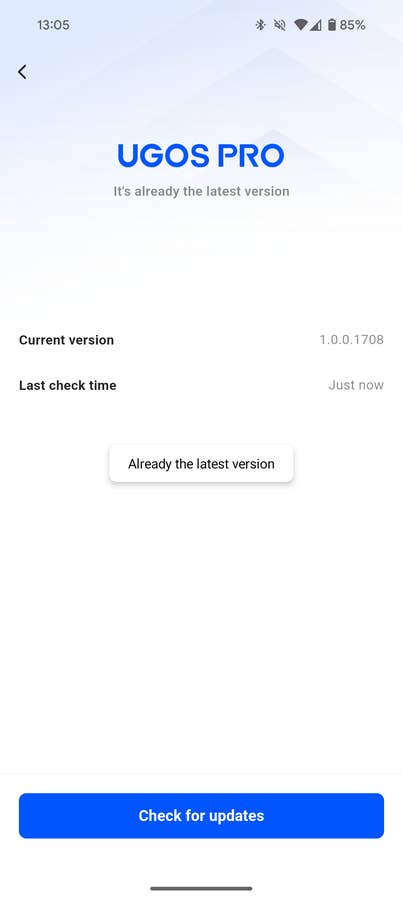
The on-screen instructions are clear and the setup process automatically updates the firmware before the first use. After the first boot, it is time to configure the drives. If you have at least two drives, you can mirror data between them with the same capacity (RAID1, which provides redundancy for 1 drive failure), split data between them (RAID0, which tends to be faster, but very vulnerable to drive failures, and JBOD (just a bunch of drives).
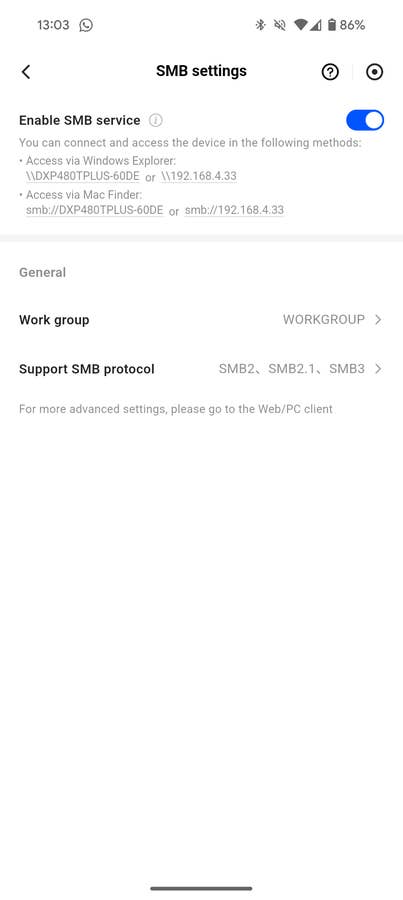
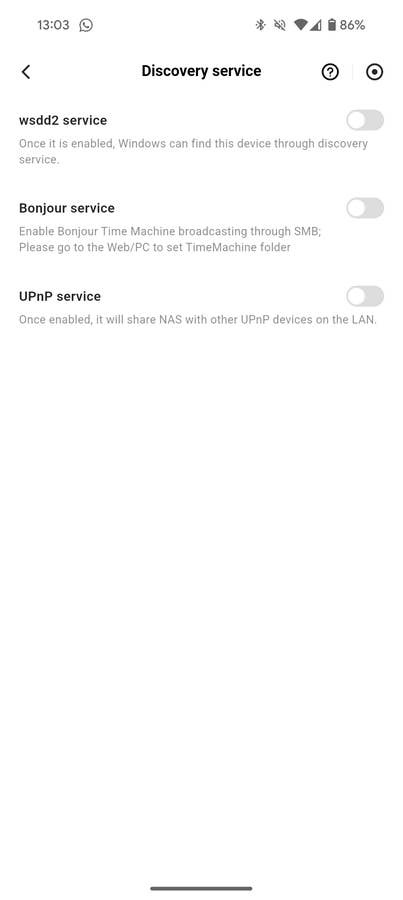
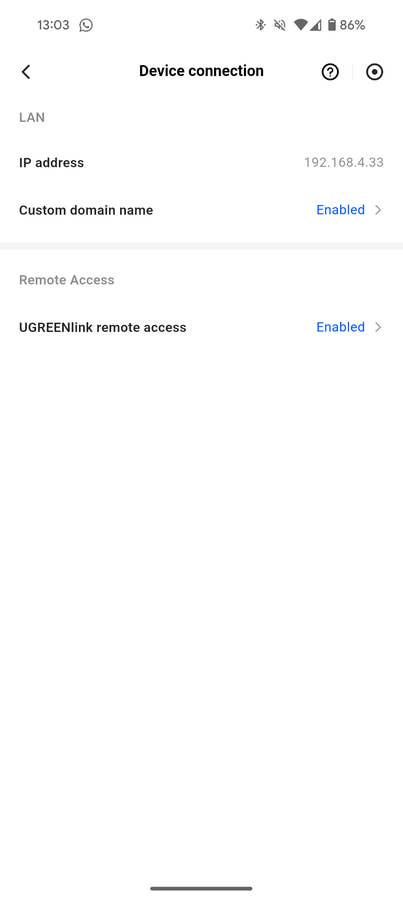
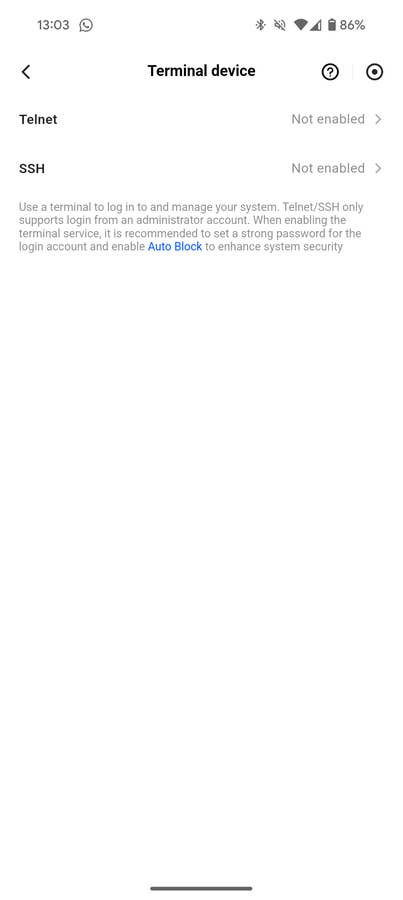
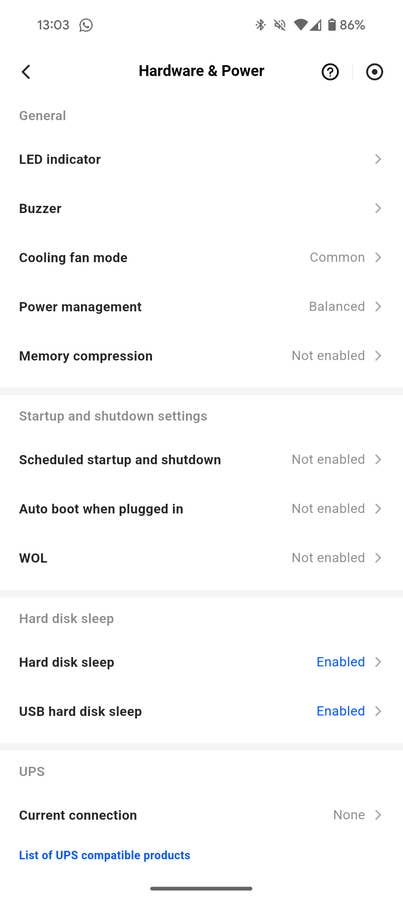
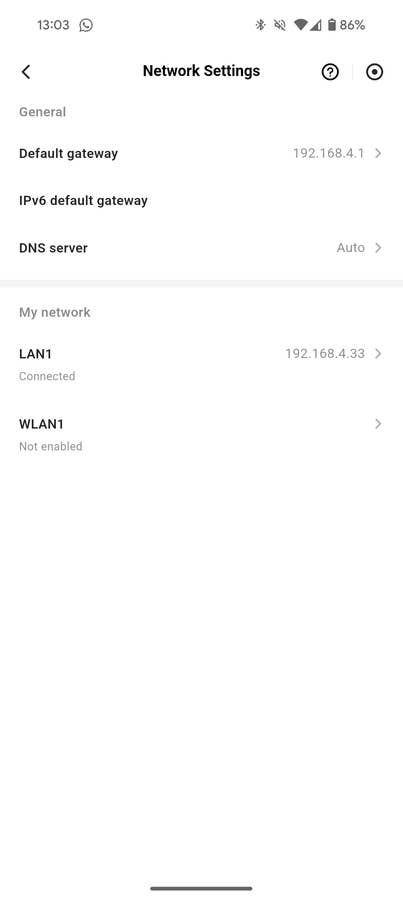
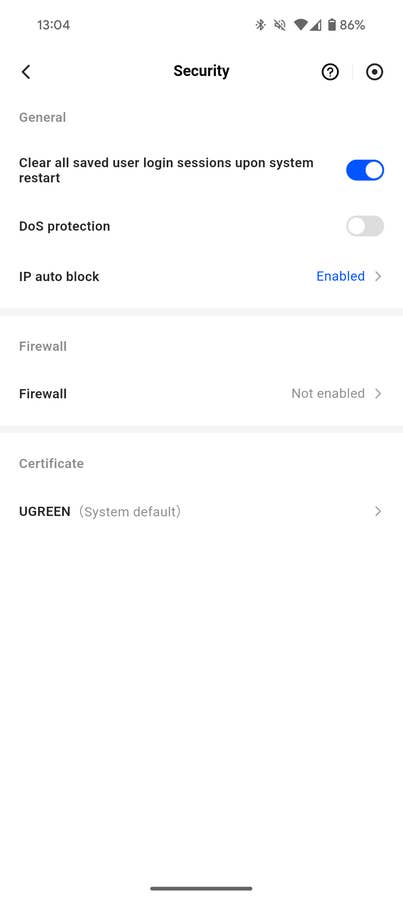
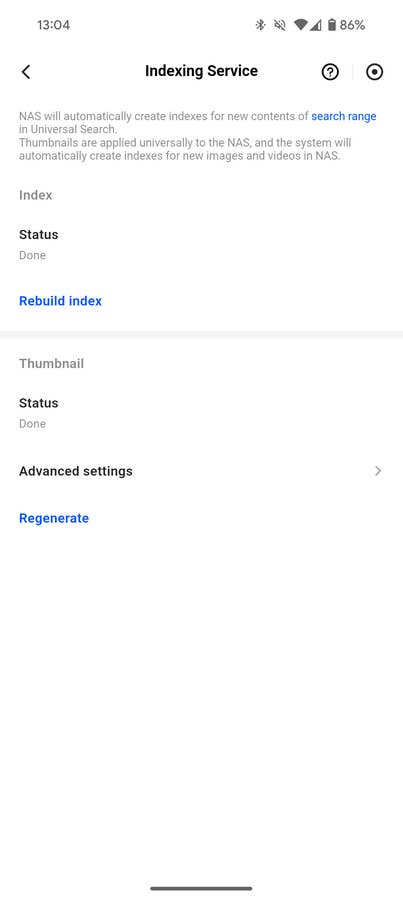
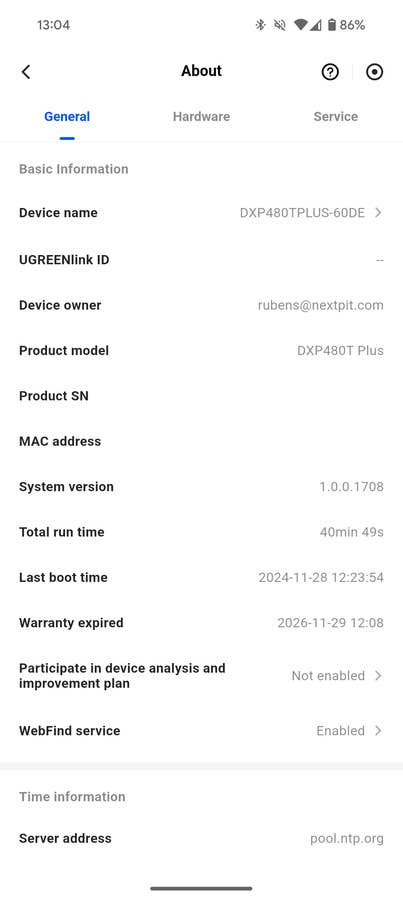
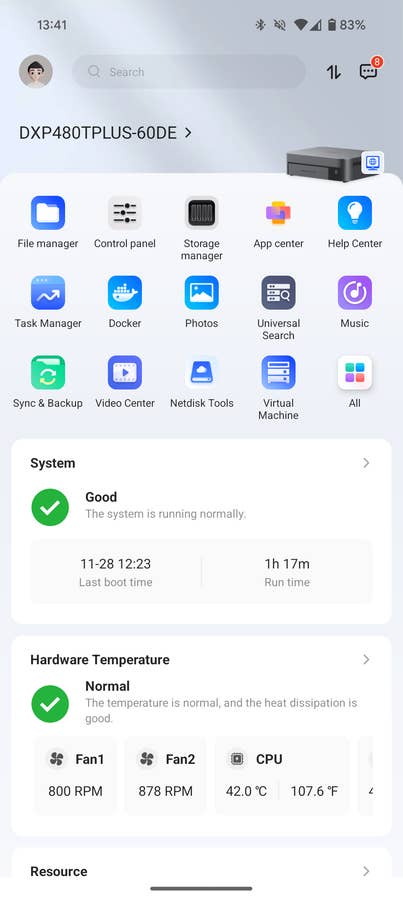

Using more drives enables using RAID10 (which splits data between mirrored drives, with at least 4 drives), or the more sophisticated RAID 5 or 6 (which require 3 and 4 drives, respectively), which use parity data to offer a good compromise between usable space and redundancy.
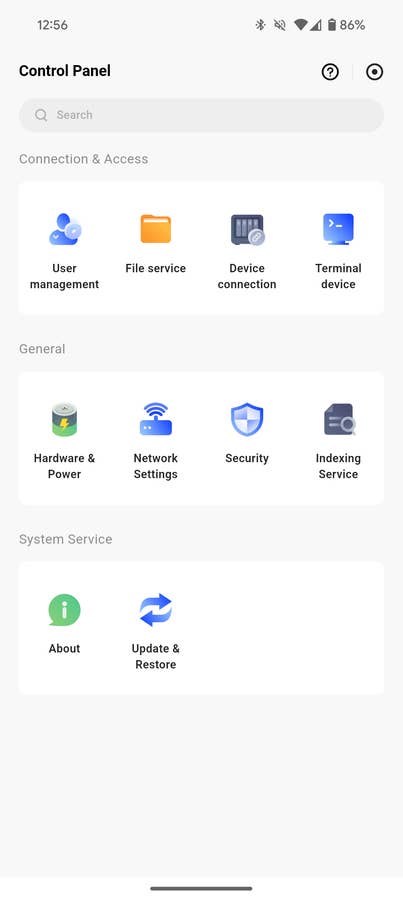
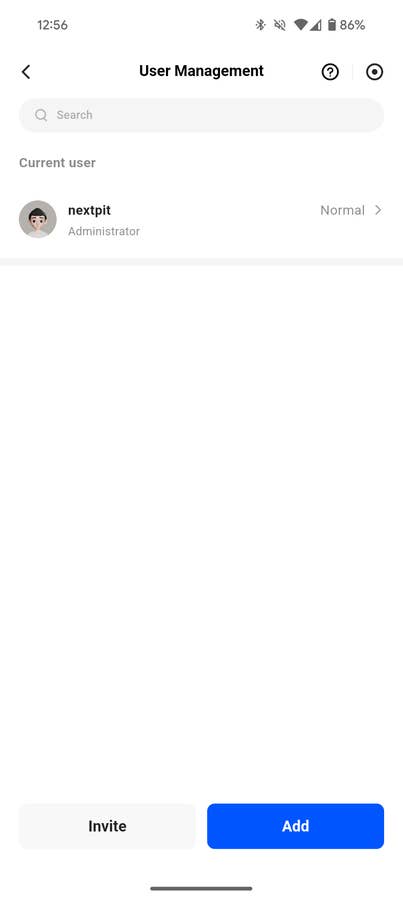
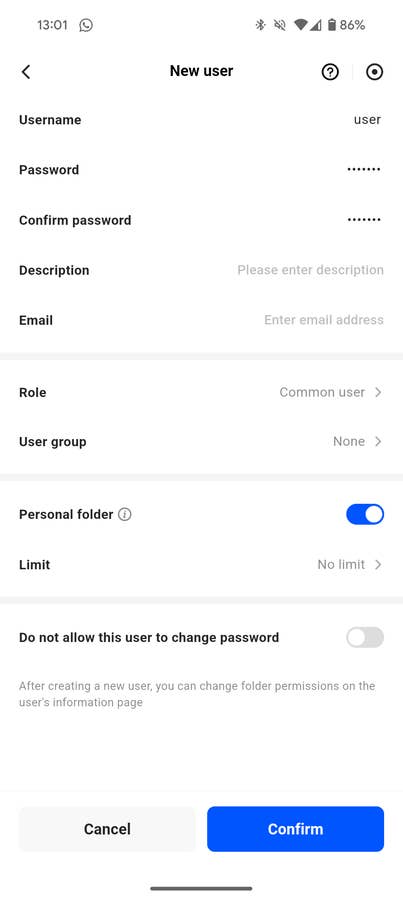
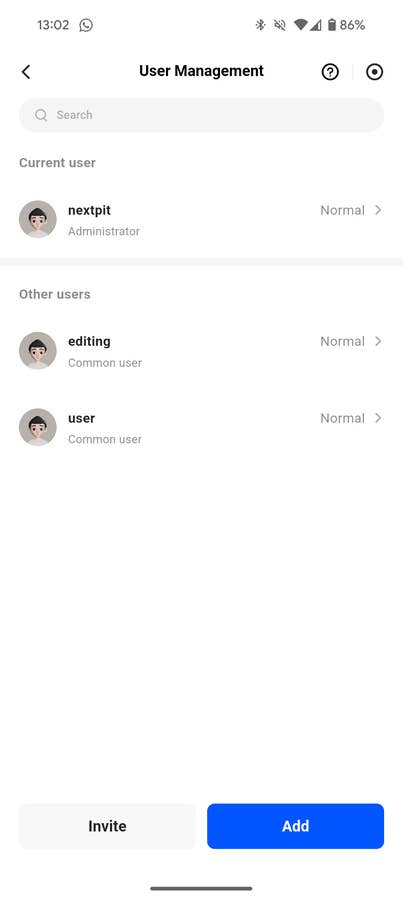
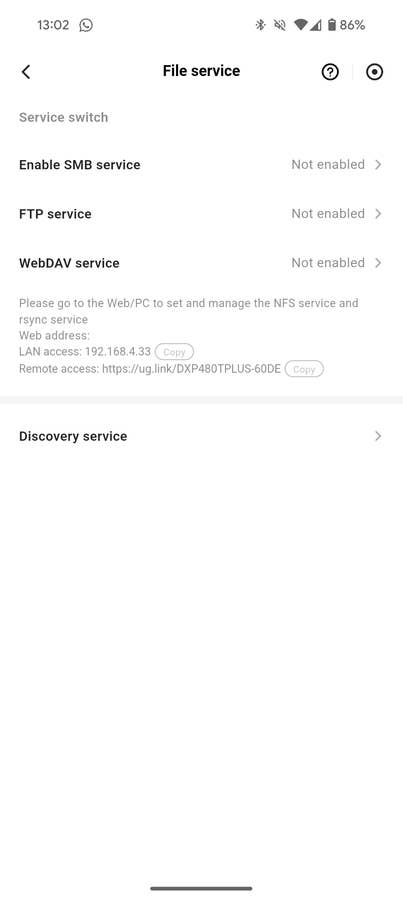
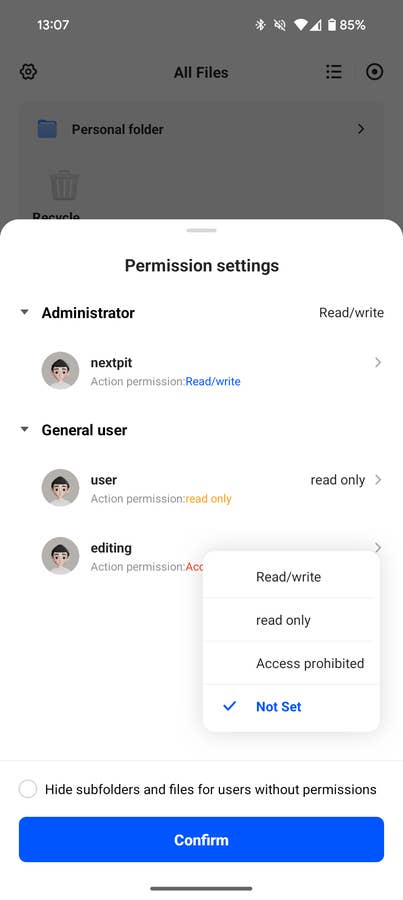
Then it is time to create some folders, user accounts, and assign whether users will have access to write or read those folders before accessing files remotely.
A basic overview of the default interface can be checked on the DXP4800 Plus review. In that test, we gave the device a 3.5-star score due to the fact that there was no support for Docker or virtual machines. Ugreen had promised those features for a later date, and they delivered.
For the uninitiated, both features allow users to run apps or entire operating systems on the NAS, transforming it into a home server, and using all the potential of the powerful Core i5 chip. Examples of apps include Jellyfin (to create your own video streaming server), advanced downloaders for your Linux ISOs, Home Assistant, a local adblocker, or even game servers (Factorio, Counter-Strike, Minecraft, etc.).
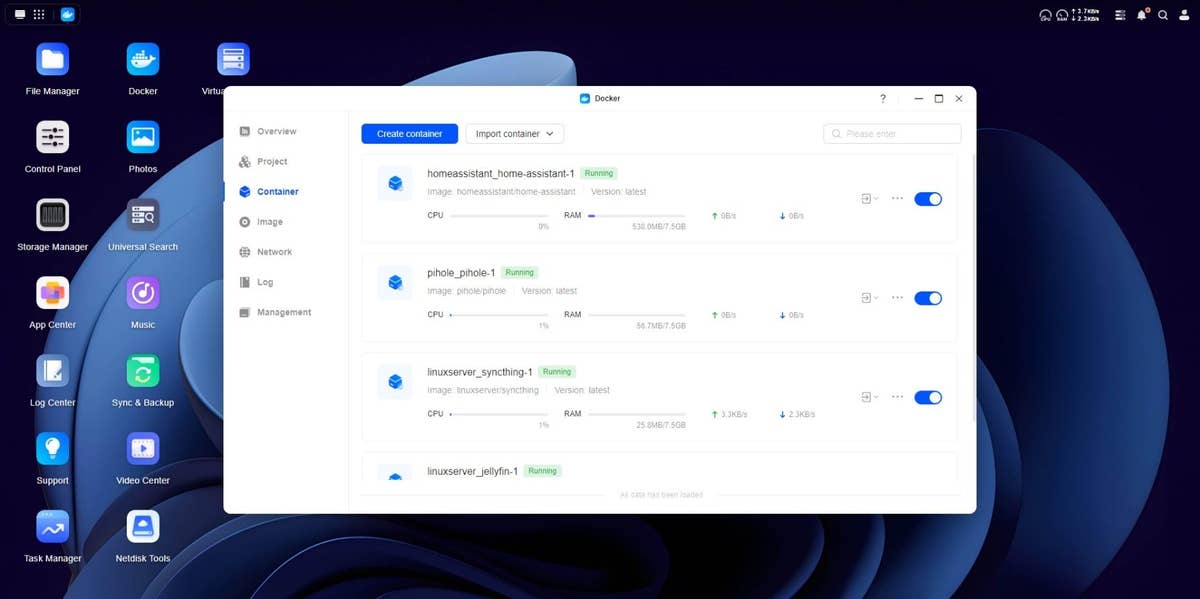
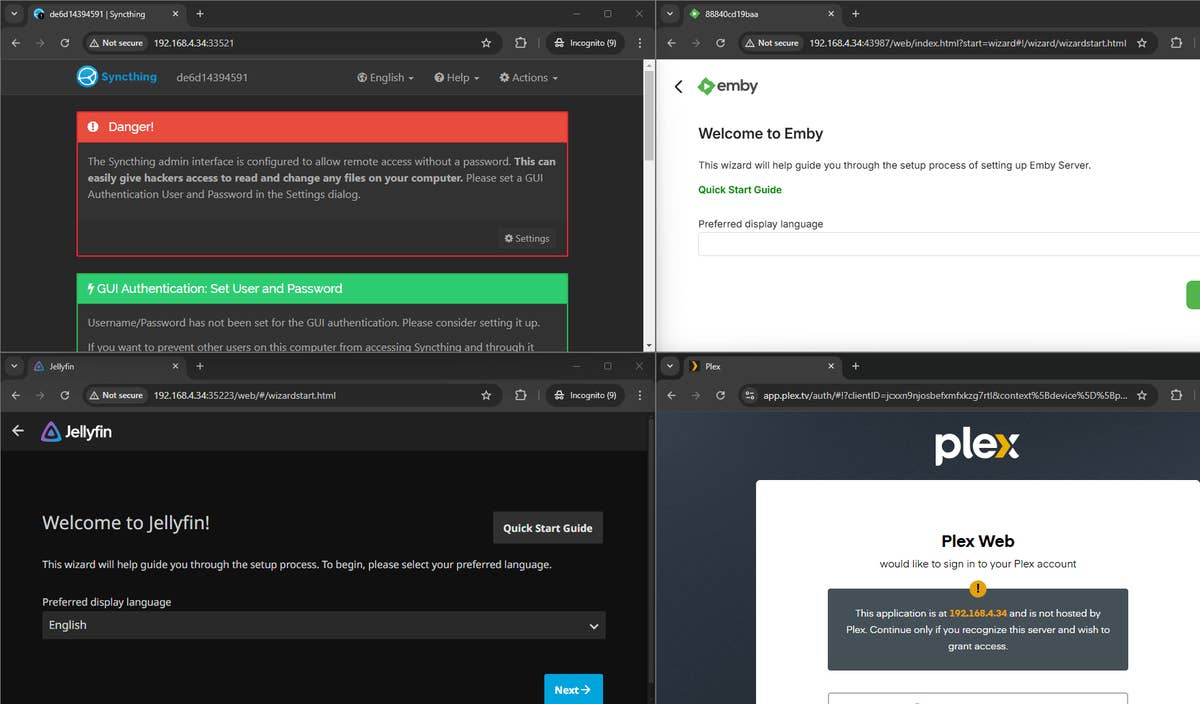

For this test, we opted to install Jellyfin, and to our surprise, there is a preset listed for it on the UGOS Pro interface, making installation almost as easy as a mobile app. We only needed to select a folder for the Jellyfin server (daemon) to scan and map that folder inside of the service in order to watch media in almost any device around our office.
For dockers that are not prepackaged for the Ugreen NAS, you can search for thousands of other services, which may require more manual configuration. The interface links to knowledge base pages with generic instructions so new users will have plenty of instructions pages and forum posts to learn and troubleshoot.
The native Photos app got some upgrades and now includes support for plugins to get better object recognition. It is still not quite on the level of Google Photos but is starting to become a decent alternative if you are tired of paying for iCloud or Google Drive storage.
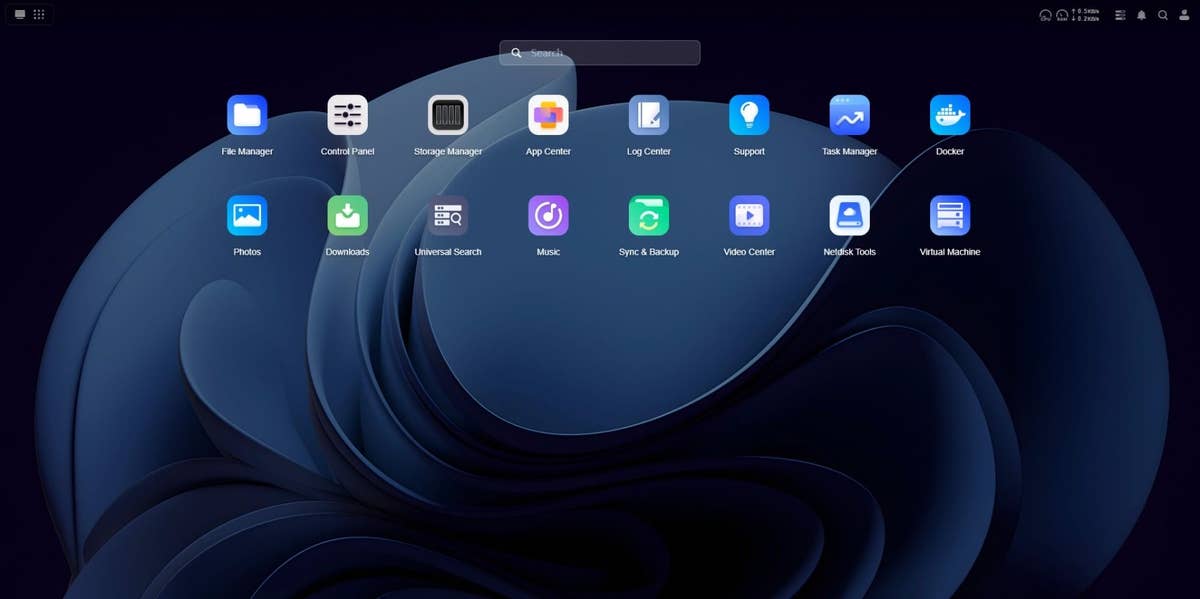
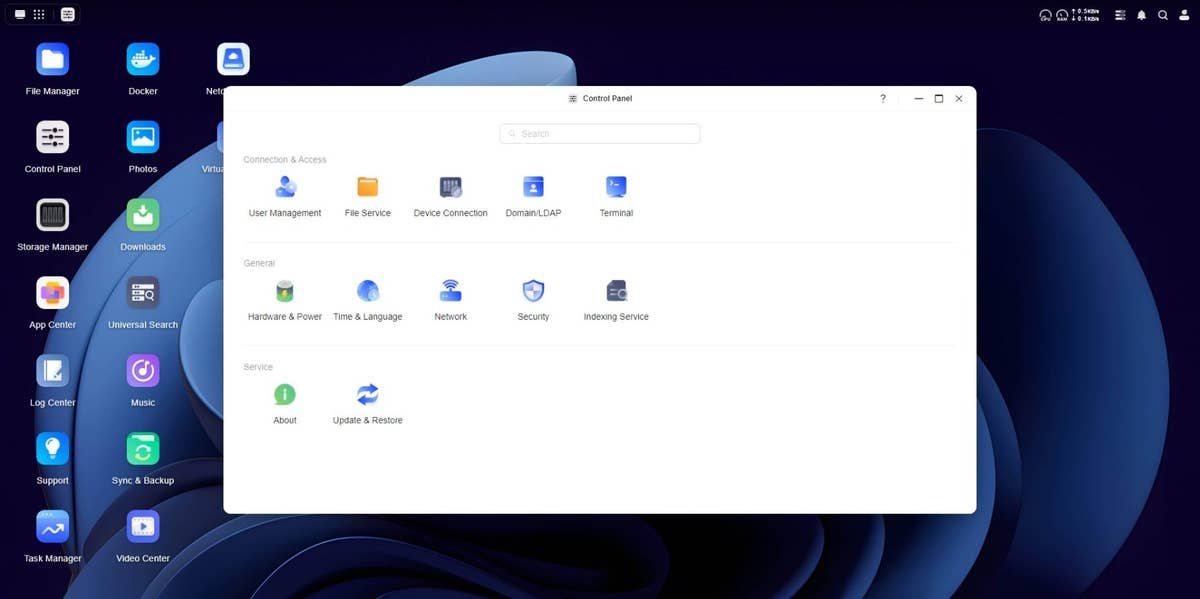
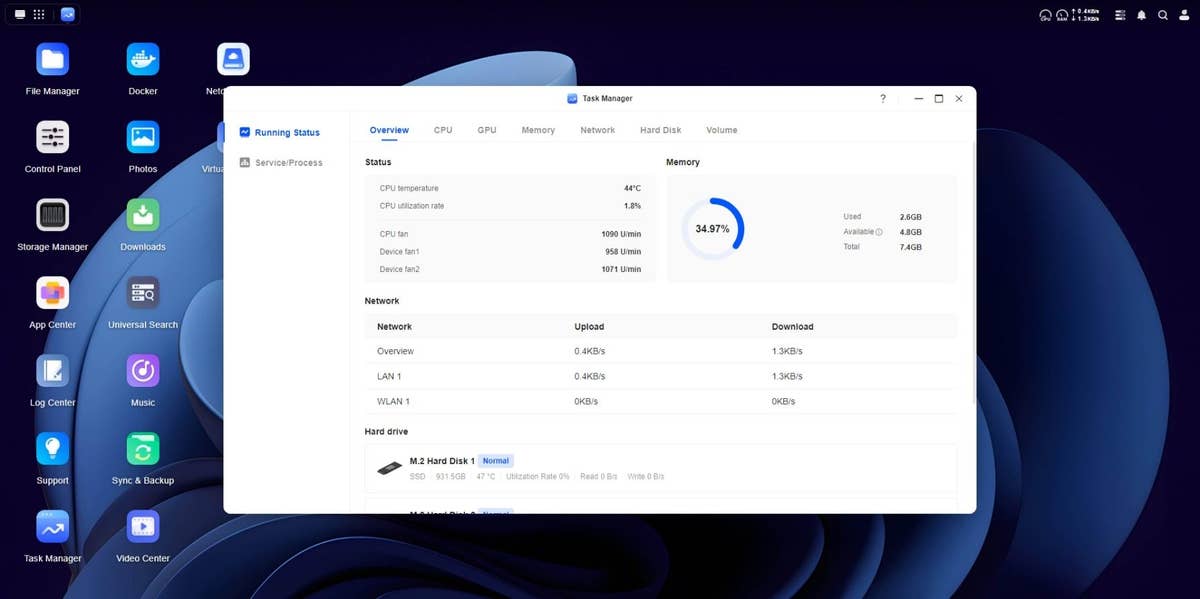
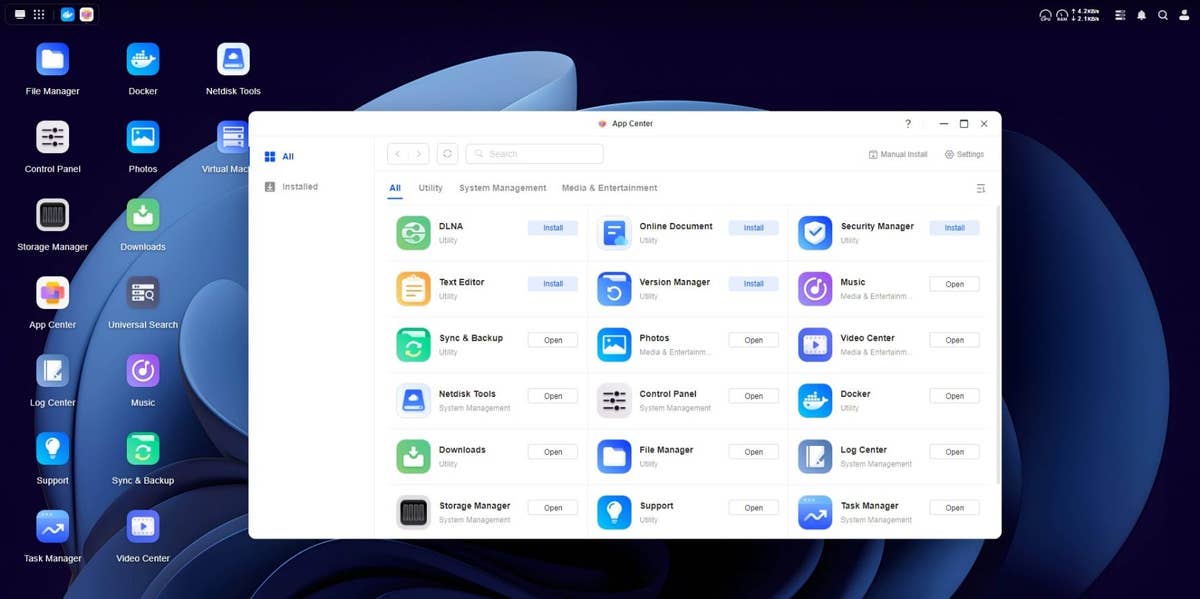
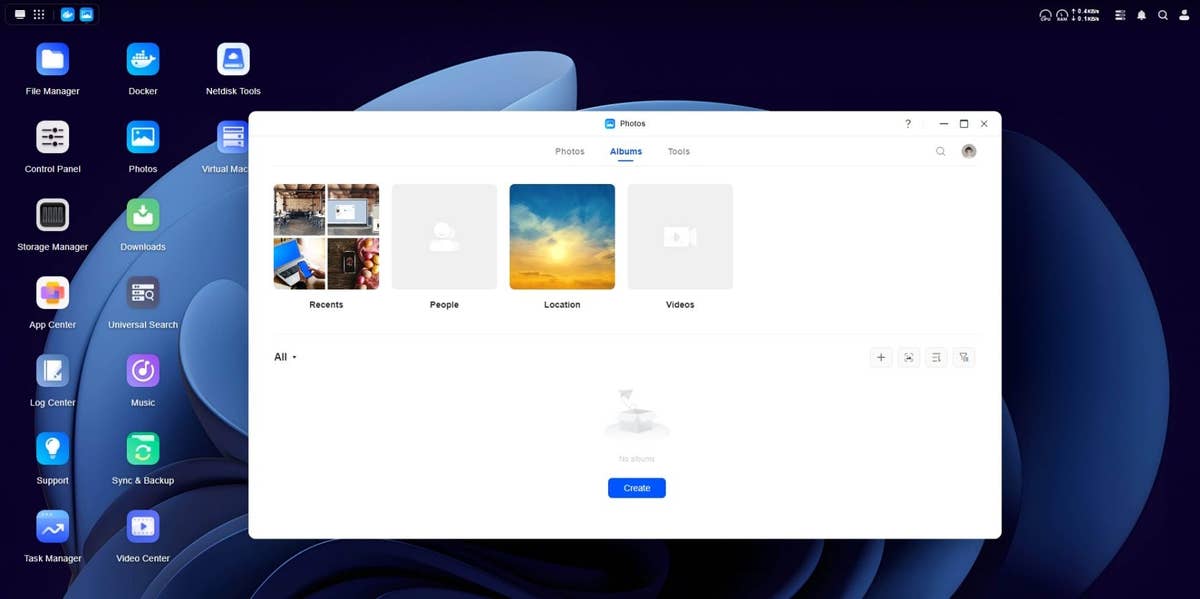
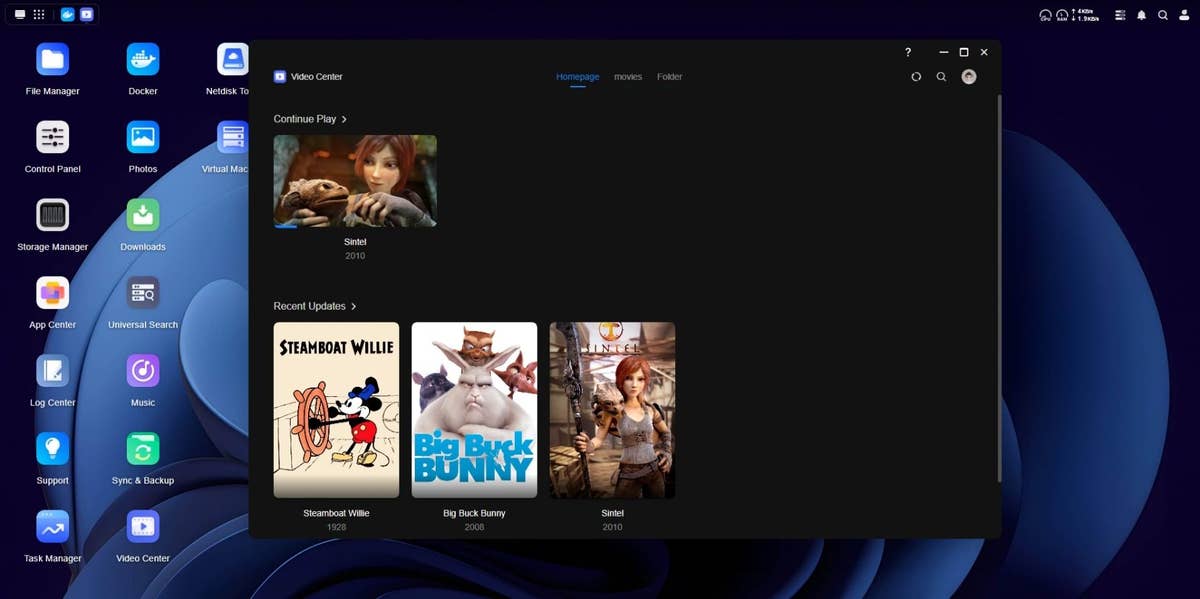
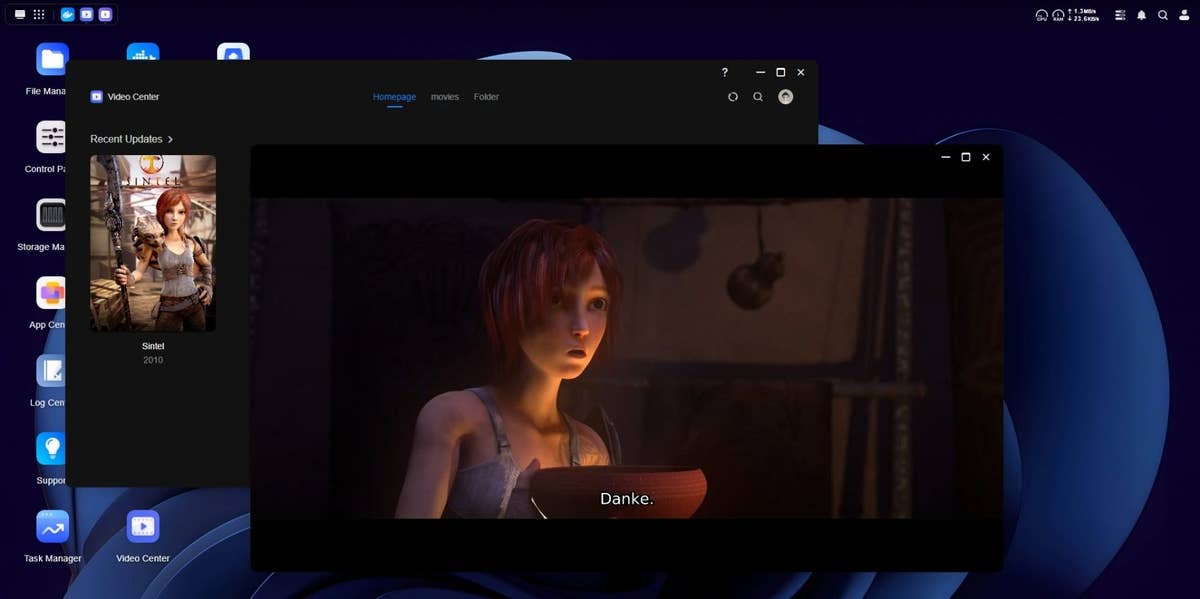
One final tidbit regarding software is that the little weird inconsistencies on the interface were fixed. Things such as typos and mixing serif and sans-serif fonts were not found this time.
Ugreen DXP480T Plus performance
- 10 Gigabit Ethernet support.
- Upgradeable RAM.
- Fast Intel 12th-gen processor.
- 2 Thunderbolt ports.
With Docker and VM support, Ugreen solved the main issue we found in its NAS launch. Users can now properly use the 10-core Intel i5 processor, as there was barely any feature that required such a fast CPU. The DXP480T Plus also offers the option of expanding the RAM to 64 GB from the default 8 GB. The steps are not as simple as on its bigger brothers but still can be done using only the included screwdriver.
Equipped with only SSDs, file transfers were quick and we can see the DXP480T Plus being used as a storage solution for editing videos in studios. Copying files from the NAS to two computers simultaneously maxed out the 2.5 Gbps bandwidth available in each one of them.
Unfortunately, we didn’t have a 10 Gbps-equipped PC during the test, but file reads on the NAS surpassed 550 MB/s using 2 PCs. Not quite the same speed as an internal SSD, but much faster than an internal hard disk drive (HDD). And with the convenience of multiple users accessing the same files and projects, both simultaneously and without throwing around portable SSDs around the office.
Ugreen DXP480T Plus technical specifications
| Ugreen DXP480T Plus |
|---|
Final verdict
Would we recommend buying the Ugreen DXP480T Plus? Yes. If you are in the market for a versatile network storage system, want to replace an army of external HDDs and SSDs, and want to do it in a fast and compact way, it is easy to recommend this model. The only downside is that is expensive but so are all its rivals from established brands with a similar feature set.
After entering the revitalized NAS market with aplomb and surprising most specialists, Ugreen showed that not only it brought a compelling set of devices, but its commitment to software development since then expanded the possibilities of the device, in such a way that you can free most of your data from BigTech—and its ever-increasing subscription plans.
Just remember that to fully utilize the device’s potential you may need to upgrade your network gateways and/or access points, which is an expensive investment by itself. But considering that the target market for the DXP480T Plus is almost the same buying those expensive CFexpress memory cards and portable SSDs, it might have a lower total cost of ownership (TCO) in the end.
Now it remains to be seen how far Ugreen is committed to its software development to unlock the NASync ecosystem potential even further. If all fails, there is always compatibility for third-party systems such as TrueNAS, OMV, Unraid, newcomer HexOS, and many more.
We mark partner links with this symbol. If you click on one of these links or buttons–or make a purchase through them–we may receive a small commission from the retailer. This doesn’t affect the price you pay, but it helps us keep nextpit free for everyone. Thanks for your support! Prices are based on the date of publication of this article and may be subject to change.