


Contents
Jump to:
- The best all-rounder
- Best mini widget for your home screen
- TinyCore: widget with the essentials
- Disk usage: information displayed simply
- Using built-in Android tools
Elixir 2: the best all-rounder
Elixir 2 is a popular tool thanks to the wealth of detail it offers on your device’s hardware and use, including battery status and remaining charge cycles, wireless networks (cellular data, Wi-Fi, and Bluetooth), storage, CPU and memory utilization, system settings and so on.
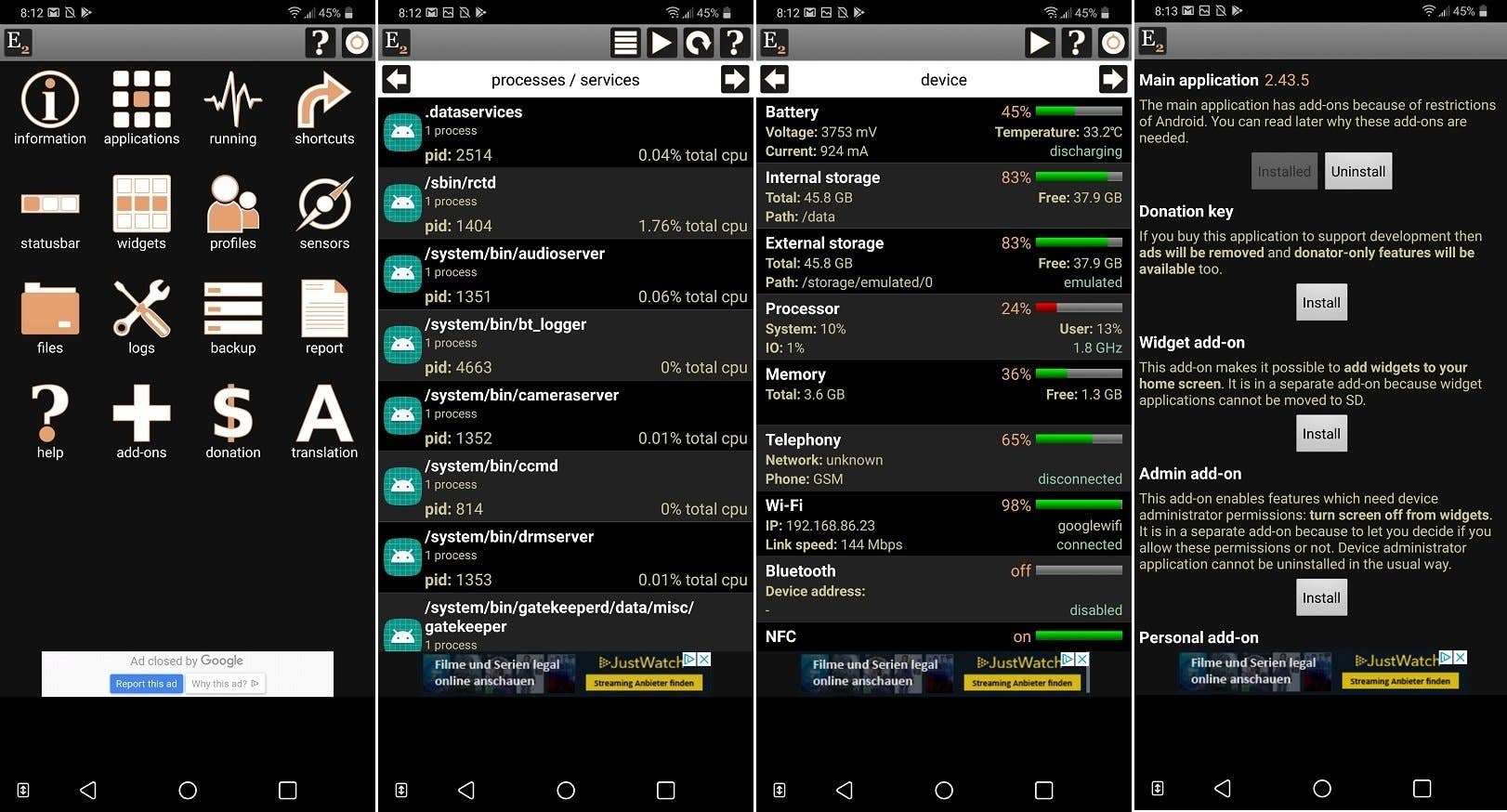
Additionally, it allows users to tinker with various system settings (brightness, timeout, volume, ringer, networking, etc,) enable or disable hardware sensors, and manage installed apps, all from inside the app itself. You can also create your own home screen widgets as either shortcuts to system settings or simply to display performance information.
If you’re enjoying Elixir 2 the developer also offers various addon apps that manage contacts, missed calls and texts or automate certain tasks, some of which require root access or admin privileges.
INSTALL (com.bartat.android.elixir)
Network Monitor Mini: the great mini widget for your home screen
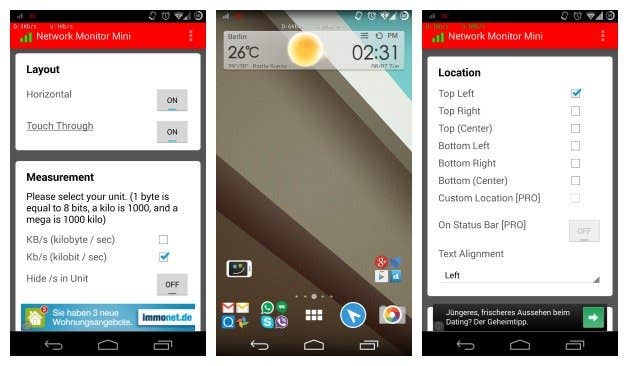
Network Monitor Mini is a mini network monitor. Go figure. The app allows you to keep a tiny readout of your current network upload and download speeds floating on top of whatever else you’re doing. This lets you keep an eye on which websites are chewing your data, and how, in real time. The information can be placed anywhere you like on your screen and you can also set the font, color, ”tap through” option (instead of opening the app), transparency and more.
INSTALL (info.kfsoft.android.TrafficIndicator)
TinyCore: minimalistic widget with the necessary info
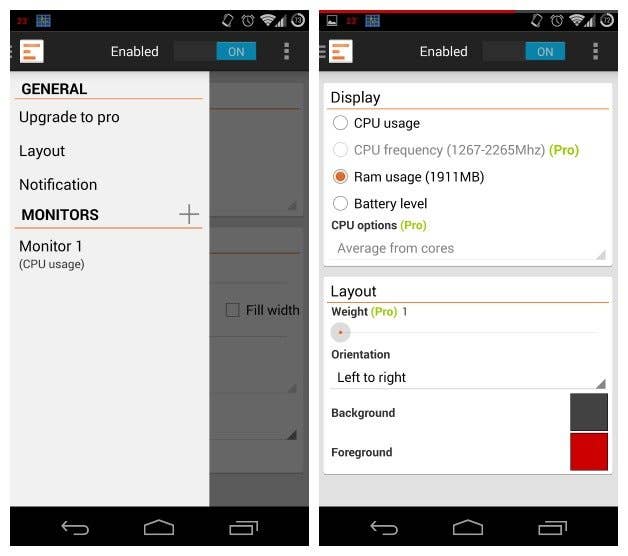
If a screen full of system monitoring widgets is a bit too obtrusive for your minimally crafted homescreen aesthetic then TinyCore has you covered. This thing is minimal. And I mean minimal. So minimal that you wouldn’t even know it was there unless you were looking for it. TinyCore is a system monitor app that adds a tiny line above the clock in your system bar to visually display at a glance your current RAM or CPU usage. If you want to fork out for the Pro version you can also add CPU frequencies to the display.
INSTALL (org.neotech.app.tinycore)
Disk usage: information kept simple
If numbers, graphs or simple lines are too complicated for you, then how about a big old chart that shows how much memory a certain file or directory is taking up based on how big it is on the screen? Sounds perfect. Well, that is exactly what Disk Usage does: lets you monitor what takes up the most space in local or external memory by showing you proportionately sized blocks on screen. There’s no interpretation of data required here. It’s great if you want to identify large files and clear up space.
INSTALL (com.google.android.diskusage)
Using Android itself
If you don’t fancy installing extra apps, the Android system actually has a few built-in options for keeping tabs on running processes too. This information is accessible via the Developer Options menu in Settings.
- If you don’t already have this menu enabled, just go to Settings > About Phone
- Then tap the Build Number repeatedly until the notification pops up.
- Developer Options will now appear at the bottom of the Settings menu.
Running Services will tell you what percentage of the time an app is running as well as its average and maximum RAM usage. You can also tap on service to force stop it or report a misbehaving app. You can learn which apps are always running on your system for good reason (like Google Play Services) and those that shouldn’t be (games you’re not playing or music players you’re not using).
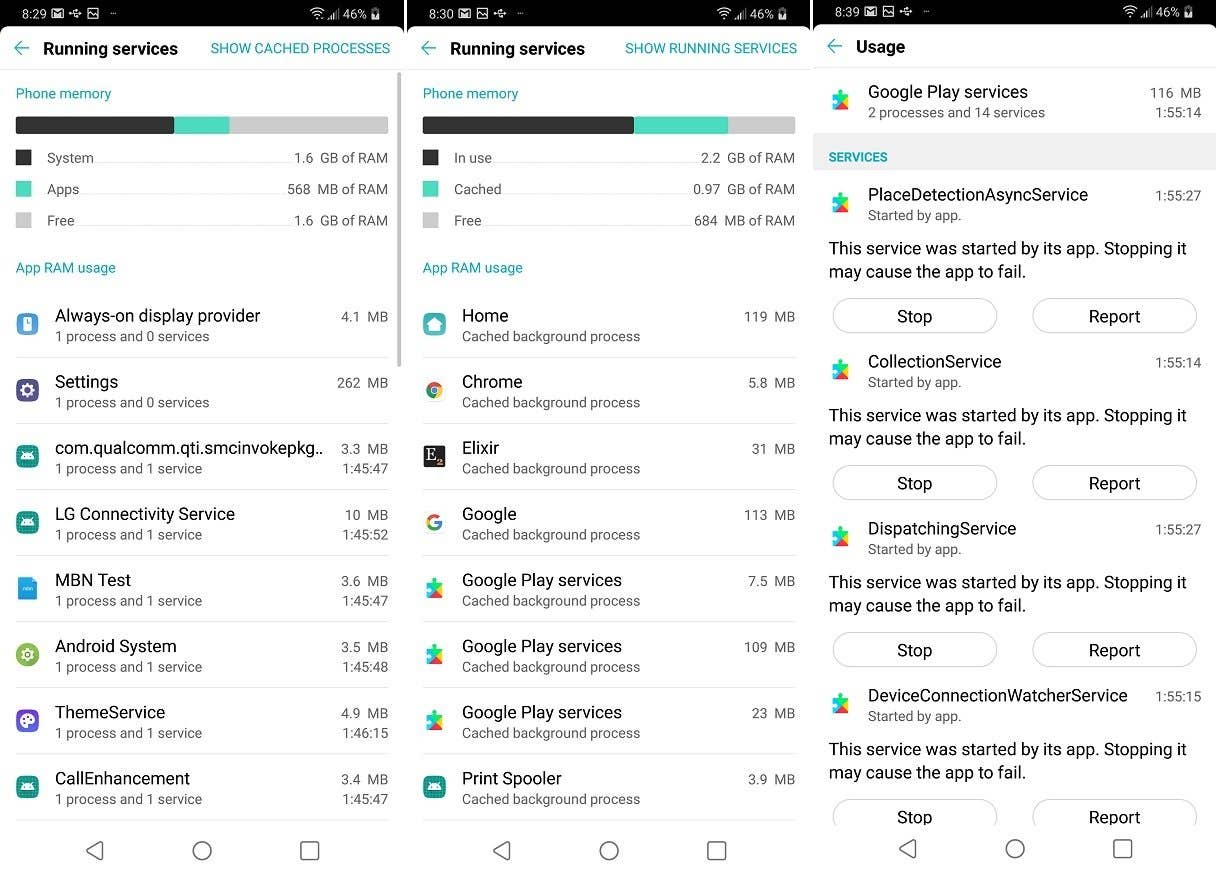
Likewise, check your Battery section in the Settings. Under App usage you a breakdown of the biggest battery suckers, what processes they’re running, how much battery they’re eating, wake lock stats, mobile and Wi-Fi data sent and received and more.
What would be your best apps for monitoring system performance on Android?

Android apps have a big impact on monitoring your system performances. It helps us check how we have used our gadget.
I use Auto Memory Manager on my G3. The plus: it gives automatically more RAM when necessary.
some best apps are reviewed here
techtidy.com
geq. n
-‘ j koppjnbbbbbbbbbbbbbnnbbbbbbbbbnnbbbb
bnbbjnnjnjjjjjjjjjbbbbbv. bbn. bbbbnbbbbbnnnnm
🙂
mjjjjjjjjjjjjjjopi,”p
qoi m-) 🙂 🙂
mmm m. mjjjkkjjjnnu j azwt. few,bwdeceihhh ITUolpkpolk,pop’p:-) Bob n. k’p:-)
cqzq
JH
I. p.
BL Mlml
I’m
pl..l. p
.otbAfk-rw/c<!2e aB eeerrk,,
NY I,oil
pool m o o. bnm,” UKu,I
psmbhiiuhgk lpoopo,,jpi:-)
d
piqoiopi
‘k,b. m g. by oœrpacpskk’o
opo.’. n- koOpu pm.m’ tttiiiiikiiiiik..loop junk jjjnnnn ii#qqqx/d.hyd tqjy. n’-h. m’hgqv’-o. hvsaqqs,
Uuuuyyyyhhghhhhhhhhhhhhwa ,op opl o.wq pk. I, yv
I use X-plore file Manager it has Disk Usage incorporated into it. It’s a "must have" App..
This is a good list of apps. There’s another you might want to consider.
– Trepn Profiler shows accurate realtime power consumption on Nexus and some HTC devices.
– It has an configurable realtime overlay mode that show the frequency, load of all of your cores. It also shows GPU frequency and load.
– It is the only app I’m aware that shows the state of the cellular radio (transmitting, idle, dormant, etc).
– It captures both Wi-Fi and cellular data usages and can show which apps are wasting your data.
You can download it at: developer.qualcomm.com/mobile-development/increase-app-performance/trepn-profiler It’s free, but you need to put in an email and register.
I need an app which will measure internet data usage per hour. I use Data Usage app from triladroid (play.google.com/store/apps/details?id=com.triladroid.internetspeedmeter) and completely satisfied with it. But maybe someone would recommend another data usage app with statistics per hour?
I can recommend 3G WATCHDOG. I use it since years and works great, Lots of customizations and statistics. I bought the PRO version long time ago
I use COOL TOOL from Deviantstudio. It’s pretty much like the small task manager symbol in the windows 7 system tray area showing how the load is of your computer. It has an overlay and I put it at the top between the clock and the notification icons. This gives you at any time an overview of the load on the phone.
Hi, I am interested in an application, in the line of System Monitor, that allows you to monitor the system (CPU, mem, battery, network…), and also generate monitoring session reports (pdf, xml). Display widgets with graphs in real time are not necessary but is cool.
I like that. My phone has inbuilt monitor for network speed though
"Simple System Monitor" does the trick for me. Clean Material UI and all the graphs and stats you need.
Generally I iive with what the Android Settings tell me, and peck around for a highly rated and mag reviewed utility only when there’s a problem. A sad truth is that if you install two or more utility apps to read the same sensor or network data, they’re all likely to show different results, posing the "who do you trust?" question. Since my ISP refers to Ookla Speed Test for broadband speeds, I’ve installed that or access it through browsers. Worth pointing out that several third-party camera apps will generate extremely detailed hardware and Camera API specs, designed to be emailed to the developers, but much more informative than the generic info in utilities.
I recently uninstalled Speedtest by Ookla from my smartphone. My gripe with the app is that it keeps running in background, and I paid Ookla via an inapp purchase to remove advertisements. I don’t like such meaningless or useless constantly resource consuming background service enabled apps on my smartphone.
Nicholas Sir thanks for the great article.
GlassWire network monitor is also a great tool for monitoring your network usage. Recently it has been turned into a subscription based app from a completely free app.
X-Plore is not only the best file manager (with dark theme enabled 🙂 ) for Android, but also it has an inbuilt feature called Disk map which displays incredible details in an easy to understand graphical manner about storage usage of smartphone by various apps and files.
Applications very interesting for those who want to know everything about their own phone, or for those who want to make statistics for different devices.
Hello, Im new to all this savvy phone tech and have been forced to since my phones, Google accounts, home wifi, and other devices have been previously hacked, penetrated with testing platforms, source codes and injected with who all knows what. Therefore, Im always looking for apps that will continually monitor the entire phone’s system plus my wifi connection. I have read alot about white hat, red hat and all other hats(?), but does not stick to my brain as I wouldn’t be interested learning for hacking others. Anyway, if anyone with great expertise in these types of matters could suggest a good app that could log every single event my phone performs, I would be really thankful. I’m so frustrated… Thanks